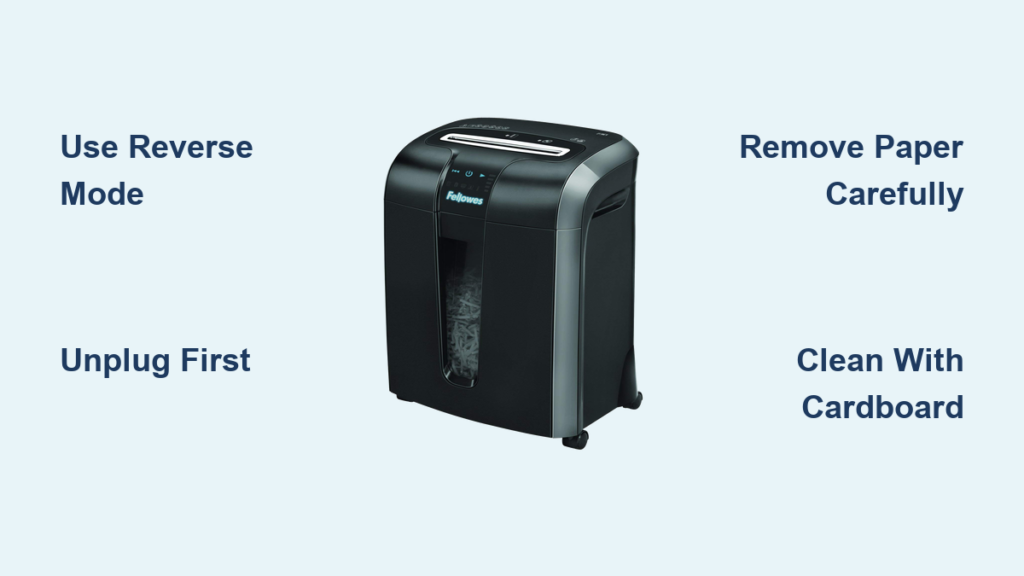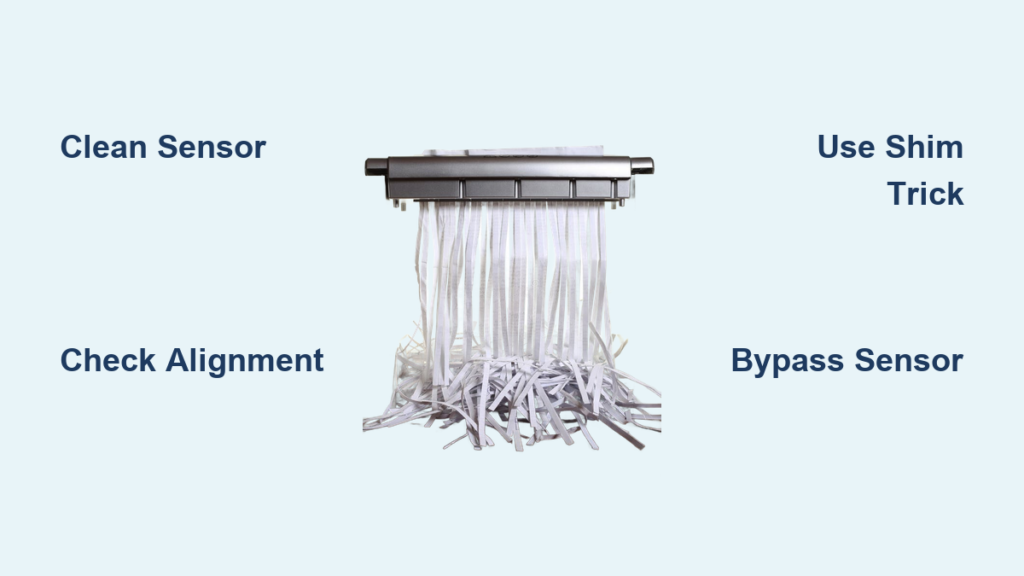
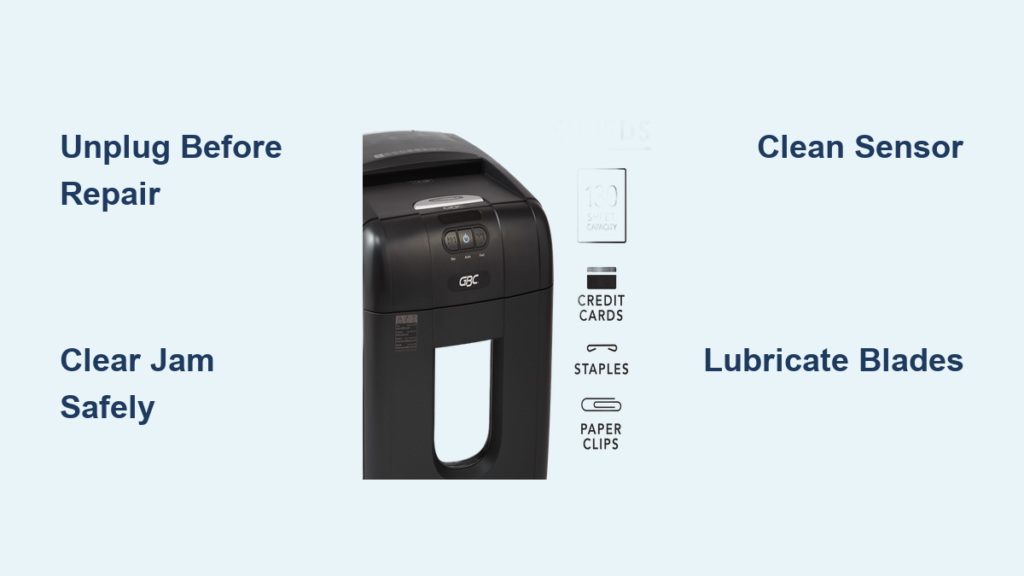
Is your GBC paper shredder jammed, unresponsive, or running non-stop? These common problems disrupt office workflows, but most have simple fixes you can handle yourself. This guide covers step-by-step solutions for the most frequent GBC shredder issues, from clearing stubborn jams to resetting thermal protection and cleaning critical sensors. Whether you own a Shredmaster 4220S, GLX2030, or another model, you’ll find practical troubleshooting advice to get your machine running again.
Immediate Safety and Reset Steps
Before attempting any repairs, protect yourself and your shredder with essential safety practices.
Unplug Before Any Intervention
Always disconnect the shredder from power before inspecting, cleaning, or clearing jams. Even models with auto-reverse features can activate unexpectedly if paper shifts. A moment of caution prevents serious injury from sharp blades or electrical hazards.
Allow Thermal Reset Time
If your GBC paper shredder troubleshooting reveals a sudden stop during use, the thermal protection has likely triggered. This safety feature cuts power when the motor overheats, which is common during long sessions or heavy loads. Models like the Shredmaster 4220S lack a manual reset button and rely on automatic cooling.
Wait 30 to 60 minutes before attempting to restart. Avoid repeated start attempts, which can worsen overheating. After cooldown, test with a single sheet of paper.
Use Safe Tools for Jam Removal
Never use metal objects like screwdrivers or scissors inside the feed slot. They can nick or misalign cutting blades, leading to permanent damage. Instead, use tweezers for small paper fragments, plastic picks or wooden skewers to gently pull jammed paper, and small brushes for debris near sensors. Keep fingers clear of the cutting head at all times.
Clearing Paper Jams and Restoring Reverse Function
.jpg)
A jammed shredder is the most common issue, but improper handling makes it worse.
Identify Jam Type and Location
Look for these common signs:
• Paper feeds partway then stops
• Motor hums but blades do not turn
• Reverse function does not engage
Use a flashlight to inspect the feed opening. Check both front and rear areas for visible blockages.
Step-by-Step Jam Clearance
Follow these sequential steps to clear a jam:
- Unplug the unit
- Wait 30 minutes if recently used for thermal cooldown
- Switch to reverse mode and press the button briefly to pull paper backward
- Manually extract paper using tweezers or a plastic tool, pulling slowly to avoid tearing
- Check for hidden fragments behind rollers or under blades
- Resume forward operation only after full clearance
If reverse does not work after clearing debris, the drive belt may be broken or motor damaged.
Prevent Future Jams
These practices help avoid recurring jams:
• Feed paper in small batches and stay under sheet capacity
• Avoid overloading, as even one extra sheet can cause jams in micro-cut models
• Lubricate blades every 15 to 20 minutes of continuous use
Fix Continuous Running (Auto-Start Malfunction)
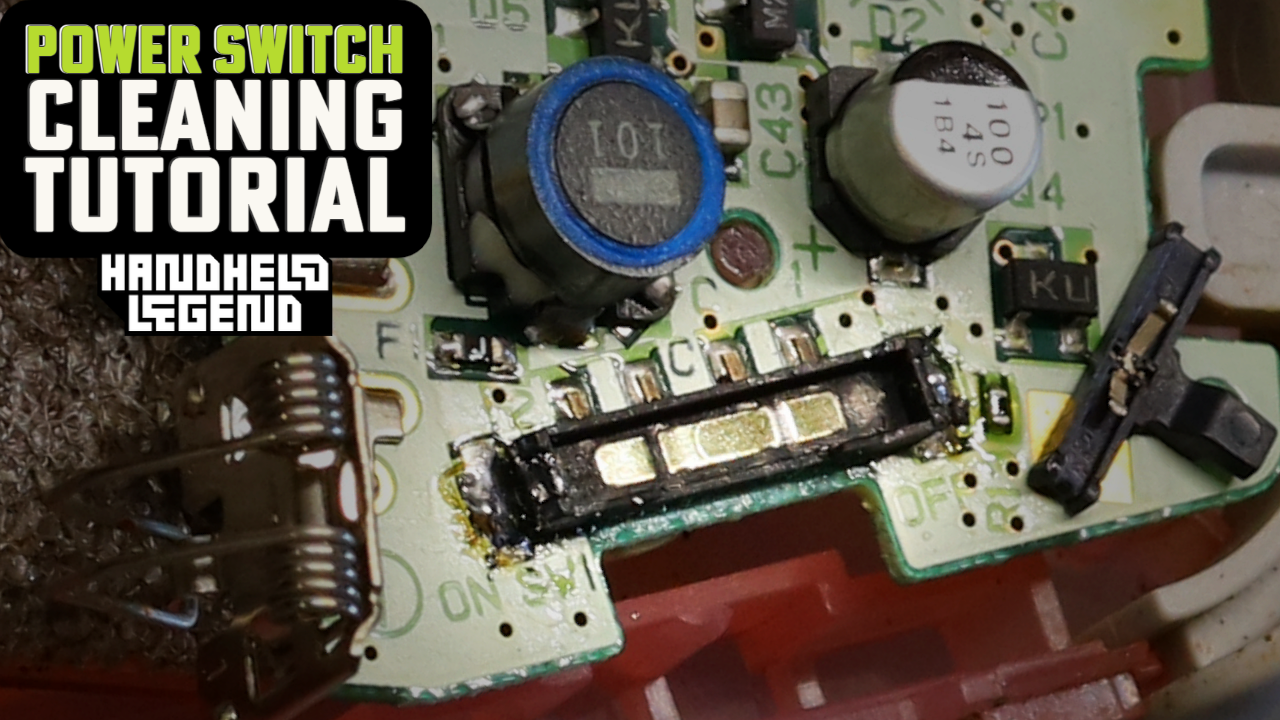
Your shredder runs non-stop? The infeed sensor is likely blocked.
Locate the Flipper Switch Sensor
In models like the GBC GLX2030, a small plastic flipper switch sits near the feed tray. When paper enters, it pushes the flipper down and triggers the motor. Dust or paper scraps can jam it in the on position, causing continuous operation.
Clean the Infeed Sensor Safely
Follow these steps:
- Unplug the shredder
- Turn unit upside down so the blade assembly faces up, protecting your floor with a cloth
- Locate the flipper switch, a small lever under the feed throat
- Clear debris from beneath using a wooden skewer or plastic pick, avoiding hard pressure
- Blow out dust with canned air
- Test by plugging in and inserting a single sheet of paper
The motor should start only when paper contacts the sensor and stop immediately after paper clears.
Resolve Bin Full Light Errors
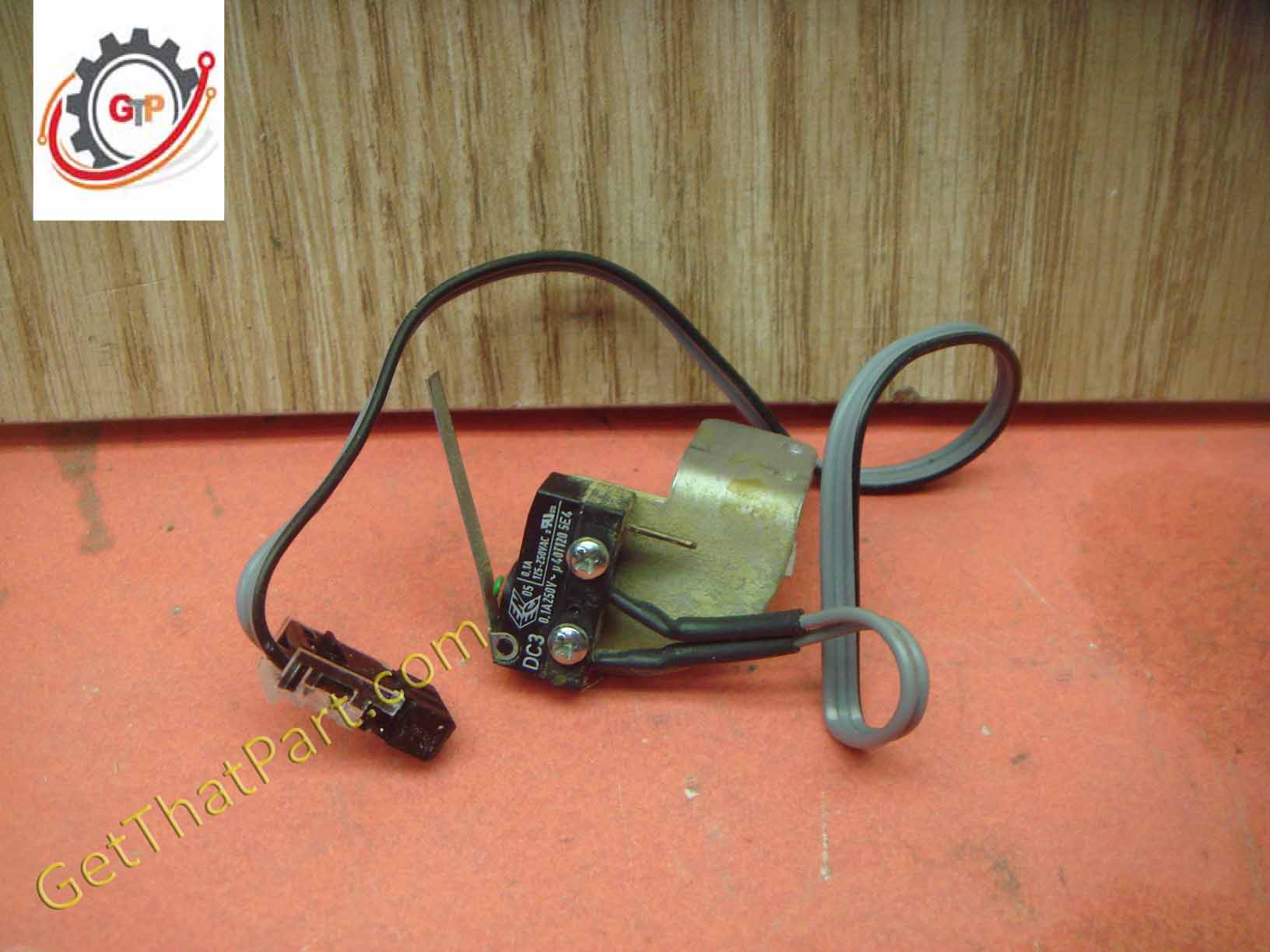
Even with an empty bin, the light stays on? Sensor interference is the culprit.
Reseat and Align the Waste Bin
Misalignment triggers safety interlocks. Remove the bin completely, wipe contact points on bin and shredder base, then reinsert firmly until it clicks into place.
Clean the Bin-Full Sensor
This sensor detects paper level via optical beam or mechanical arm. Empty the bin, use canned air to blow dust from the sensor port near the bin base, and wipe the lens or switch with a dry microfiber cloth. Avoid liquids, as moisture damages electronics.
Replace Shredder Bag Early
Paper buildup in bags can block sensor paths. Replace bags when three-quarters full, not completely packed.
Restore Power: Shredder Will Not Start
No response when pressing On? Rule out simple causes first.
Verify Power Supply
Check the outlet with another device. Ensure the power cord is fully seated in both outlet and shredder. Test a different wall socket and avoid extension cords or power strips.
Confirm Bin and Sensor Status
Many GBC models have safety interlocks. The bin must be properly seated, the auto-start sensor must be clean, and the thermal fuse must be reset. Re-seat the bin and clean sensors before assuming motor failure.
Wait Out Thermal Lockout
If used heavily, the motor may still be hot. Wait at least 30 minutes before retrying.
Reduce Noise and Vibration
Grinding or squealing sounds signal mechanical stress.
Lubricate Blades Immediately
Dry blades create friction and noise. Spray shredder oil in a zigzag pattern on plain paper. Feed through in forward mode, then run briefly in reverse to coat both blade sides. Never use WD-40, cooking oil, or aerosol sprays, as they attract dust and degrade components.
Remove Foreign Objects
Staples, paper clips, or credit cards can jam feed mechanisms. Unplug and inspect the feed slot, extract metal items with tweezers, then run oiled paper afterward to clear residue.
Tighten Loose Components
Over time, vibration loosens screws. Check exterior casing screws, base feet, and access panels. If noise persists, internal gears or bearings may be damaged and require professional repair.
Prevent Mid-Use Shutdowns
Unexpected stoppages disrupt workflow, but most causes are preventable.
Manage Heat Buildup
Overheating triggers automatic shutoff. Limit runs to 20 to 30 minutes max, pause 10 to 15 minutes between batches, and ensure ventilation by not placing the unit against walls or under desks.
Maintain Stable Placement
Vibrations from uneven surfaces strain motors. Place on a level, solid surface, avoid carpeted floors, and keep away from foot traffic zones.
Reduce Sheet Load
Exceeding capacity causes jams and stalls. Stick to the rated sheet count from your manual. For P4 and P5 security models, reduce load by 2 to 3 sheets below maximum.
Perform Essential Maintenance
Prevention beats repair. Follow this routine to extend shredder life.
Oil Blades Regularly
For heavy use, lubricate every 15 to 20 minutes of operation. For light use, lubricate once per month. Use manufacturer-approved shredder oil, apply to the edge of full-sheet paper in an S-pattern, and feed through in forward then reverse for even distribution.
Clean Dust and Paper Fibers
Buildup dulls blades and blocks sensors. Use canned air bi-weekly to blast the cutting head, feed throat, and sensor areas. Hold the can upright and use short bursts while wearing safety glasses. Vacuum monthly using a nozzle attachment, focusing on the bin compartment and air vents.
Wipe Surfaces Safely
For exterior surfaces, use a damp cloth only. For interior areas, use a dry cloth and never touch blades directly.
Empty and Manage Waste Properly
Poor bin habits cause approximately 30 percent of operational issues.
Use Shredder Bags
Shredder bags prevent paper dust from spreading, make disposal faster and cleaner, and reduce static buildup.
Replace Bag at Three-Quarter Capacity
Overfilling leads to back-pressure jams, bin sensor errors, and motor strain. Remove the bag before it reaches the top.
Clean Bin Regularly
Wash with mild soap and water if plastic, dry completely before reuse, and wipe sealing edges to ensure proper fit.
Diagnose Internal Hardware Failures

When basic fixes fail, deeper issues may exist.
Test for Drive Belt Failure
Symptoms include a running motor with no blade movement, no reverse function, and a burning smell. Open the access panel if available and look for a broken or slipped rubber belt connecting the motor to gears. Replace with a GBC OEM belt.
Identify Gear Damage
Stripped gears result from frequent overloading. Signs include intermittent operation, grinding noise, and sudden stops. This requires professional disassembly and replacement.
Assess Motor Burnout
Motor burnout is caused by repeated thermal trips or voltage spikes. Indicators include no sound when powered, a tripped circuit breaker, and a burnt odor from the motor housing. Once a motor fails, repair cost often exceeds replacement value.
Know When to Call a Pro
Some problems demand expert hands.
Seek Professional Repair If
• Unit will not reverse after jam clearance
• Suspected broken belt, gear, or motor
• Persistent sensor errors after cleaning
• Unusual smoke or burning smell
Consider GBC Full Circle Service
Ideal for office environments, this service covers parts, labor, and travel, includes preventive maintenance visits, offers priority scheduling, and supports GBC and non-GBC equipment. Contact GBC or authorized providers for diagnostics and repairs.
Maximize Lifespan with Best Practices
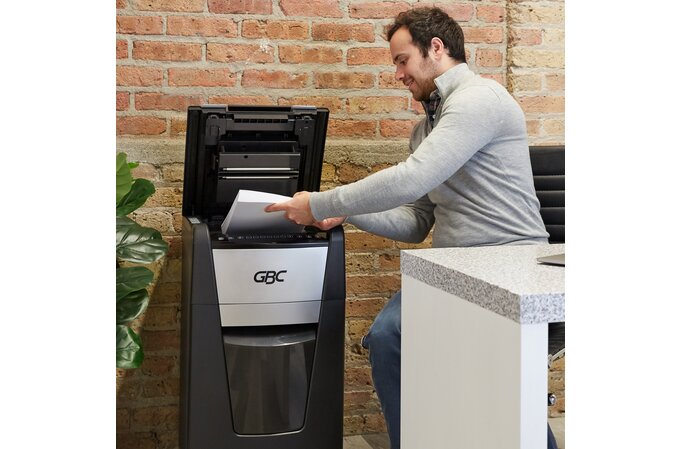
Follow these rules to avoid 90 percent of GBC paper shredder issues.
Respect Sheet Capacity
Check your model rating. Strip-cut models handle higher sheet counts, while micro-cut P4 to P7 models have lower tolerance. Always underfill slightly.
Cycle Usage Wisely
Run 10 to 20 minutes, then rest 10 minutes. Avoid marathon shredding sessions and spread large jobs over hours or days.
Place in Optimal Environment
Choose a well-ventilated area, a cool dry location away from humidity, and a stable surface away from spills.
Stick to a Maintenance Schedule
Perform blade lubrication every 15 to 20 minutes of use or monthly, canned air cleaning every two weeks, vacuum interior monthly, sensor checks weekly, and empty the full bin when it reaches three-quarters capacity.
Final Thoughts on GBC Paper Shredder Troubleshooting
Most GBC paper shredder problems stem from overheating, jams, or dirty sensors, all of which are preventable with proper care. By unplugging before service, lubricating regularly, and cleaning sensors and bins, you will keep your machine running smoothly for years. When basic troubleshooting fails, consult your manual or contact GBC support. With the right habits, your shredder remains a reliable partner in secure document disposal.
Frequently Asked Questions About GBC Paper Shredder Troubleshooting
Why does my GBC shredder keep running even when no paper is inserted?
This typically indicates a blocked infeed sensor, often called a flipper switch. Dust or paper fragments jam the sensor in the on position. Turn the unit over, locate the flipper switch near the feed throat, and clear any debris with a plastic pick or canned air.
How do I reset my GBC shredder after it stops working?
Most GBC models lack a manual reset button. If the shredder stops due to overheating, unplug it and wait 30 to 60 minutes for the thermal protection to reset automatically. Then test with a single sheet of paper.
Why does the Bin Full light stay on when the bin is empty?
The bin-full sensor is likely blocked by paper dust or misaligned. Empty the bin completely, remove and reinsert it firmly to ensure proper alignment, then clean the sensor with canned air and a dry cloth.
Can I use WD-40 to lubricate my GBC shredder?
No. Never use WD-40, cooking oil, or aerosol sprays. These attract dust and can damage internal components. Use only manufacturer-approved shredder oil applied to paper before feeding through the machine.
How often should I oil my GBC paper shredder?
For heavy continuous use, oil every 15 to 20 minutes. For light occasional use, oil at least once per month. Apply oil in a zigzag pattern on plain paper, then feed through in forward and reverse directions.