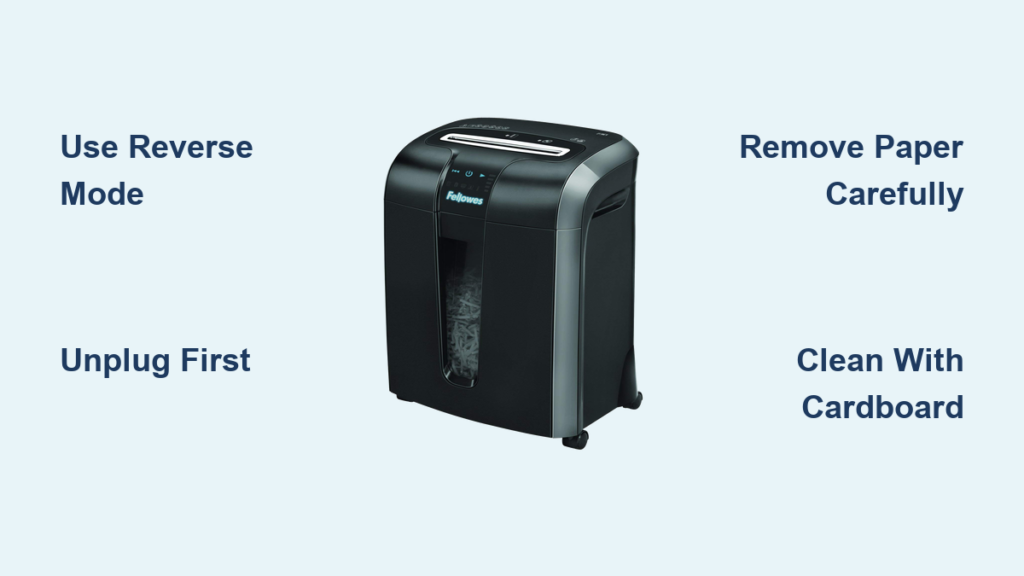
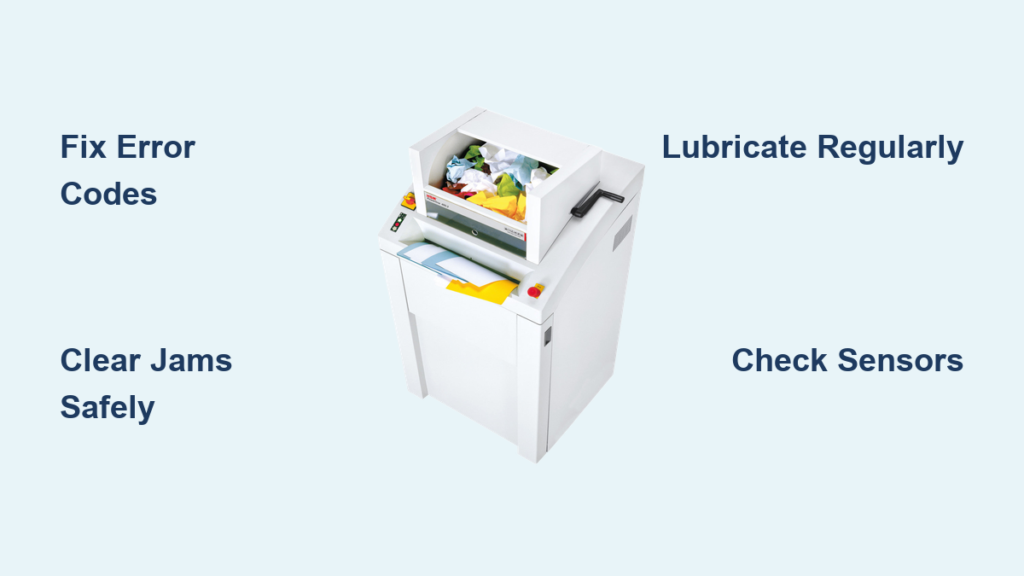
If your HSM shredder won’t start, jams frequently, or displays cryptic error messages like “Drive Fault” or “System Not Ready,” you’re not alone. These German-engineered machines are built to last, especially models like the HSM Classic 225.2 and Securio series, but even robust units need maintenance and occasional repair. Whether it is a sensor glitch, paper jam, or motor failure, most issues can be diagnosed and resolved with the right knowledge.
This guide delivers a clear, step-by-step approach to repairing HSM shredders based on official technical data and real-world field experience. You will learn how to troubleshoot error codes, perform safe lubrication, clean jam-prone components, and determine when to repair versus replace.
Decode HSM Error Messages
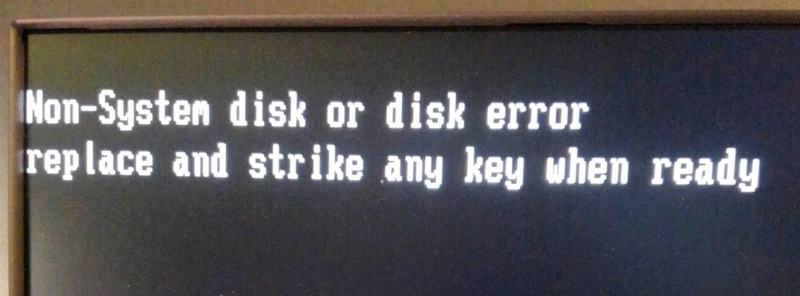
Understanding what your shredder is trying to tell you is the first step in effective HSM shredder repair. HSM uses precise error codes that point directly to mechanical, electrical, or sensor faults.
“System Not Ready” Persists
After powering on, HSM shredders display “System not ready” for about 10 seconds during initialization. If it does not clear, the machine has failed its self-check.
Cause: Communication breakdown between the control board and internal sensors, or a defective controller.
Check: Wait 15 seconds. If the message remains and no other code appears, do not attempt repeated restarts.
Fix: This is not user-serviceable. Contact HSM customer service or an authorized technician. Controller replacement is likely required.
“Drive Fault” Without a Jam
A “Drive Fault” means the motor or transmission is under excessive load, even if no paper is visible.
Immediate Action: Let the unit cool for 20 minutes. This resets thermal overload protection.
Test: Power cycle after cooling. If the error returns, the motor windings may be damaged, the gear train could be worn (common in older HSM 390.3 units), or the controller board may have failed.
Outcome: Persistent “Drive Fault” signals internal hardware failure. Replacement parts or professional service is necessary.
Red LED: Front Door Open
The red light activates when safety interlocks detect an open door or misaligned waste bin.
Common Triggers:
• Front access door not fully closed
• Waste container frame shifted out of position
• Latch not engaging the microswitch
Reset Procedure:
1. Open and firmly re-close the front door
2. Ensure the bin is seated correctly
3. Press the green power button to restart
Pro Tip: If the LED stays on despite proper closure, inspect the door switch for damage or debris. Clean with isopropyl alcohol.
Clear Paper Jams Safely
Jams are the most frequent cause of downtime, but improper removal can damage sensors or gears during HSM shredder repair.
Reverse Function First
Always start with the “R” (Reverse) button. Press and hold to eject stuck paper. Do not force paper in or out manually while the machine is off.
Stubborn Jams: Oil and Wait
If reverse fails, treat the blockage like a clogged drain. Soften it before extraction.
- Apply shredder-specific oil generously across the feed slot
- Wait 60 minutes for oil to penetrate and break down paper fibers
- Turn the machine on, then gently press down on the jam with a thin cardboard shim
- Press “R” again. The running motor provides torque to help dislodge the mass
Never use metal tools. They can scratch blades or trigger false sensor readings.
False Jam Errors (No Paper Visible)
Some models, especially the HSM Classic 225.2, report jams when none exist. The culprit is a faulty photoelectric sensor.
Symptoms: Jam light on, no paper, reverse does not help.
Diagnosis:
• Shine a flashlight into the feed throat
• Look for a small sensor lens near the rollers
• Check if one side is loose or detached
Fix: Clean the lens with isopropyl alcohol. Reattach with epoxy or plastic-safe adhesive if mounting is broken. Test with a single sheet. The machine should run smoothly.
Fix Unidirectional Operation
Shredder Runs in Reverse Only
If your unit only reverses and refuses to cut forward, the problem is electronic, not mechanical.
Likely Causes:
• Forward light barrier sensor failure
• Controller board defect (most common)
No DIY Fix: This requires component-level diagnosis. Replace the controller or contact HSM support.
Warning: Do not run continuously in reverse. It stresses the motor and may trigger “Drive Fault.”
Lubricate for Longevity

Poor lubrication leads to overheating, jams, and premature wear. It is the number one preventable cause of HSM shredder failure.
When to Oil Your Shredder
Lubricate under these conditions:
• Cutting performance drops
• You hear squeaking or grinding
• After emptying the waste bin
• Every 15 to 20 minutes of continuous use (standard office models)
• Every 500 hours (industrial units like ProfiPack P425)
Correct Oil Application
- Use only HSM-approved cutting block oil or shredder-specific lubricant
- Spray or inject oil evenly across the full width of the feed slot
- Press “R” to distribute oil through the rollers
- Run until all residue clears and operation is smooth
Avoid standard motor oil. It mixes with paper dust to form a sticky, wax-like sludge that causes chronic jams.
Deep Clean Before Re-Oiling
If performance remains poor after oiling, internal buildup is likely.
Procedure: Disassemble (if trained). Remove screws securing the cutting head (typically 2 rear, 2 front bottom, 4 on assembly). Clean with isopropyl alcohol using a lint-free cloth. Focus on blade shafts, gear teeth, and sensor lenses. Dry thoroughly before reassembly and re-lubrication.
Prevent Sensor Failures

Sensors control everything from jam detection to auto-start. Keep them clean and secure.
Clean Photoelectric Sensors
These optical sensors detect paper presence. Dust, oil mist, or misalignment causes false errors.
Procedure:
1. Power off and unplug
2. Locate the sensor (usually near the feed opening)
3. Wipe the lens gently with alcohol-dampened swab
4. Ensure it is seated flush and aligned with its counterpart
Test: Insert a sheet of paper. If the machine runs, the sensor is functional.
Secure Loose Mountings
Older HSM models use fragile clips to hold sensors. One side detaches, sending a constant “jam” signal. Reattach with epoxy or non-conductive adhesive. Reinforce if needed with a plastic bracket.
Diagnose Power Issues
No Power at Startup
Before calling for service, verify these basics:
• Shredding head seated on bin? Safety interlock prevents startup if misaligned
• Main power switch on rear panel set to “I” (On)?
• Wall outlet working? Test with another device
• Circuit breaker tripped? Reset if necessary
If all are correct and the unit remains dead, test the on/off switch with a multimeter for continuity.
Note: A failed switch may mimic a “no power” condition, but rule out sensor faults first. A jam signal can disable power even if the switch works.
Flashing “Ready for Operation”
A flashing display means the unit is in automatic standby mode after 2 minutes of inactivity.
Normal Behavior: Machine wakes when paper is inserted.
Fault: If it does not wake, the light barrier sensor is likely defective. Clean or replace the sensor. Verify alignment.
Repair vs. Replace: Make the Smart Choice
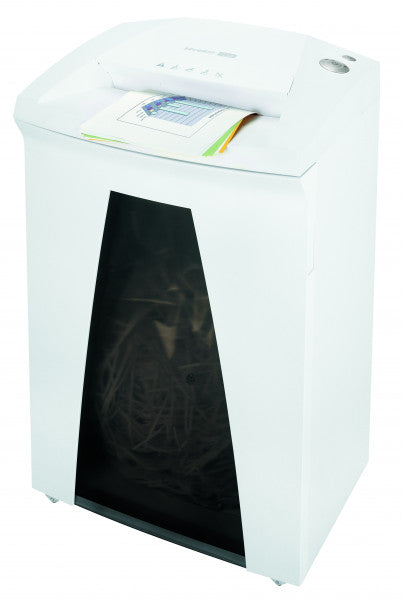
Not every shredder is worth fixing. Use this guide to decide.
Repair Is Worth It When:
• Unit is under warranty
• Problem is lubrication, cleaning, or sensor-related
• Model is industrial-grade (e.g., ProfiPack P425, Powerline)
• Replacement cost exceeds 60% of new unit price
Replace Instead of Repair When:
• Motor or gearbox is damaged
• Controller board failure in older models
• Repair cost approaches $300+ for non-industrial units
• Unit is over 8 to 10 years old with recurring issues
Example: Repairing a worn gear in an HSM 390.3 may cost $400+, but a new Securio B32 starts around $700 with better security and 5-year warranty.
Key Takeaways for HSM Shredder Repair
HSM shredders are engineered for reliability, but they demand respect. Most repairs start with simple oversights: skipping oil, misaligning the bin, or ignoring early warning signs like noise or slow cutting.
By following this guide, you can resolve 90% of common issues without a technician. Clean sensors, lubricate regularly, and respond to errors immediately. For deeper faults like “Drive Fault” or unidirectional operation, know when to call in expert help.
Whether you are maintaining a home Shredstar or an industrial ProfiPack, proper care extends life, ensures security, and saves money. Treat your HSM like the precision machine it is, and it will serve you for a decade or more.
Frequently Asked Questions About HSM Shredder Repair
How do I fix a “System Not Ready” error on my HSM shredder?
If the message persists beyond 10 seconds after startup, the control board has failed its self-check. This is not user-serviceable. Contact HSM customer service at (800) 992-5279 for controller replacement.
Why does my HSM shredder keep jamming with no paper inside?
The photoelectric sensor is likely faulty or misaligned. Clean the sensor lens with isopropyl alcohol. If the mounting is broken, reattach with epoxy. Test by inserting a single sheet of paper.
Can I use regular oil to lubricate my HSM shredder?
No. Use only HSM-approved cutting block oil or shredder-specific lubricants. Standard motor oil mixes with paper dust to form a sticky wax-like residue that causes chronic jams.
How often should I lubricate my HSM shredder?
For standard office models, lubricate every 15 to 20 minutes of continuous use. For industrial units like ProfiPack P425, lubricate every 500 hours of operation.
When should I replace my HSM shredder instead of repairing it?
Replace if the motor or gearbox is damaged, the controller board has failed in an older model, repair costs exceed $300 for non-industrial units, or the machine is over 8 to 10 years old with recurring issues.
What information do I need to contact HSM support?
Have ready your model name, serial number, article number, delivery note number, error code or symptom description, and photos of the issue. Call (800) 992-5279 for general support or 1-800-613-2110 for dedicated service.