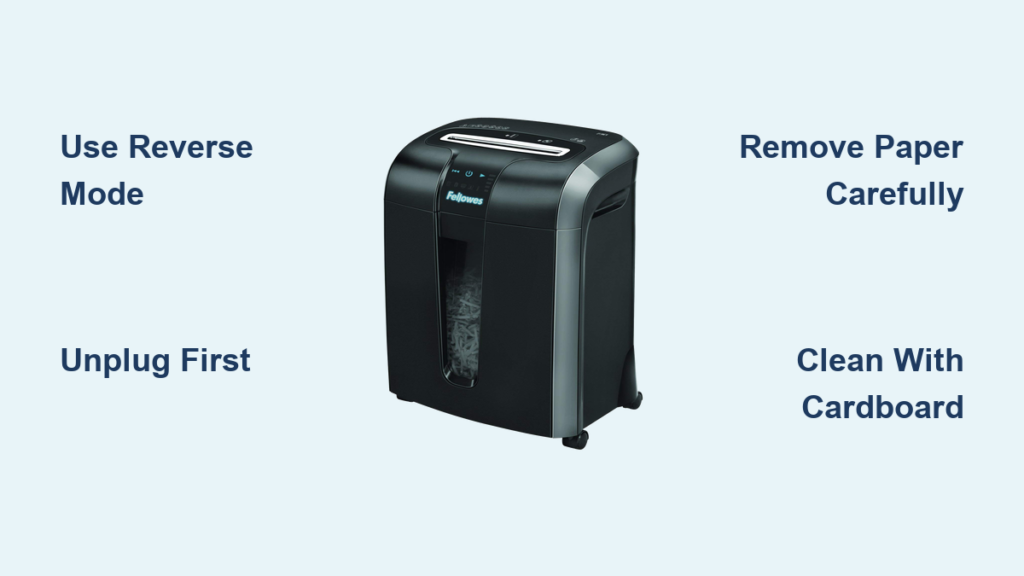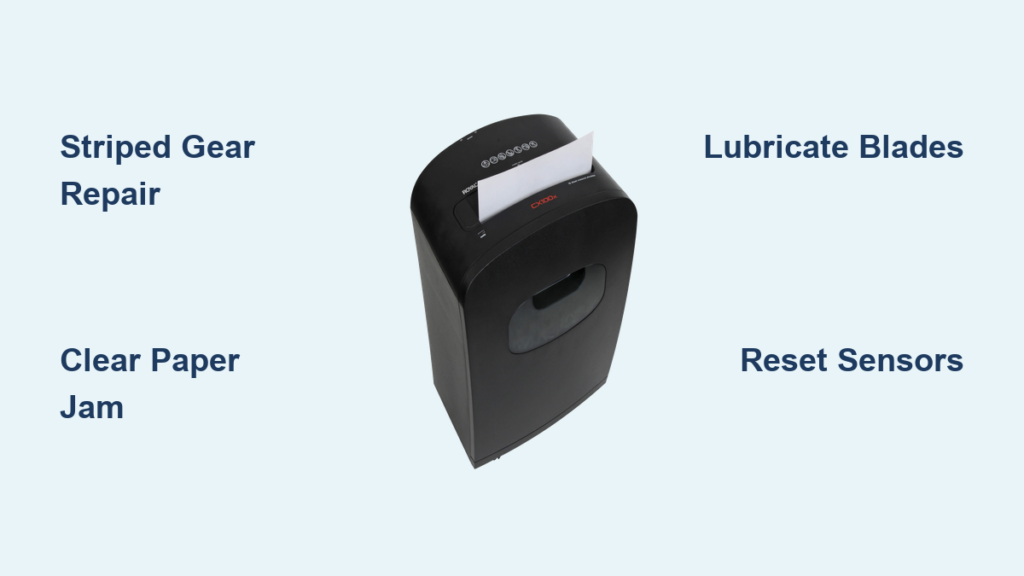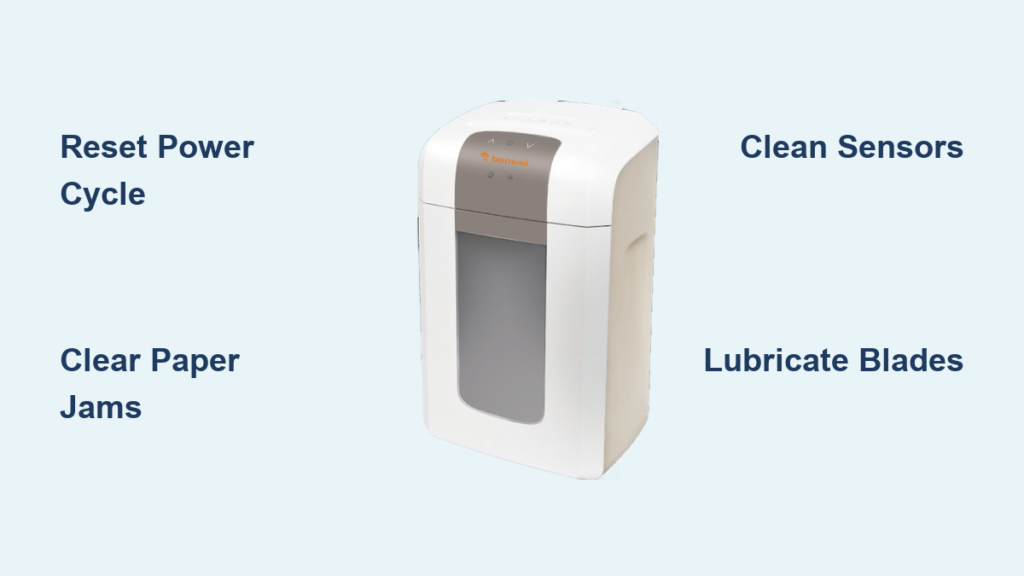
Is your Ativa 10MC02 shredder not turning on, jamming frequently, or showing a solid “Bin Full” light even when the bin is empty? You’re not alone. This cross-cut shredder is designed for reliable home or office use, but like any mechanical device, it can encounter issues over time. The most common problems, including power failures, paper jams, and false sensor alerts, are usually fixable with simple, step-by-step troubleshooting. In this guide, you’ll learn how to diagnose and resolve the top issues affecting your Ativa 10MC02, from resetting thermal overload protection to clearing deep paper jams and fixing light-sensitive sensors.
Power Not Working? Check These First
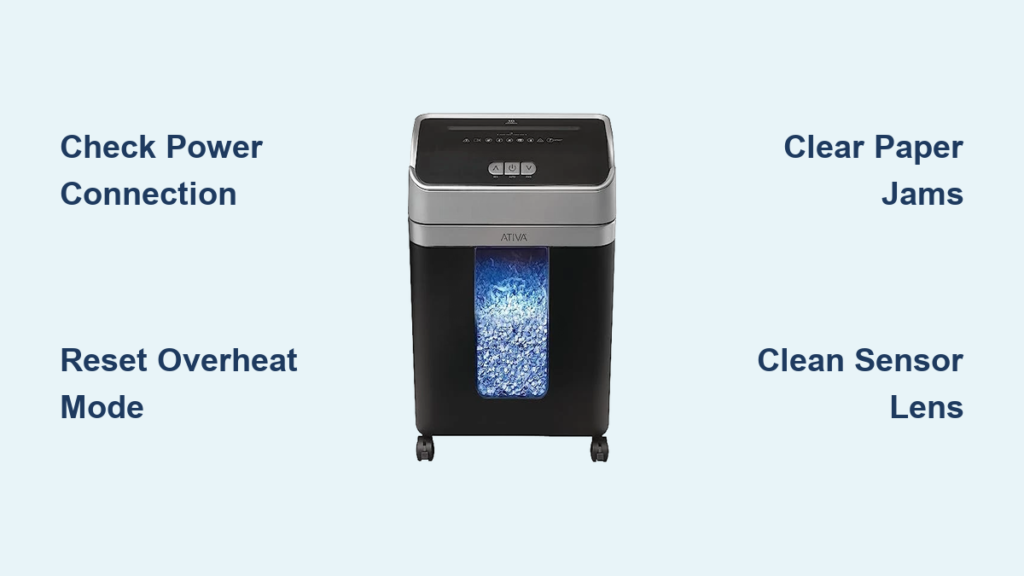
Before assuming motor failure, verify the basics. Most “dead” shredders aren’t broken. They’re just improperly connected or in safety lockout mode.
Confirm Proper Power and Placement
Ensure the power cord is fully plugged into a working wall outlet. Test the outlet with another device to rule out electrical issues. Next, check that the shredder head is securely seated on the waste bin. The Ativa 10MC02 uses a safety interlock system. If the bin isn’t correctly aligned, the unit won’t power on or accept paper. Re-seat the head firmly and listen for a click indicating proper connection.
Reset After Overheating
If the shredder stopped working after prolonged use, it likely triggered thermal overload protection. The motor shuts off automatically to prevent damage. Turn the unit off, unplug it, and let it cool for at least 30 minutes. After cooling, plug it back in and test. Avoid continuous shredding. Follow the 5 to 10 minute run, 30 minute cool-down cycle during heavy use.
Verify Bin Presence and Fullness
The shredder requires the waste bin to be present and not overfilled. Even if the bin looks empty, paper scraps can block the sensor. Remove the bin completely, empty all contents, and reinsert it firmly. If the bin is missing or misaligned, the “Door Open” error appears and the machine won’t operate.
Clearing Paper Jams: Reverse, Remove, Reset
Paper jams are the most frequent issue with the Ativa 10MC02. They occur due to overfeeding, thick materials, or lack of lubrication. Follow these steps to resolve them safely.
Use Reverse Mode to Loosen Jams
Switch the mode selector to Reverse. Press the power button briefly to run the blades backward. This often pulls jammed paper back out of the cutter. Once the paper loosens, gently pull it out by hand from the feed slot. Never force paper in or out while the motor is running forward.
Warning: Forcing the motor can strip internal gears. If reverse doesn’t work, stop and proceed to manual removal.
Unplug and Remove Stubborn Debris
If reverse mode fails, follow these steps:
• Unplug the shredder immediately to eliminate electrical hazards
• Use tweezers or needle-nose pliers to remove visible paper scraps from the feed throat
• If debris is still lodged, remove the top motor assembly by locating and unscrewing the 2 to 4 screws securing the head to the bin
• Lift the head slightly to expose the blade assembly and manually extract trapped paper
Reassemble carefully after clearing all obstructions.
Prevent Future Jams with Lubrication
Lack of oil causes friction, leading to jams. Use shredder-specific oil, not WD-40 or household oils. Apply 2 to 3 sprays directly onto the blades through the feed slot every 15 to 20 minutes of use or once a week in regular office settings. Run the shredder in forward mode to distribute the oil.
Pro Tip: Shred an oiled sheet of paper monthly to keep blades clean and lubricated.
Fixing “Bin Full” or “Door Open” Errors
A solid red light with “Bin Full” or “Door Open” messages often means sensor interference, not a full bin. These false alerts stop operation even when everything seems fine.
Clean the Sensor and Bin Interior
Dust and paper chaff can block the infrared sensor. To fix:
• Remove the waste bin from the shredder head
• Lay it upside down to access the top inner area
• Use a vacuum with a brush attachment to clean dust from corners and the sensor slot
• Wipe the sensor window on the shredder head with a dry microfiber cloth
• Reinstall the bin while the unit is lying down, then return to upright position
This ensures proper sensor alignment.
Reset the Bin Sensor Mechanism
Sometimes the internal sensor flag gets stuck. Gently tap the bottom of the bin with your foot while it’s removed. This can free any jammed plastic lever. Reinsert and test.
Block Ambient Light Interference
The IR sensor is light-sensitive. If your bin has a clear plastic window, sunlight or bright overhead lights can trick the sensor into thinking the bin is full.
Try these fixes:
• Cover the bin window with opaque tape or paper
• Move the shredder to a dimmer location
• Test operation with the room lights off
Many users report immediate success after blocking excess light.
Why the Shredder Won’t Start: Diagnostic Flow

When the unit shows no response, use this decision tree to isolate the cause.
No Lights, No Sound
If nothing happens when you press the button:
• Check outlet power with another device
• Confirm the shredder head is fully seated
• Ensure the bin is inserted and not overloaded
• Try a different power outlet
Still no response? The issue may be internal. Proceed to support.
Intermittent Operation
If the shredder starts but cuts out quickly:
• It may be overheating. Allow 30-minute cooldown.
• Check for partial jams restricting blade movement.
• Verify oil levels. Dry blades increase motor load.
Reduce sheet count per feed and lubricate.
Maintenance Tips to Prevent Issues
Prevention is faster than repair. Follow these habits to keep your Ativa 10MC02 running smoothly.
Oil Blades Regularly
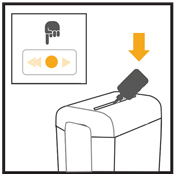
Lubrication is critical. Dry cutters generate more heat and friction, increasing jam risk. Use shredder oil every few weeks or after shredding 50 to 100 sheets. Spray directly into the feed slot and run in forward mode for 10 seconds.
Feed Paper Slowly and in Small Batches
Never overload the slot. The 10MC02 handles up to 10 sheets at once under ideal conditions. For best results, feed 6 to 8 sheets slowly. Pause between batches to let the motor rest.
Empty Bin Before It’s Full
Empty the bin when it’s three-quarters full. Overfilling can compress scraps against the sensor, triggering false “Bin Full” errors. Regular emptying also reduces dust buildup.
Clean After Heavy Use
After shredding large volumes, vacuum the feed slot and bin interior. Use a soft brush to remove paper dust from blade edges and sensor areas.
When to Contact Support
If all troubleshooting fails, the problem may be internal and require professional service.
Check Warranty Status
The Ativa 10MC02 typically comes with a limited warranty. If your unit is still under warranty, you may qualify for free repair or replacement. Visit the official Ativa website and enter your model and purchase date to verify eligibility.
Submit a Service Request
For out-of-warranty units or persistent issues:
• Go to the Ativa Support Portal
• Submit a service request with your model number and issue description
• Include details like “no power,” “recurring jam,” or “sensor error”
Call the Helpline for Expert Help
If you’ve tried power resets, jam clearing, and sensor cleaning with no success, contact the Ativa Helpline Center. Trained technicians can guide you through advanced diagnostics or determine if the motor, circuit board, or switch needs replacement.
Note: Internal repairs should only be done by authorized personnel. Do not attempt to disassemble the motor or electronics unless qualified.
Frequently Asked Questions About Ativa 10MC02 Shredder Troubleshooting
Why won’t my Ativa 10MC02 turn on at all?
Start by checking the power cord connection to a working wall outlet. Verify the shredder head is securely seated on the bin, as the safety interlock prevents operation when improperly aligned. If the unit was used heavily, it may have triggered thermal overload protection and needs 30 minutes to cool down.
How do I fix a paper jam in my Ativa 10MC02?
Switch the mode selector to Reverse and briefly press the power button to run blades backward. If this doesn’t work, unplug the shredder and use tweezers to remove visible debris from the feed slot. For stubborn jams, you may need to remove the motor assembly to access deeply lodged paper.
Why does my shredder show “Bin Full” when the bin is empty?
The infrared sensor is likely blocked by dust, paper chaff, or ambient light interference. Clean the sensor window and bin interior thoroughly. If your bin has a clear plastic window, cover it with opaque tape to block excess light that triggers false readings.
How often should I oil my Ativa 10MC02 shredder?
Apply shredder-specific oil every 15 to 20 minutes of continuous use, or at least once a week in regular office settings. Oil after shredding 50 to 100 sheets to maintain smooth blade operation and prevent jams.
Can I fix the shredder myself if it’s not under warranty?
Basic troubleshooting like power checks, jam clearing, and sensor cleaning can be done at home. However, internal motor or electronic repairs should only be performed by authorized personnel. Contact the Ativa Helpline for guidance before attempting any disassembly.
Key Takeaways for Troubleshooting Your Ativa 10MC02

Most Ativa 10MC02 shredder problems are easily resolved with proper maintenance and basic troubleshooting. Focus on power checks first. Verify connections, ensure the bin is properly seated, and allow the unit to cool if thermal overload triggered. For paper jams, always try reverse mode before manual removal, and never force the motor. Keep sensors clean and block excess ambient light to prevent false “Bin Full” errors. Regular oiling and avoiding overloading the feed slot will extend your shredder’s life significantly. By addressing issues early and following these steps, you can keep your device running smoothly and avoid unnecessary replacements.