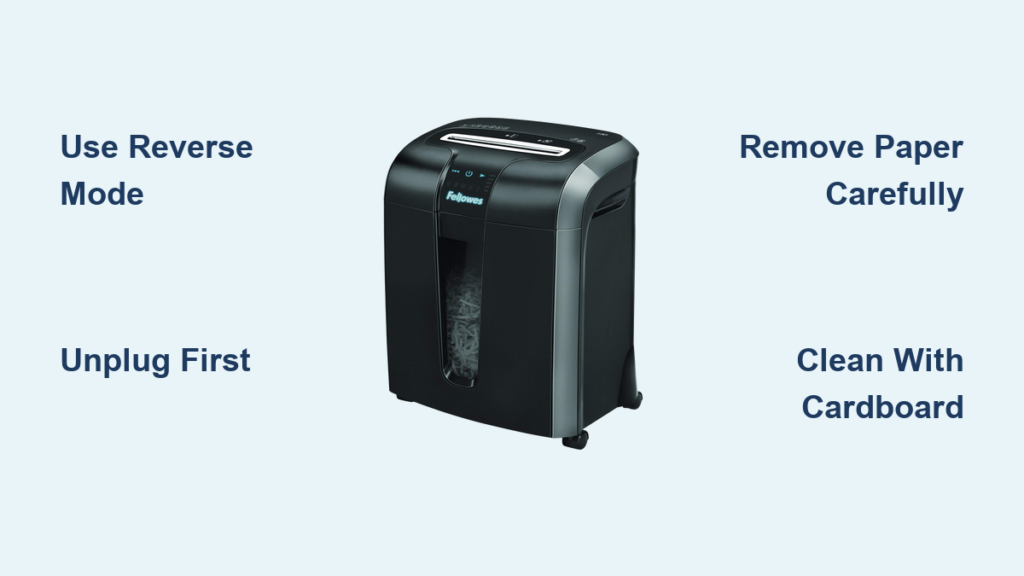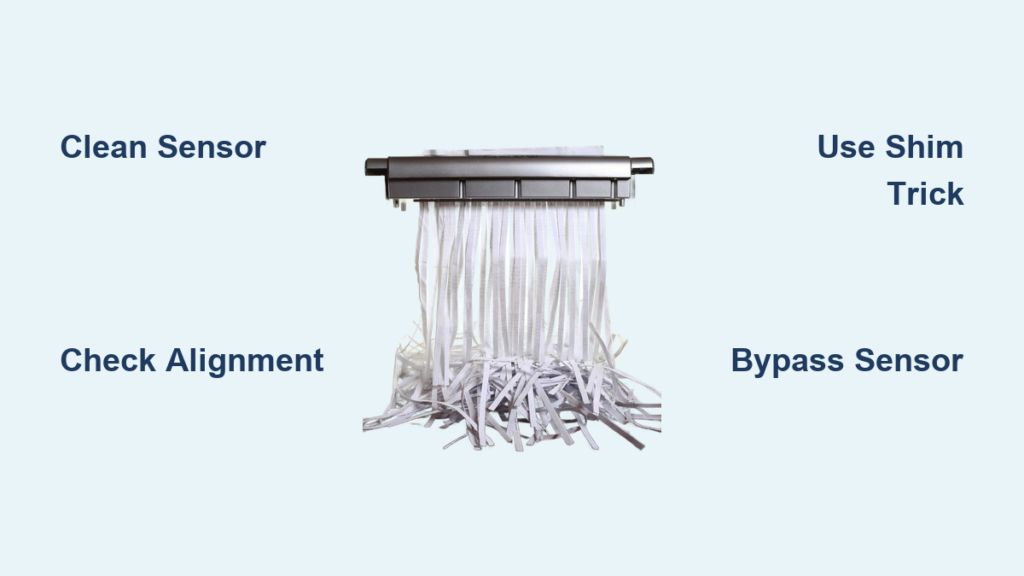

Your Casemate WM675XB shredder suddenly stops working or won’t shut off, a frustrating issue when you’re mid-task. This model is designed to auto-start when paper is fed and stop once clearing the feed slot. When it stops responding correctly, either refusing to turn off or not powering on at all, the cause is often mechanical or blockage-related. The most common culprit is a hidden paper jam interfering with the internal activation switch.
In this guide, you’ll learn how to quickly diagnose and fix the issue, restore proper function, and prevent future problems. You’ll also discover key maintenance tips to keep your WM675XB running smoothly for years.
Check for Paper Jam First

A jammed paper fragment is the top reason the Casemate WM675XB shredder stops working or won’t shut off. Even tiny scraps can lodge in the feed path and trick the sensor into thinking paper is still being inserted.
Inspect the Feed Slot and Throat
Turn off and unplug the shredder before starting. Look into the paper entry slot with a flashlight. Check for the following:
- Stuck paper fragments near the rollers
- Shreds caught in the throat or cutting blades
- Misaligned paper clumps blocking the path
Use tweezers or needle-nose pliers to gently pull out visible debris. Never use fingers, as blades are sharp even when powered off.
Reverse Function to Clear Blockage
If your WM675XB has a reverse mode, follow these steps:
- Plug in the shredder
- Switch to Reverse (REV) mode
- Press and hold the reverse button for 3 to 5 seconds
- Listen for movement, which may eject trapped paper
If the motor doesn’t respond in reverse, skip to checking the power source.
Test Power and Outlet
When the shredder won’t turn on at all, verify the electrical supply is working properly.
Confirm Outlet and Power Cord
- Plug another device into the same outlet to test power
- Ensure the shredder’s power switch is in the “On” position
- Check the power cord for cuts, bends, or fraying near the plug or unit
- Make sure the cord is fully inserted into both the outlet and shredder
Tip: Some models only power on when the safety interlock detects the waste bin is properly seated.
Reset the Overheat Protection
The WM675XB has a built-in thermal overload protector that shuts down the motor if it overheats.
- Unplug the shredder for at least 20 to 30 minutes
- Allow internal components to cool
- Plug back in and test normal operation
If the unit runs briefly then stops again, you may be overloading it. Try shredding in smaller batches.
Examine the Safety Interlock Switch
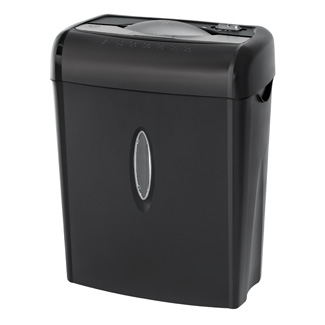
The shredder relies on a safety interlock system to prevent accidental operation.
Bin Placement Check
- Remove the waste bin completely
- Look for debris or paper bits inside the bin housing
- Check the alignment tabs and sensor area on the bin and main unit
- Reinsert the bin firmly until it clicks into place
A misaligned or dirty bin can prevent the switch from engaging, causing the shredder to appear dead.
Sensor Obstruction Test
- Wipe the sensor area (usually a small plastic pin or contact point) with a dry cloth
- Ensure no paper dust or oil buildup is blocking contact
- Reassemble and test auto-start function by feeding a narrow strip
Clear Internal Switch Jam

If the shredder won’t shut off, the activation switch may be stuck due to debris. A small piece of paper stuck in the mechanism can keep the safety or activation switch engaged, preventing the shredder from shutting off.
Locate the Activation Mechanism
The switch is typically under the feed throat, activated when paper presses down on a lever or sensor.
- Unplug the unit
- Shine a light into the feed slot to spot a small plastic lever or button
- Look for paper fragments wedged beneath or around it
Free the Stuck Switch
- Use a cotton swab or soft brush to dislodge dust
- Gently nudge the switch with a plastic tool to test movement
- Ensure it springs back freely. If not, it may need replacement
Warning: Do not force or pry internal components. If the switch feels broken, contact Casemate support.
Lubricate the Cutting Blades
Dull or dry blades increase friction, leading to jams and motor strain.
Use Approved Shredder Oil Only
Never use WD-40 or household oils, as they attract dust and gum up blades.
- Purchase shredder machine oil (typically mineral oil-based)
- Feed oil strips or spray directly onto a piece of paper
- Run the oiled sheet through in Auto or Forward mode
- Repeat 2 to 3 times every 30 to 50 uses
Pro Tip: Run oil paper monthly if used weekly. This prevents jams and keeps the WM675XB responsive.
Signs You Need Lubrication
- Paper feeds slowly or drags
- Shreds come out uneven or partially cut
- Motor sounds strained or noisy
- Frequent jams despite proper use
Prevent Future Malfunctions

Regular maintenance prevents most WM675XB failures.
Follow Proper Shredding Habits
- Avoid overloading. Feed 5 to 7 sheets at a time
- Remove paper clips, staples, and binder clips
- Don’t shred plastic cards unless specified (WM675XB is paper-only)
- Use reverse mode occasionally to clear buildup
Clean After Every Use
- Empty the bin before it reaches 80% capacity
- Wipe the feed opening with a dry cloth
- Vacuum around the base to remove paper dust
Dust buildup can interfere with sensors and motors over time.
When to Seek Replacement
If your Casemate WM675XB still won’t work after all troubleshooting, consider replacement options.
Signs of Motor Failure
- No sound in forward or reverse
- No response even after reset and power check
- Burning smell or smoke (discontinue use immediately)
These indicate internal electrical or motor damage. Repair is often not cost-effective.
Contact Casemate Support
- Visit casemate.com/support
- Provide model number: WM675XB
- Check warranty status, as some units have 1 to 2 year coverage
If out of warranty, consider upgrading to a similar cross-cut model with jam prevention tech.
Frequently Asked Questions About the Casemate WM675XB Shredder
Why won’t my Casemate WM675XB shredder shut off?
A small piece of paper may be stuck in the shredder mechanism, keeping the safety or activation switch engaged. Unplug the unit, inspect the input chute and internal rollers, and carefully remove any debris.
How do I clear a paper jam in my WM675XB?
Unplug the shredder first. Look into the feed slot with a flashlight and remove visible fragments using tweezers. Then use reverse mode for 3 to 5 seconds to eject trapped paper.
Can I use WD-40 on my shredder blades?
No. WD-40 and household oils attract dust and can gum up the blades. Use only approved shredder machine oil to keep the cutting mechanism running smoothly.
How often should I oil my WM675XB shredder?
Oil the blades every 30 to 50 uses, or roughly once a month if you shred weekly. This reduces friction and prevents jams.
What does it mean if my shredder won’t turn on at all?
The issue could be a tripped thermal overload, a faulty outlet, or a misaligned waste bin. Unplug the unit for 20 to 30 minutes to reset, then verify the bin is seated correctly and the outlet has power.
When should I replace my shredder instead of repairing it?
If the motor shows no response, emits a burning smell, or produces smoke, replacement is usually more cost-effective than repair. Contact Casemate support to check warranty options first.
Key Takeaways for Fixing Your Casemate WM675XB Shredder
Most Casemate WM675XB shredder problems trace back to paper jams, power issues, or a stuck activation switch. Start by unplugging the unit and inspecting the feed slot for trapped fragments. Test the outlet, reset the thermal protector, and confirm the waste bin is properly seated. Lubricate blades monthly with approved shredder oil to prevent friction-related failures.
If your shredder still won’t respond after these steps, contact Casemate support with your model number to explore warranty or replacement options. Taking 10 minutes for routine maintenance today can save you from unexpected downtime tomorrow.