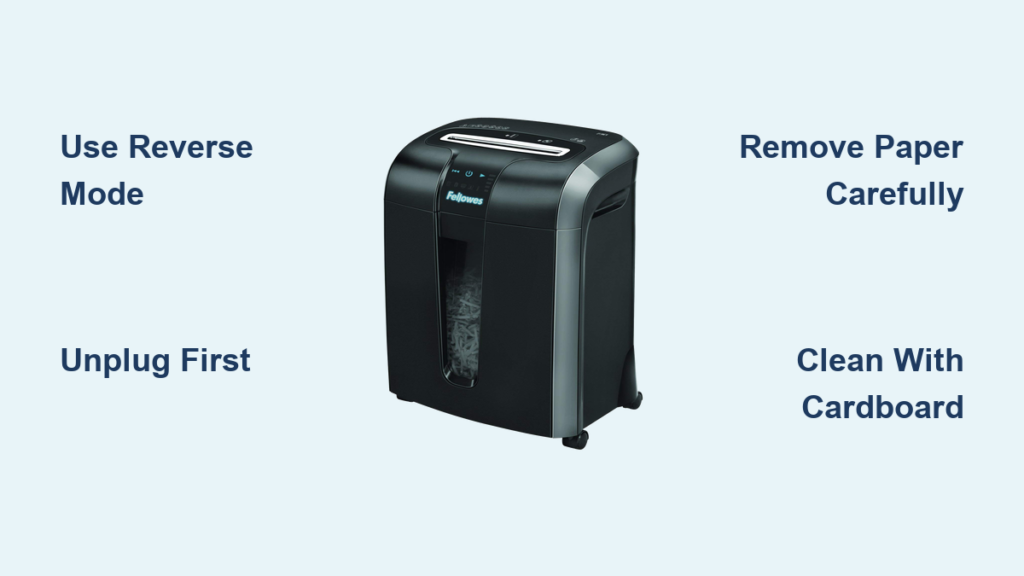

You’re ready to shred a stack of old documents when you notice it: the red light on your Fellowes paper shredder is glowing, and nothing happens when you press the button. Don’t panic. This is a common issue, and in most cases, it doesn’t mean your shredder is broken. The fellowes paper shredder red light is a protective signal, not a death sentence. It alerts you to safety locks, jams, overheating, or simple assembly errors.
Whether you have a compact personal model or a heavy-duty office shredder, this guide will walk you through every possible cause and solution. By the end, you’ll know how to reset, clean, and maintain your unit to prevent future red light alerts, saving time, money, and frustration.
Decode the Red Light Meaning
The red light on your Fellowes shredder isn’t random. It’s a diagnostic tool. But its meaning depends on your model type. Understanding the difference between personal and office shredders is the first step to fixing the problem.
Personal vs. Office Shredder Signals
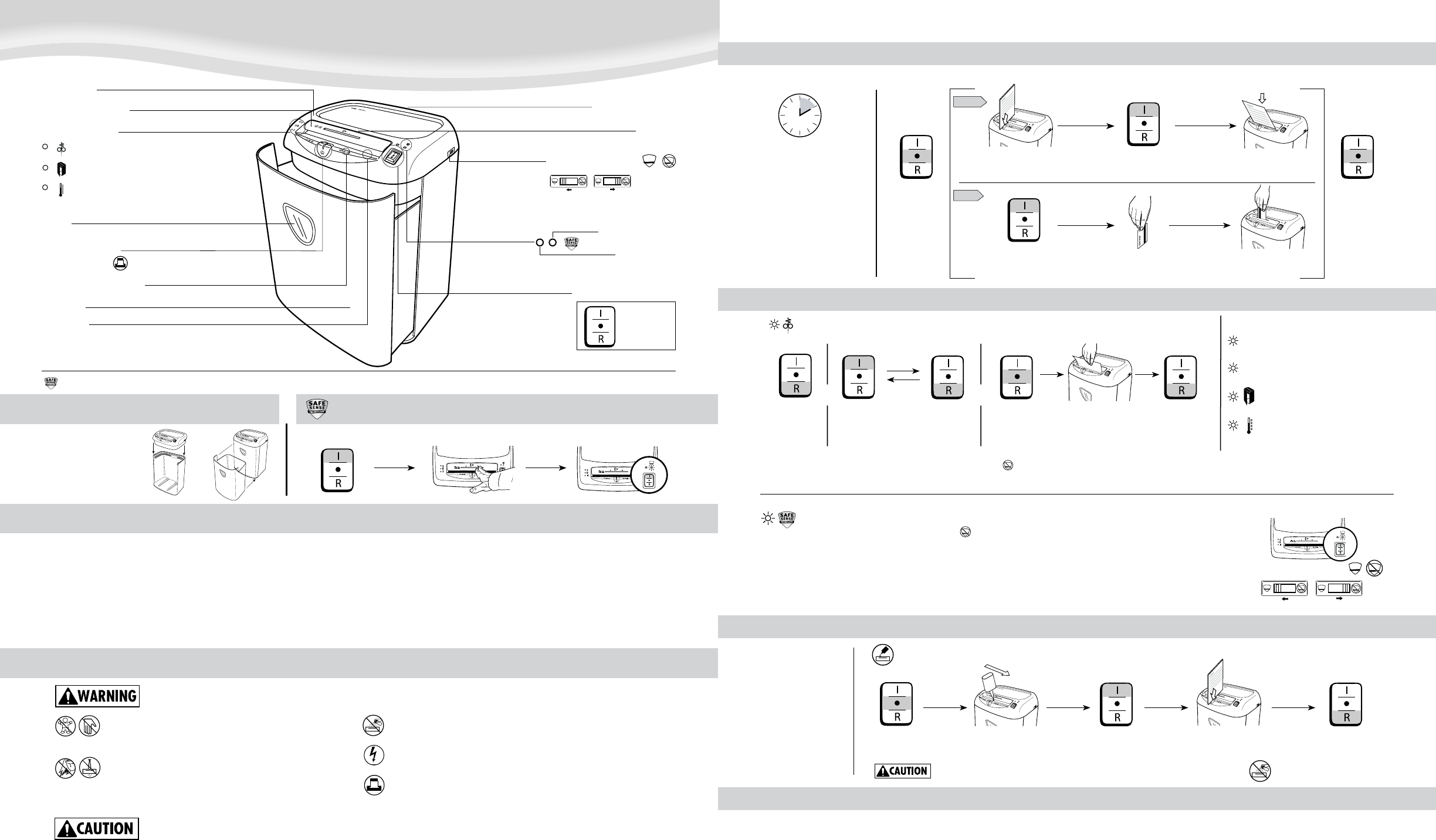
On personal shredders (small under-desk units), a red light usually means the wastebasket is full or the head isn’t seated properly. These models use a safety interlock system: a plastic tab on the bin must physically trigger a switch inside the shredder head. If the head isn’t flush, the switch doesn’t engage, and the red light turns on.
For office shredders (larger standalone units), the red light often signals a paper jam, thermal overload, or internal error. Some models, like the Fellowes 58-80, use multiple indicator lights. The second light from the top glowing red may point to a motor or electrical fault, especially if the motor is completely silent.
Check for Motor Response
Listen carefully when you press the power button:
– Faint hum or whirring? The motor is trying to run. This likely points to a jam or blockage.
– No sound at all? This suggests an electrical fault, failed motor, or safety lockout. Rule out simple causes first before assuming hardware failure.
Reset the Shredder System
Before disassembling or cleaning, try resetting the internal logic board. Many red light issues stem from temporary software glitches or thermal protection circuits that need time to reset.
Use Reverse-Auto Reset Method
This quick fix clears minor error flags on most office models:
- Turn the mode dial to Reverse (R).
- Hold for 2 seconds.
- Switch immediately to Auto (I) or Forward.
- Test the shredder.
This sequence resets the control board and often restores normal operation after a false jam alert.
Perform Full Power Cycle
If the reverse method fails, do a hard reset:
- Unplug the shredder from the wall.
- Wait at least 5 minutes. This allows capacitors to discharge and thermal sensors to reset.
- Plug it back into a working outlet.
- Try running it again.
Pro Tip: Test the outlet with another device. A dead outlet mimics a broken shredder.
Clear Paper Jams and Debris
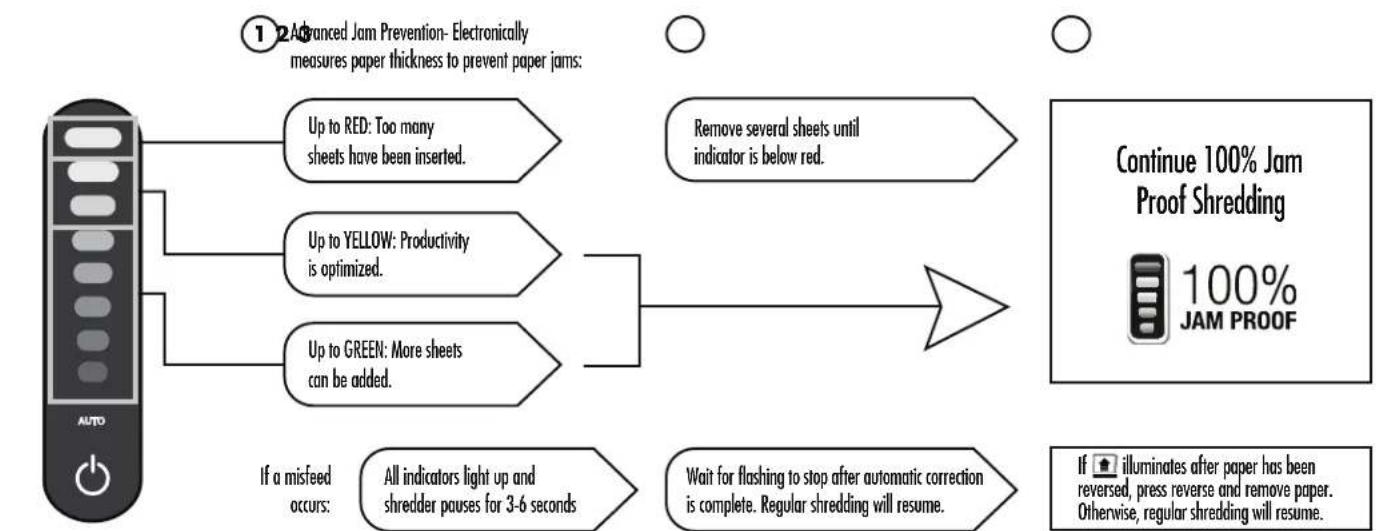
Even if you don’t see a jam, micro-fragments or misaligned paper can block sensors or bind the cutter shaft.
Inspect and Vacuum the Feed Path
- Unplug the unit.
- Shine a flashlight into the paper entry slot.
- Look for stuck paper, especially near the blades.
- Use a low-suction vacuum to remove dust and small particles. Avoid high suction, as it can damage internal components.
Warning: Never use compressed air. Moisture or force can harm sensors.
Run Reverse Cycles to Clear Blockages
- Plug in the shredder.
- Press and hold Reverse for 5–10 seconds.
- Release, then press Forward briefly.
- Repeat 3–4 times.
Alternating directions helps dislodge stubborn paper. If paper starts to back out, gently pull it. Don’t force it.
Remove Paper Manually (If Needed)
If visible paper is stuck:
– Unplug the shredder.
– Use fingers or plastic tweezers to pull out debris.
– Never use metal tools, as they can scratch or misalign blades.
Address Thermal Overload
Frequent or prolonged use can overheat the motor, triggering thermal protection and a red light.
Allow Proper Cool-Down Time
If you’ve been shredding for more than a few minutes:
– Turn off and unplug the unit.
– Let it cool for at least 30 minutes.
– Do not restart repeatedly. This won’t reset the thermal circuit.
Thermal protection resets only when the motor reaches a safe temperature.
Follow Duty Cycle Guidelines
Most Fellowes models are not continuous-duty. Check your manual, but common limits are:
– 5 minutes on, then 30 minutes off.
– Exceeding this triggers the red light as a safety measure.
Exception: Continuous-duty models like the Powershred 425Ci don’t require cool-down periods.
Fix Bin and Safety Interlock Issues
On personal shredders, the red light often means the bin isn’t seated correctly or is full.
Ensure Proper Head Alignment
- Lift the shredder head off the bin.
- Check for the plastic tab on the bin’s inner rim.
- Re-seat the head firmly, pressing down evenly until it clicks.
- Make sure it’s perfectly flush with no gaps.
A misaligned head breaks the safety circuit, turning on the red light.
Empty and Clean the Wastebasket
A full bin triggers a “bin full” sensor, disabling operation.
- Remove the bin.
- Empty all paper and dust.
- Wipe down the interior.
- Reinstall and ensure it locks into place.
Critical: Use Fellowes-approved waste bags. Loose or incorrect bags can let paper bridge over sensors, causing false “full bin” alerts.
Lubricate the Cutter Assembly
Dry blades strain the motor, leading to jams and overheating, both of which trigger red lights.
Apply Shredder Oil Correctly
- Power off and unplug.
- Apply a thin zigzag line of Fellowes Powershred Oil across the paper entry.
- Plug in and run in Reverse for 10–20 seconds to spread oil.
- Run a few sheets of paper in Forward mode to finish distribution.
Frequency: Every 1–2 bins of paper, or monthly for heavy use.
Never Use Wrong Lubricants
Avoid:
– Aerosol sprays (flammable and damaging)
– Petroleum-based oils (degrade plastic and void warranty)
Only use silicone-based shredder oil or Fellowes brand oil.
Trigger Auto-Oil System (If Equipped)
Models like the 425Ci or 485Ci have automatic lubrication:
- Fill the reservoir (max 12 oz).
- Hold Auto + Forward buttons for 3 seconds.
- The system runs a full oil cycle.
If the low-oil light is on, this step is essential.
Diagnose Electrical and Motor Failure

If the red light persists after all resets and cleaning, test for deeper electrical issues.
Test Power Supply and Cord
- Plug another device into the same outlet. Does it work?
- Inspect the power cord for cuts, kinks, or burns.
- Try a different outlet.
A damaged cord or dead outlet mimics internal failure.
Check for SmartLock PIN Lock (AutoMax Models)
Some AutoMax shredders have a 4-digit PIN lock:
– If enabled and forgotten, the unit won’t start.
– No user reset code exists.
– Solution: Contact Fellowes Customer Care with your model and serial number.
Assess Motor and Circuit Board Health
If there’s no motor sound at all:
– The issue may be a failed motor, blown circuit board, or internal wiring fault.
– These components are not user-repairable.
Signs of motor failure:
– Burning smell
– Visible smoke or discoloration
– Repeated tripping of the circuit breaker
Prevent Future Red Light Alerts
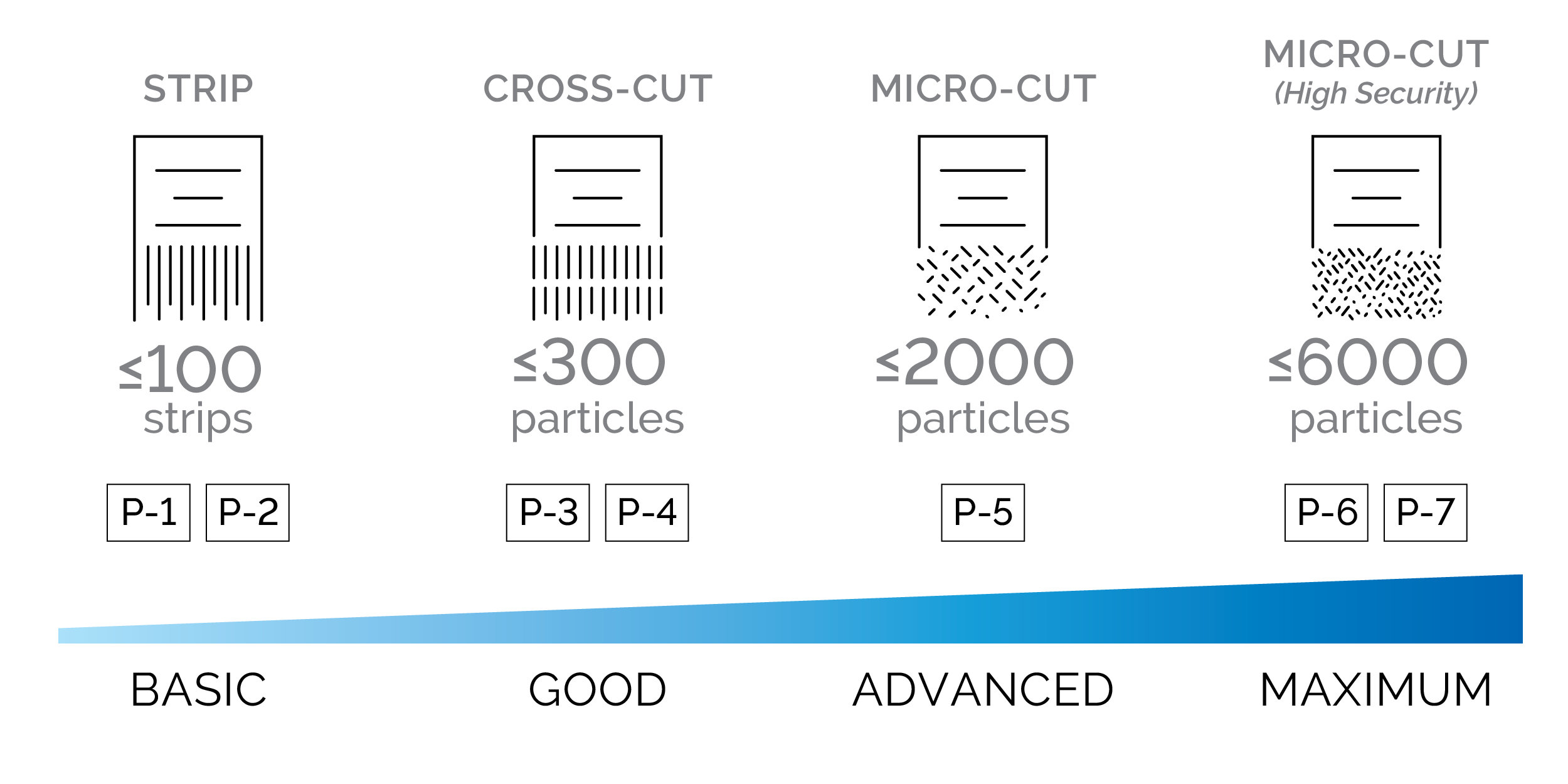
Most red light issues are preventable with routine care.
Follow Feeding Best Practices
- Respect sheet capacity and don’t overload.
- Feed paper straight, since angled feeding causes jams.
- Remove staples and clips unless your model is rated for them.
- Avoid folded corners or laminated materials.
Clean Sensors Regularly
Dust-covered sensors cause false “bin full” or jam alerts.
- Wipe sensor windows with a dry cloth monthly.
- Use compressed air sparingly and from a distance.
Replace Worn Components Early
- Replace dull blades if shredding becomes noisy or uneven.
- Swap out cracked or warped waste bins.
- Monitor oil levels in auto-lubricating models.
When to Repair or Replace
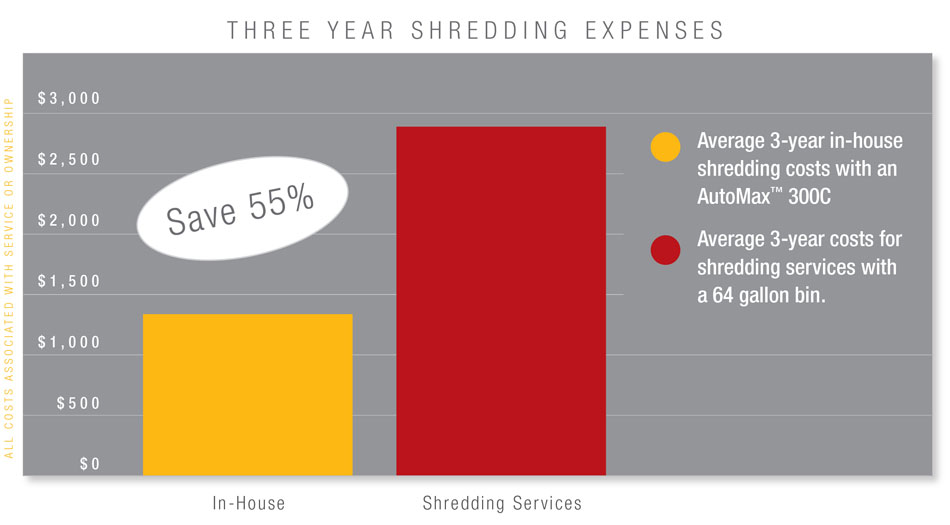
After exhausting all troubleshooting, decide whether to repair or replace.
Evaluate Repair vs. Replacement Cost
For mid-range models like the Fellowes 58-80:
– Professional repair (motor or board) often costs more than a new unit.
– Labor and parts can exceed $100, while replacement starts around $80–$150.
Check Warranty Status
- Under warranty? Contact Fellowes and do not open the casing.
- Out of warranty? Consult a qualified technician for diagnosis.
If the motor or board is dead, replacement is usually the best option.
Frequently Asked Questions About Fellowes Paper Shredder Red Light
Why is the red light on my Fellowes shredder staying on?
The red light indicates a protective state, usually triggered by a safety interlock, paper jam, full bin, or thermal overload. Start with a power cycle and jam inspection before assuming hardware failure.
How long should I wait before restarting an overheated shredder?
Allow at least 30 minutes for the motor to cool. Restarting a hot shredder won’t reset the thermal protection circuit.
Can I use regular oil to lubricate my Fellowes shredder?
No. Only use Fellowes Powershred Oil or silicone-based lubricants. Petroleum-based oils and aerosol sprays can damage components and void the warranty.
What does it mean if my shredder makes no sound at all?
Complete silence when pressing the power button points to an electrical fault, safety lockout, or motor failure. Test the outlet and cord first, then contact Fellowes support if the issue persists.
How do I reset a Fellowes shredder with a red light?
Try the Reverse-Auto method: hold Reverse for 2 seconds, then switch to Auto or Forward. If that fails, unplug the unit for at least 5 minutes to perform a full power cycle.
Is it worth repairing an older Fellowes shredder?
For mid-range models, professional repair often costs more than replacement. If the motor or circuit board has failed and the unit is out of warranty, replacing it is usually more economical.
Key Takeaways for Fixing Your Fellowes Shredder Red Light
The fellowes paper shredder red light is almost always fixable with simple resets, cleaning, or lubrication. Start with power cycling and jam removal, then move to alignment and maintenance. Most issues stem from user-operable conditions, not hardware failure.
Keep this guide handy for future reference, because a red light shouldn’t stop your workflow. If the problem persists after exhausting these steps, contact Fellowes Customer Care or consider replacing the unit based on your warranty status and repair costs.