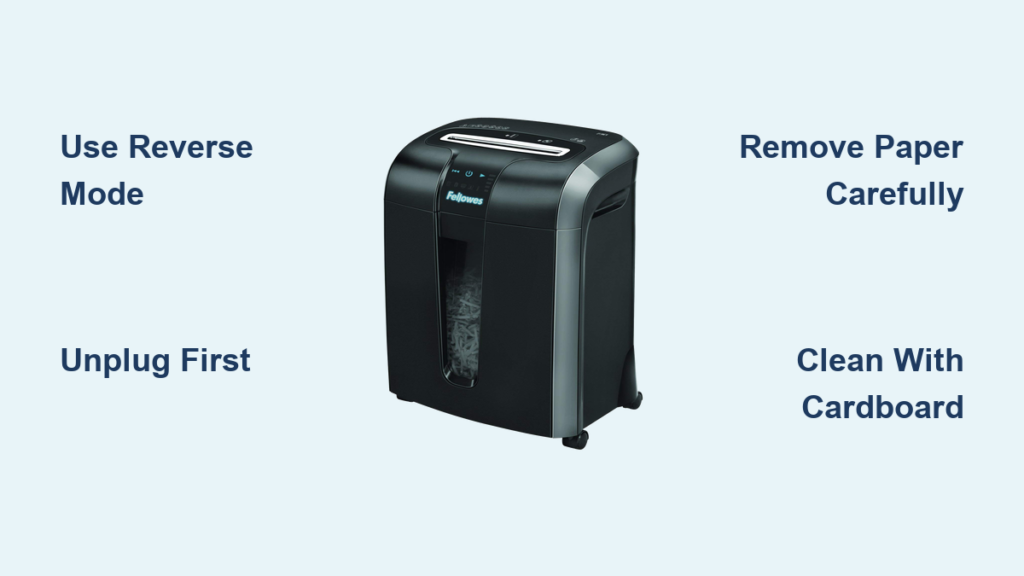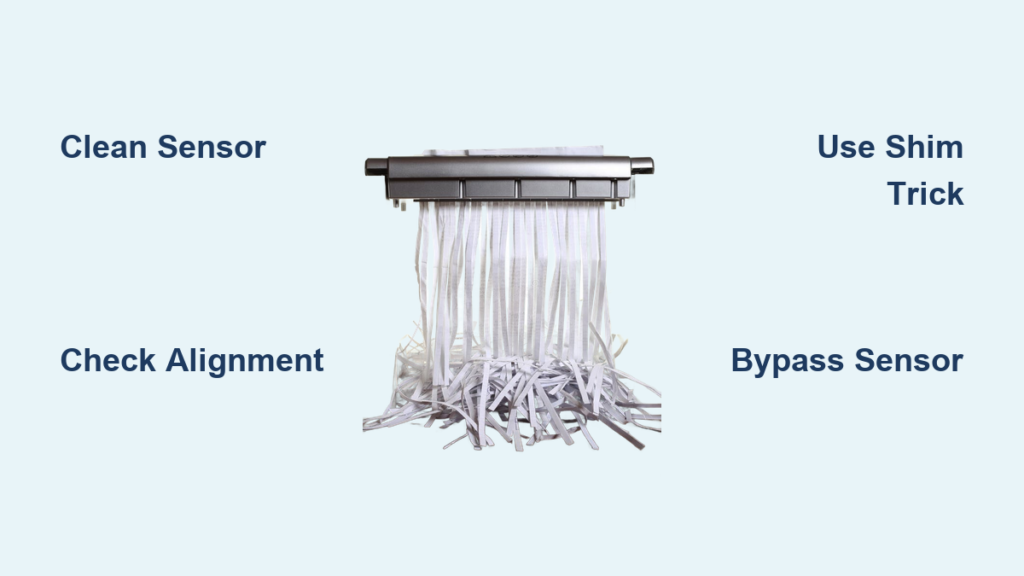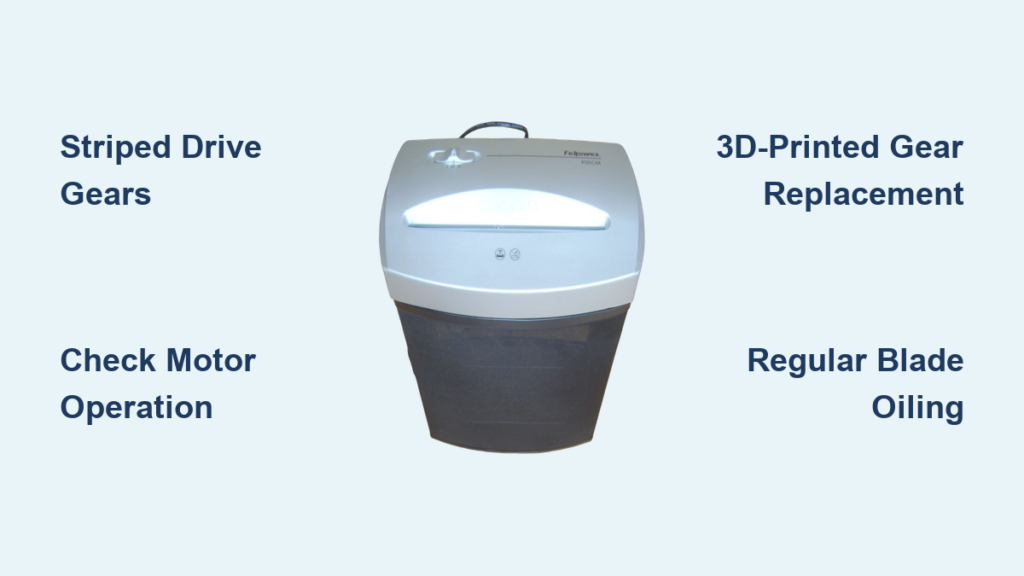

Is your Fellowes W10C shredder not starting, stuck in reverse, or running nonstop? This compact personal shredder is built for light to medium use, but common mechanical and sensor issues can disrupt its function, especially after prolonged use or improper maintenance. The Fellowes W10C shredder troubleshooting process focuses on three core systems: the paper detection sensor, safety interlocks, and thermal protection. In this guide, you’ll learn how to diagnose and fix the most frequent issues with your W10C, no tools required in most cases.
Fix Shredder Stuck in Reverse

If your Fellowes W10C only runs in reverse and won’t shred forward, even with paper inserted, the issue is likely not the motor but a failed detection or safety system.
Check the Paper Detection Lever
A white plastic lever in the feed slot acts as the mechanical paper sensor. If damaged or dirty, it won’t trigger forward operation.
Inspect the lever for visible damage like cracks or warping. Use compressed air to blow out dust beneath the lever. Dampen a cotton swab with rubbing alcohol and gently clean the switch contacts underneath. After cleaning, plug in and feed a small strip of paper to test operation. If it still won’t run forward, proceed to check the bin.
Reseat the Waste Bin Properly
The shredder head must detect the bin is securely in place. A misaligned bin disables forward mode.
Remove the bin completely from the unit. Check for paper buildup around the bin’s sensor tab and the unit’s sensor slot. Reinsert the bin firmly until you hear a click indicating proper engagement. Test again with a single sheet of paper.
Verify Safety Lock Position
The black safety lock button must be in the unlock position for normal operation.
Press the button down and slide it toward the back of the unit to unlock. If the button feels stuck or loose, the internal latch may be damaged. Cleaning may help, but if the problem persists, replacement of the unit is recommended.
Stop Continuous Running
When the motor keeps spinning after paper is gone, it’s usually a sensor or switch fault, not normal behavior. This requires immediate attention to prevent motor damage.
Remove Paper Fragments from Feed Slot
Tiny paper scraps can rest on the sensor, tricking the unit into thinking paper is still present.
Unplug the shredder before inspection. Shine a flashlight into the feed slot to identify any stuck debris. Use tweezers or a plastic pick to remove any stuck chads. Avoid metal tools as they can damage blades or sensors.
Clean the Sensor Area Thoroughly
Dust, oil residue, or adhesive from sticky notes can coat the sensor and cause false readings.
Use a dry microfiber cloth or electronics-safe compressed air. Focus on the center of the feed path where the detection lever sits. Never use shredder oil on the sensor, as it’s designed for blades only and can damage the mechanism.
Check the Mode Switch Position
The three-position switch (Off, Auto, On) must be in Auto for sensor operation.
If set to On (Continuous), the motor runs nonstop by design. Try toggling the switch back and forth to free a stuck contact. If it won’t move or stays in On, the switch is faulty and the unit likely needs replacement.
Reset the Control Board
Electrical glitches can lock the motor in the on position.
Unplug the shredder from the wall outlet. Hold the Off button or switch in Off position for 30 seconds. Plug back in and test in Auto mode to see if the issue resolves.
Diagnose No Power or No Start

When the shredder won’t turn on at all, start with the basics before assuming motor failure. These checks take less than a minute and resolve most startup issues.
Confirm Bin is Fully Seated
The unit has a bin interlock that prevents operation when the bin is not detected.
Remove and reseat the bin firmly into the shredder head. Listen for the click indicating proper engagement. Ensure the bin door is closed and not obstructed by the waste bag.
Check Safety Lock Status
A locked safety button disables all functions on the W10C.
Press down and slide the black button to the back (Unlock position). If the button doesn’t move freely, inspect for debris blocking the track. Clean any obstruction and try again.
Wait for Cool-Down Period
The motor has thermal overload protection that triggers after excessive use.
If used beyond 5 minutes continuously, the motor shuts down for 20 to 45 minutes. If the overheat light is on, unplug and wait the full cool-down period. After cooling, switch to Auto mode and do not force a restart.
Test Power Supply
Power issues can mimic complete failure.
Plug the shredder into a different outlet to test. Confirm the outlet works with another device. Check the power cord for visible cuts or kinks.
Resolve Spontaneous or Intermittent Operation
If the shredder starts on its own or runs erratically, the sensor is being falsely triggered. This behavior can start suddenly and may worsen over time.
Block Direct Light Exposure
Bright light shining into the feed slot can activate optical sensors in some sub-models.
Move the shredder away from windows or overhead lights. Cover the feed slot when not in use. Use the shredder during ambient, indirect lighting conditions.
Clean Sensor Threshold Zone
A dirty or sticky sensor may sit on the edge of activation, causing intermittent operation.
Use isopropyl alcohol and a cotton swab to clean around the detection lever. Dry completely before testing. Test with no paper inserted; the unit should not start on its own.
Maintain Optimal Performance
Prevent future issues with proper care and regular maintenance. The W10C responds well to consistent upkeep and can last for years when properly cared for.
Oil Blades Every Bin Empty
Neglecting oiling causes strain, noise, and early motor failure.
Use non-aerosol vegetable-based oil specifically designed for shredders (Fellowes 35250 is recommended). Apply oil in a zig-zag pattern across the entire feed width. Run in Reverse for 2 to 3 seconds to distribute the oil. Finish with a few seconds in Auto mode to coat blades fully. Avoid aerosol oils, WD-40, or silicone sprays as they damage plastic gears and sensors.
Follow Run-Time Limits
The W10C has specific operational limits that must be observed.
Maximum run time is 5 minutes continuous. After reaching this limit, a 20-minute cool-down period is required. Exceeding these limits triggers thermal cutoff and shortens motor life significantly.
Prevent Jams
Most jams are preventable with proper feeding habits.
Don’t overload the shredder; stick to 8 to 10 sheets at a time. Align paper straight before feeding into the slot. Remove staples or paper clips when possible before shredding.
Understand Error Lights & Indicators
Knowing what each signal means helps you respond correctly and avoid further damage.
Overheat Light Is On
The cause is motor overheating from overuse. Unplug the unit and wait 20 to 45 minutes for full cool-down. Restart in Auto mode after the light turns off.
Bin Full Light
The sensor detects a full bin and needs emptying. Empty the bin immediately to avoid jams and motor strain. Check that the bag isn’t blocking the sensor.
Bin Door Open Light
The bin is not seated properly or the door is ajar. Close the door and reseat the bin until it clicks into place. Check for bag obstruction.
When to Replace the W10C
Despite thorough troubleshooting, some failures are irreversible. Understanding when to replace saves time and money.
Signs Replacement Is Needed
Certain symptoms indicate internal component failure beyond repair.
Motor runs only in reverse after all cleaning and reset attempts have failed. Continuous running persists after sensor cleaning and board reset. No response from motor after confirming power, bin seating, and cool-down period. Safety lock or mode switch is physically damaged and cannot be cleaned or adjusted.
Disposable Design Reality
The Fellowes W10C is built as a disposable consumer product.
Internal components like the motor or control board are not user-replaceable. No service manuals exist for board-level repair. If basic fixes fail, replacement is the most practical solution.
Frequently Asked Questions About Fellowes W10C Shredder Troubleshooting
Why does my W10C only run in reverse?
This typically indicates a faulty paper detection lever or misaligned waste bin. Clean the white plastic lever in the feed slot and ensure the bin is seated firmly until it clicks. If the problem persists after these steps, the internal control board relay may have failed.
How do I stop my shredder from running continuously?
First, check that the mode switch isn’t stuck in the On (Continuous) position. Clean the sensor area thoroughly to remove any paper dust or debris causing false readings. Unplug and reset the control board by holding the Off button for 30 seconds. If none of these work, the auto-sense relay has likely failed.
What does it mean when the overheat light stays on?
The motor has reached its maximum temperature threshold from overuse. Unplug the shredder and allow it to cool for 20 to 45 minutes. Do not force restart. After cooling, switch to Auto mode and resume normal operation within the 5-minute run-time limit.
Can I repair the motor or control board myself?
No. The W10C is not designed for user serviceability. No public service manuals exist, and internal components are not replaceable. Professional repair is rarely cost-effective given the unit’s disposable design.
How often should I oil my Fellowes W10C?
Oil the blades every time you empty the waste bin. Use only non-aerosol vegetable-based oil applied in a zig-zag pattern across the feed width. Run in Reverse briefly to distribute, then finish in Auto mode.
Where are the model and CRC numbers located?
The model number and CRC code are found on the bottom of the unit or the underside of the shredder head. You need these numbers for warranty claims and when contacting Fellowes customer support.
Key Takeaways for Fellowes W10C Shredder Troubleshooting
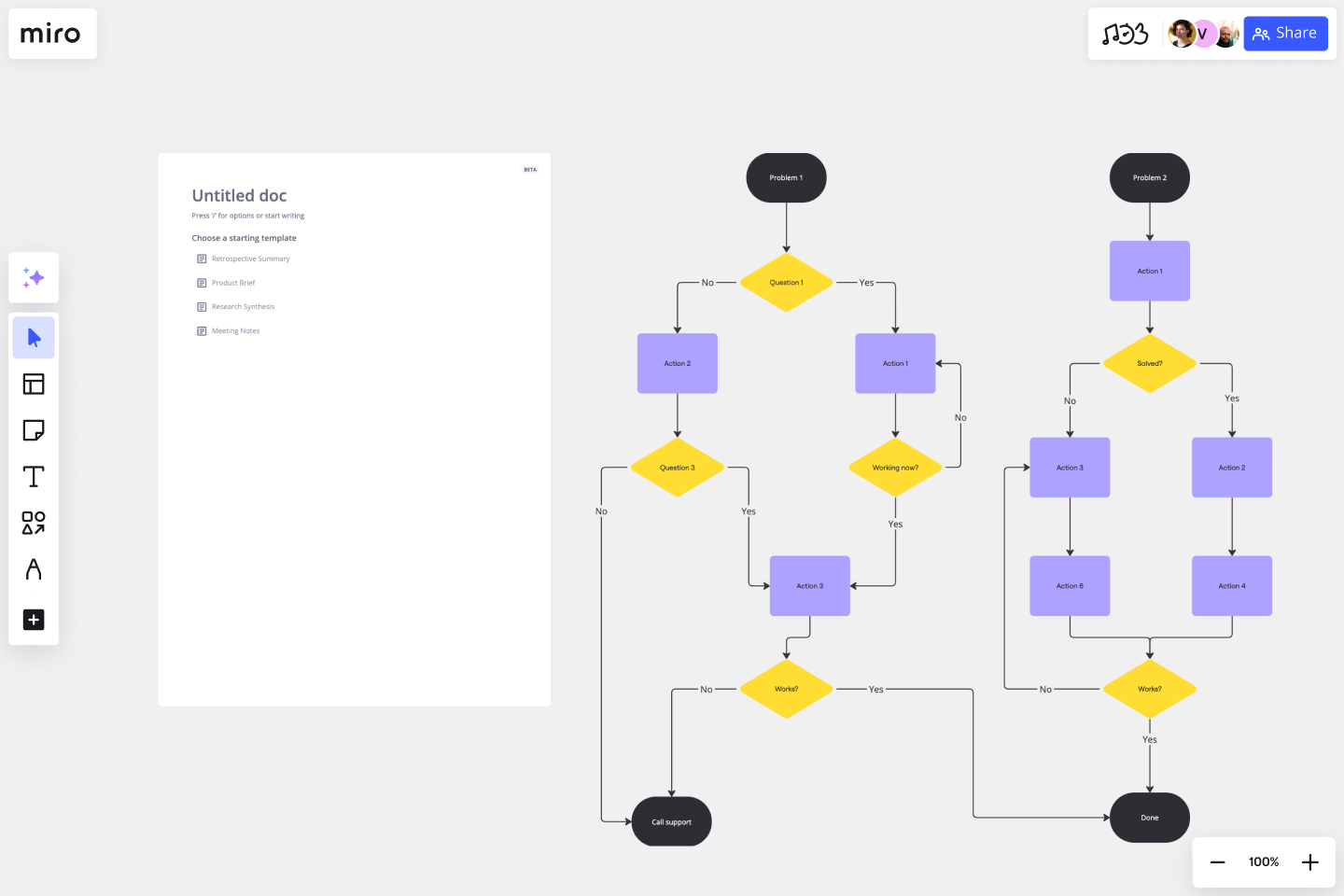
Regular maintenance prevents most common W10C issues. Oil the blades every bin empty, keep the sensor clean, and respect the 5-minute run-time limit to avoid thermal cutoff.
When problems arise, focus on three areas first: the paper detection lever in the feed slot, the waste bin seating and sensor, and the mode switch position. These components cause the majority of operational failures and are easiest to address.
If basic troubleshooting fails, remember that the W10C is designed as a disposable consumer product. Internal component repair is not practical or cost-effective. When your shredder reaches this point, replacing the unit is the most sensible solution.