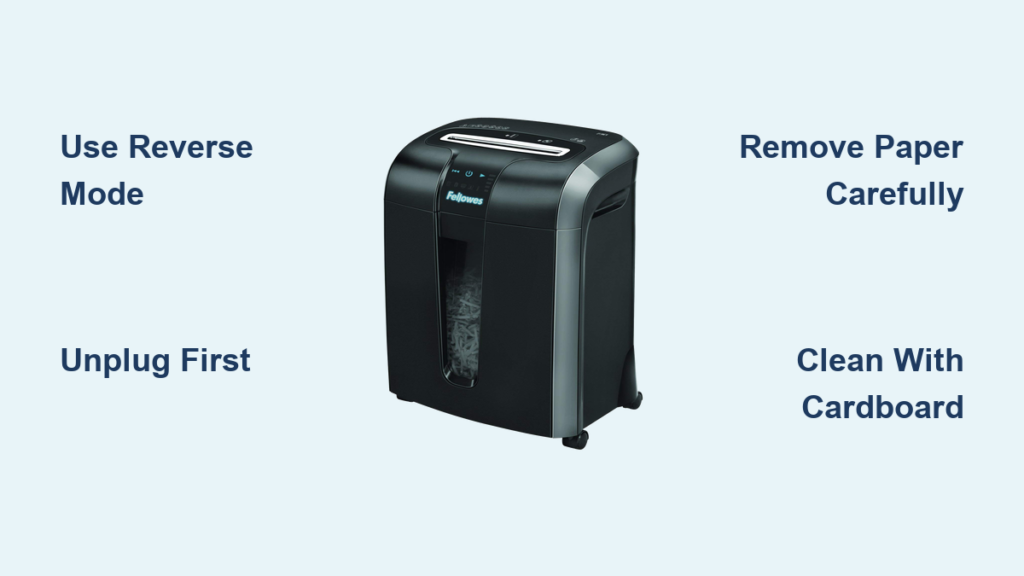
Your Fellowes shredder suddenly won’t start. The display shows a “Locked” light, or the drawer won’t open, even though you didn’t set a PIN. You’re not alone. Many users face unexpected lockouts on AutoMax and Powershred models due to security features, paper jams, or solenoid failures. The good news? Most lock issues are fixable in under 10 minutes using simple reset sequences or a quick mechanical override.
This guide reveals the exact steps to unlock any Fellowes shredder, whether it’s stuck from a forgotten SmartLock PIN, a jam-induced safety lock, or a malfunctioning solenoid. You’ll learn model-specific reset codes, how to manually release the drawer with a screwdriver, and how to prevent future lockouts. No guesswork, just proven methods from Fellowes technical documentation.
Reset SmartLock PIN on AutoMax 350C

If your Fellowes AutoMax 350C shows a “Locked” indicator without warning, it likely entered SmartLock mode accidentally or due to a power glitch. There’s no default PIN, but you can bypass it electronically.
Use Reverse Button to Clear Lock
The AutoMax 350C doesn’t have a physical reset button. Instead, the Reverse button acts as the reset trigger for the electronic lock.
Follow these steps:
- Unplug the shredder from power for 10 seconds.
- Remove the waste bin completely. Check for debris or misalignment.
- Reinsert the bin firmly until it clicks into place.
- Plug the unit back in and turn it on.
- Press and hold the Reverse button for 5 full seconds.
- Watch for the Locked light to turn off.
If successful, the shredder will respond to normal operation.
No Default PIN Exists
Fellowes does not publish default SmartLock codes for security reasons. If the Reverse hold fails, contact Fellowes Support with your model and serial number.
Unlock AutoMax Solenoid Lock

For other AutoMax models like 550C and 750C, the drawer may be locked by an internal solenoid even if no PIN was set. This safety feature prevents opening during operation.
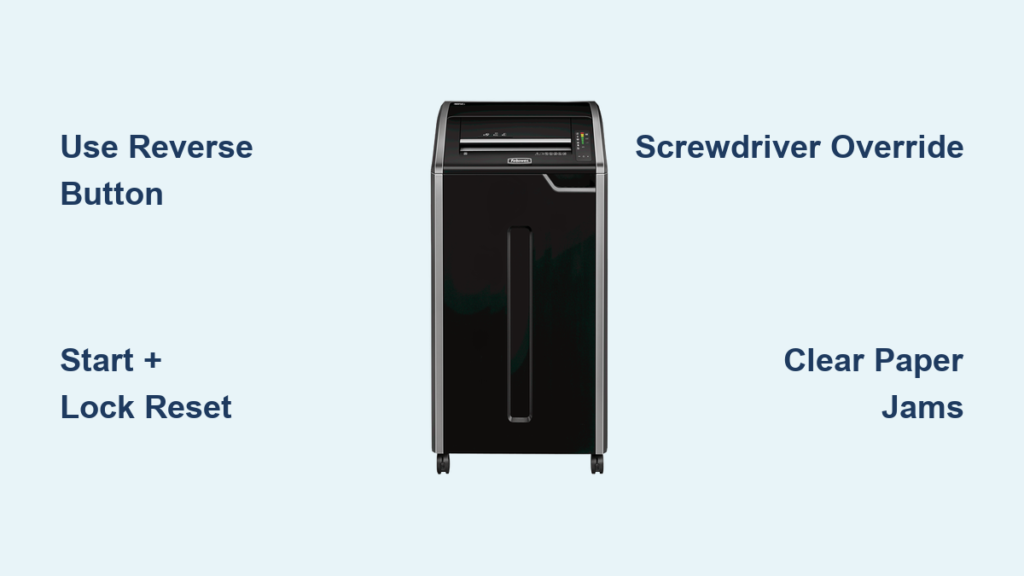
Execute Start Plus Lock Reset Sequence
This sequence forces the solenoid to retract electronically.
- Unplug the shredder for 10 seconds.
- Reconnect power and immediately press and hold both Start and Lock buttons.
- Hold for 5 seconds until the Bin Full light turns on.
- Release both buttons.
- Now press and hold the Lock button alone for another 5 seconds.
- The Bin Full and Start lights should turn off.
The solenoid disengages. You should now be able to pull the drawer open and resume use.
Works on Most AutoMax Models
This sequence is standard across AutoMax series with SmartLock and solenoid safety systems.
Force Unlock with Mechanical Override
When electronic resets fail, or the solenoid is jammed, use the mechanical override, a hidden manual release for AutoMax drawers.
Access the Internal Release Tab
This method bypasses the electronic lock entirely.
- Turn off and unplug the shredder.
- Flip the unit over or look underneath near the drawer area.
- Locate a small access hole in the cabinet shelf, usually near the front.
- Insert a standard flathead screwdriver into the hole from below.
- Gently push up or lift on the internal plastic tab inside.
- While lifting, pull the drawer outward.
It should release immediately.
Use Light Pressure Only
The internal tab is delicate. Forcing it can break the solenoid mechanism and void your warranty.
Once open, inspect for jams, clean sensors, and try the electronic reset again before closing.
Clear Paper Jams That Cause Lockouts

A paper jam often triggers a safety lock. Even with Jam Proof technology, overfeeding or thick materials can stall the blades.
Reverse and Extract Stuck Paper
- Press Reverse for 2 to 3 seconds.
- Gently pull the paper upward from the feed slot.
- If it doesn’t budge, switch between Reverse and Auto Forward every 2 to 3 seconds.
- Once loose, remove the paper slowly.
Never Yank Paper Hard
Forcing it can damage gears or blades. Use tweezers only if fragments remain.
After clearing, reset the lock using the appropriate method above.
Prevent Future Lockouts
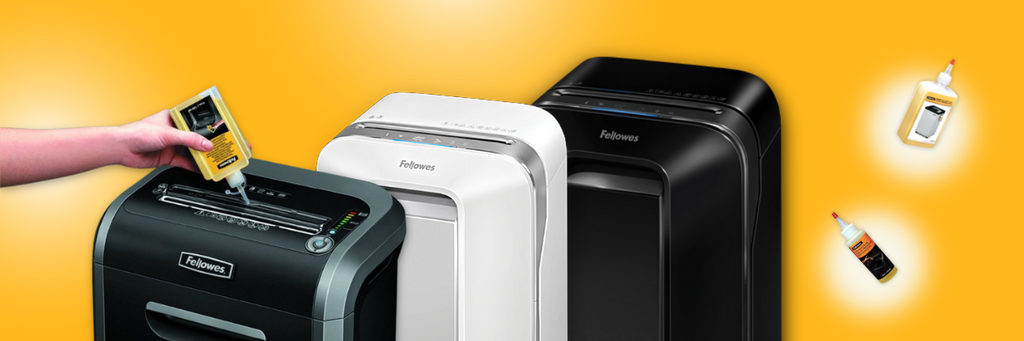
Avoid recurring lock issues with these maintenance habits.
Empty Bin Before It Is Full
A full bin triggers the Bin Full sensor, disabling shredding and sometimes locking the system.
Empty when the Bin Full light illuminates. Never let it overflow.
Oil Blades After Each Emptying
Dry blades increase friction, leading to jams and overheating.
Use Fellowes-approved shredder oil. Apply 2 to 3 sprays across the entry slot. Run the shredder in Reverse, then Forward to distribute oil.
Auto-Oil Models
If you have a 425Ci, 485Ci, or HS-1010, use the auto-lube function instead of manual spraying.
Respect Sheet Capacity Limits
Overloading is the number one cause of jams.
A folded sheet counts as 2 sheets. Check the sheet capacity label near the feed slot. When in doubt, feed fewer sheets.
Read Indicator Lights for Fast Diagnosis
Your shredder talks through lights. Learn what they mean.
• Locked: PIN active or solenoid engaged. Try Reverse hold or Start plus Lock combo.
• Bin Full: Bin at capacity. Empty bin and reset.
• Bin Door Open: Bin not seated. Reinstall firmly.
• Overheat: Motor too hot. Wait 30 to 40 minutes to cool.
Quick Troubleshooting Checklist:
• Bin empty and closed?
• Power connected?
• No jams visible?
• Tried Reverse plus 5-second hold?
• Tried Start plus Lock combo?
If all yes and still locked, use mechanical override.
Handle Overheat Lock Automatically
Continuous shredding triggers thermal protection.
Let Motor Cool Down
Standard models require 30 to 40 minutes after overheating. For example, Powershred 99Ci needs about 40 minutes off. Continuous-duty models like Powershred 225Ci can run nonstop.
Do not bypass cooling time. Repeated overheating shortens motor life.
After cooldown, test operation. If it locks again immediately, suspect a jam or failing motor.
When to Contact Fellowes Support
Some issues require professional help.
Support Needed If
You forgot the SmartLock PIN and reset failed. Mechanical override did not work, meaning the solenoid may be broken. Drawer won’t close properly after release. Lights flash abnormally or unit won’t power on.
Have your model number like AutoMax 550C and serial number ready.
Fellowes Customer Care can provide firmware resets, replacement parts, or warranty service.
Key Takeaways for Unlocking Your Fellowes Shredder
Unlocking a Fellowes shredder doesn’t require tools or guesswork. Just the right sequence. Whether it’s a PIN lock, solenoid jam, or paper blockage, you now have the exact steps to restore function fast. Use the Reverse button reset for AutoMax 350C, the Start plus Lock combo for other models, or the screwdriver override when electronics fail.
Keep your shredder running smoothly by emptying the bin regularly, oiling after each use, and never exceeding sheet limits. These small habits prevent 90% of lock issues.
If nothing works, contact Fellowes with your model and serial number. Your cutter may be covered under a 20-year warranty.
Frequently Asked Questions About Unlocking Fellowes Shredders
How do I reset my Fellowes AutoMax 350C lock?
Unplug the shredder for 10 seconds, remove and reinsert the waste bin firmly, plug back in, turn on, and hold the Reverse button for 5 seconds. The Locked light should turn off.
What does it mean when my Fellowes shredder shows a Locked light?
The Locked light indicates either a SmartLock PIN is active or the safety solenoid is engaged. Try the Reverse button hold or Start plus Lock button combination to clear it.
Can I unlock my Fellowes shredder without a PIN?
Yes. For AutoMax models without a manually set PIN, the lock is electronic. Use the Reverse button reset or Start plus Lock sequence. There is no default PIN.
How do I manually override a locked Fellowes shredder drawer?
Locate the small access hole underneath the shredder near the drawer. Insert a flathead screwdriver and gently push up on the internal tab while pulling the drawer open.
Why does my shredder lock up when overheated?
Continuous shredding triggers thermal protection. Power off and wait 30 to 40 minutes for standard models. The Overheat light will turn off when the motor cools.