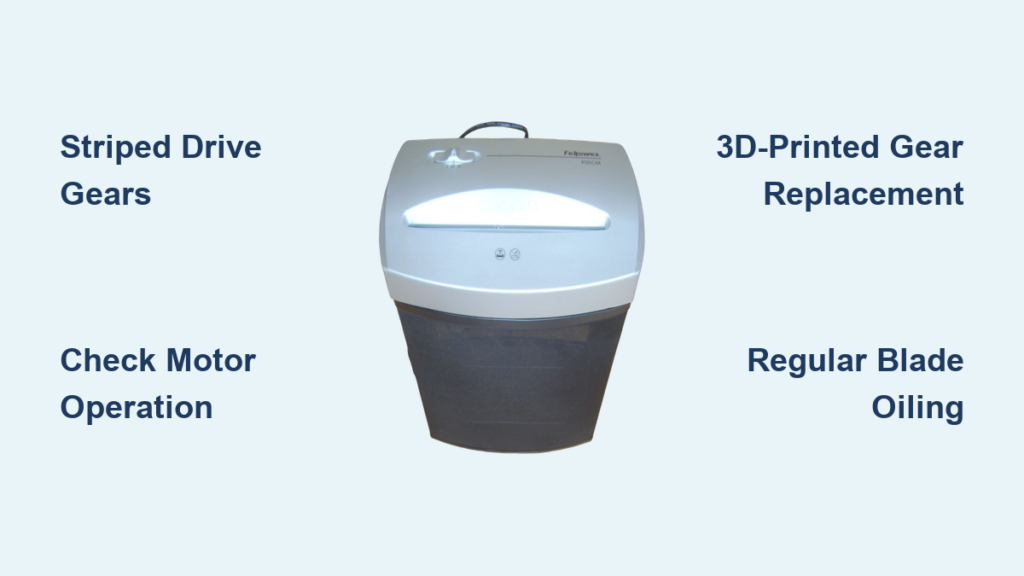
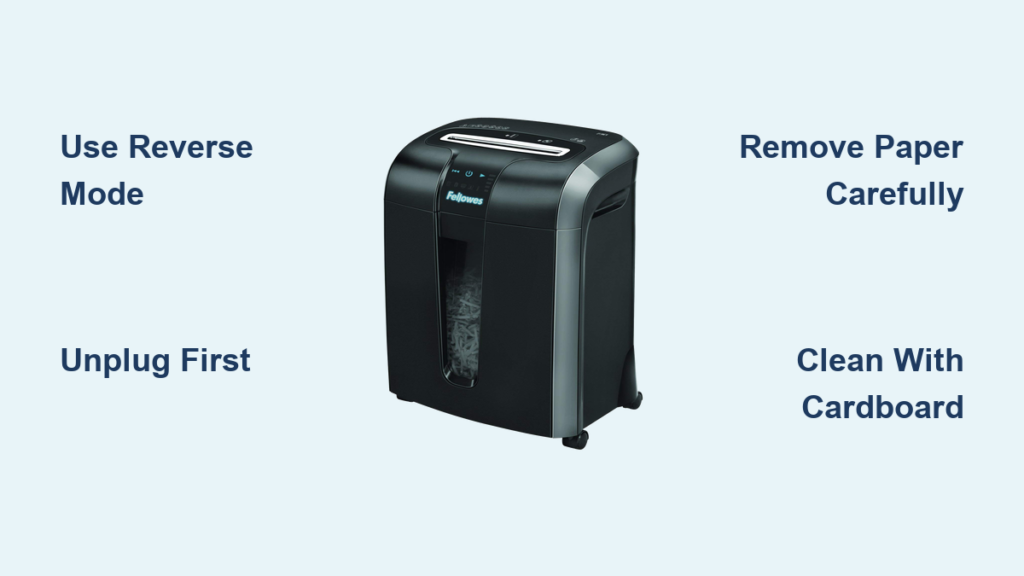
Nothing disrupts a productive workflow like a jammed paper shredder. If your Fellowes shredder stops mid-task with paper stuck inside, you are not alone. Learning how to unjam a Fellowes paper shredder quickly saves time and prevents damage to the machine. Whether your model includes Jam Buster technology or is a standard unit, this guide covers the exact steps to clear jams safely and prevent future blockages.
Activate Reverse Mode Immediately
When your Fellowes shredder stops and paper will not feed through, the first step is reversing the motor. This simple action clears approximately 80% of minor jams.
Use the Reverse-and-Forward Cycle
The fastest way to dislodge a paper blockage is toggling between reverse and forward modes. This rhythmic motion breaks up compacted paper and helps the blades reset.
• Set to Reverse: Press and hold the Reverse button for 5–10 seconds. If your model has a switch, flip it to Reverse.
• Pull Gently: As the machine runs in reverse, lightly tug the exposed end of the paper. Do not yank. Let the shredder do the work.
• Switch to Forward: Toggle to Forward for 2–3 seconds to test if the paper feeds smoothly.
• Repeat 2–3 Times: Cycling back and forth helps free tightly wound fragments deep in the cutting block.
If your model has Jam Buster, press and hold this button instead. It automatically powers through jams with enhanced torque.
Unplug Before Manual Extraction

If reverse mode fails, the jam requires hands-on attention. But before reaching in, safety comes first.
Follow Power-Down Protocol
• Turn Off the shredder using the power switch.
• Unplug Immediately from the wall outlet. This prevents accidental startup, which could cause injury.
• Check the Bin: Ensure the waste bin is fully seated. A loose or full bin can trigger a jam error or block paper flow.
Never insert tools or fingers into a powered shredder. Always disconnect power first.
Remove Paper with Proper Tools
Now that the unit is safe, inspect and extract debris.
• Use a flashlight to peer into the feed slot. Look for crumpled paper, staples, or foreign objects.
• Grab with tweezers or needle-nose pliers. Gently pull out visible paper. If it tears, switch to a plastic tool to avoid scratching blades.
• Avoid metal tools near blades if possible. While pliers work, plastic tools prevent accidental blade damage.
Work slowly and pull in the direction of paper flow. Do not force stuck paper, as this risks motor strain or gear damage.
Clear Debris from Blades and Sensors
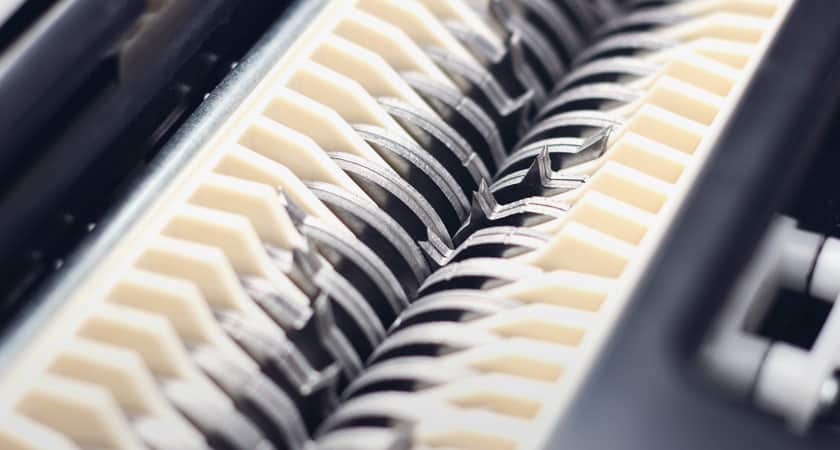
Even after removing visible paper, residual fibers or adhesive buildup can keep your shredder from functioning properly.
Inspect and Rotate the Cutting Blades
Look into the shredding chamber. If paper fibers are wrapped around the blades, try gently rotating the blade shaft by hand if accessible. Use a soft brush or dry cloth to wipe away dust and small paper bits from the cutting block.
Clean the Central Sensor
Many phantom jams are caused by a dirty sensor.
Locate the small sensor near the feed opening, often a glossy or metallic dot. Wipe it gently with a dry microfiber cloth. Avoid liquids, which can damage electronics. A clean sensor ensures accurate jam detection and prevents false error signals.
Try the Cardboard Cleaning Method
After clearing a jam, perform a quick blade cleanse to prevent future issues.
Run Cardboard Through the Shredder
Cut a piece of sturdy cardboard, like from a cereal box, to fit the feed slot. Insert it sideways, then slowly push it through from left to right. Repeat 2–3 times.
This action scrapes off sticky residue, sharpens cutters, and clears hidden debris. Perform this maintenance step every 2–3 weeks for peak performance.
Address LX190-Specific Jam Issues

The Fellowes LX190 is a popular model but prone to jams under heavy use or if maintenance is skipped.
Handle Red Light Errors
A solid red light means one of two things: a severe jam or thermal overload.
Immediate Response Steps
- Unplug the unit.
- Wait 30–60 seconds to reset the thermal protection circuit.
- Manually remove jammed paper using tweezers or a plastic tool.
- Plug back in, wait 10 seconds, then test with one sheet.
If the red light stays on after clearing the jam, the motor or gears may be damaged. This is especially likely in units over 6–7 years old.
Prevent LX190 Overheating
Do not exceed 10–15 minutes of continuous shredding. Let it cool for 20–30 minutes after heavy use. Lubricate frequently, ideally every time you empty the bin.
Follow Feeding Best Practices
Most jams happen because of overfeeding or improper materials.
Avoid Overloading the Shredder
Check the sheet capacity label on your model. Folded paper counts as two sheets. Feed in small batches of 5–7 sheets at a time, even if the maximum capacity is higher.
Only Shred Approved Materials
Approved items include paper, credit cards if rated, and CDs for model-specific units. Never shred paper clips, staples, plastic sleeves, sticky notes, or coins. Prepare documents first by removing staples and bindings. This reduces clogs and extends blade life significantly.
Lubricate to Prevent Future Jams
Dry blades create more friction, leading to jams and overheating.
Oil Your Shredder Regularly
Use Fellowes-approved shredder oil. Never use household oils. Apply oil each time you empty the bin. For heavy use, oil every 10–15 minutes of runtime.
Apply oil by turning the shredder to Auto or Forward. Spray or drip oil along the edge of a sheet of paper. Feed it through and repeat 2–3 times.
Troubleshoot Using Indicator Lights
Your shredder lights tell you what is wrong. Learn to read them.
| Light | Meaning | Action |
|---|---|---|
| Green | Ready to shred | Normal operation |
| Red | Jam or overheating | Unplug, clear jam, wait 30+ seconds |
| No Light | Power issue or full bin | Check outlet, bin placement, and cord |
Common False Alarms
No lights but the shredder is plugged in? Ensure the bin is fully inserted. Humming but no movement? Likely a partial jam. Run reverse mode. Shreds one sheet then stops? Could be sensor dust. Clean with a dry cloth.
Know When to Seek Professional Help
Some problems cannot be fixed at home.
Signs of Permanent Damage
Motor runs but blades do not turn. Loud grinding noises during operation. Red light persists after multiple reset attempts. Shredder is over 6 years old and frequently jams.
In these cases, contact Fellowes Customer Support or a certified repair technician. Attempting internal repairs voids the warranty.
Prevent Jams with Routine Maintenance
The best way to handle a jam is to avoid one altogether.
Weekly Maintenance Checklist
Empty the bin before it is full. Run cardboard through the blades. Wipe the sensor and feed slot. Oil the cutting mechanism.
Storage Tips
Keep the shredder in a dry, cool place. Avoid humid areas. Moist paper clumps and jams easily.
Key Takeaways for Unjamming Your Fellowes Shredder
Clearing a jammed Fellowes paper shredder does not require technical skill. Start with reverse mode, move to manual extraction if needed, and always unplug first. Use the cardboard cleaning trick and regular oiling to keep your machine running smoothly. By following these proven methods, you will minimize downtime and extend your shredder life for years. If jams keep happening despite proper care, it may be time to upgrade, especially for older models.
Frequently Asked Questions About Unjamming a Fellowes Paper Shredder
How do I know if my Fellowes shredder is jammed?
Your shredder may be jammed if the motor hums but the blades do not move, if paper is stuck in the feed slot, or if a red light appears on the control panel. These are the most common indicators of a jam.
Can I use household oil to lubricate my Fellowes shredder?
No. Only use Fellowes-approved shredder oil. Household oils can damage the internal components and void your warranty.
How often should I oil my Fellowes shredder?
Oil your shredder each time you empty the waste bin. For heavy use, apply oil every 10–15 minutes of continuous operation.
Why does my LX190 keep showing a red light after clearing the jam?
If the red light persists after clearing the jam and resetting, the motor or internal gears may be permanently damaged. This is common in units over 6–7 years old.
Can I pull stuck paper out forcefully?
No. Forcing paper out risks damaging the motor, gears, or blades. Always use reverse mode first, then proceed to manual extraction with proper tools if needed.
What causes frequent jams in Fellowes shredders?
Frequent jams usually result from overloading the shredder, skipping lubrication, using unapproved materials like staples or plastic, or a dirty sensor. Regular maintenance prevents most recurring jam issues.