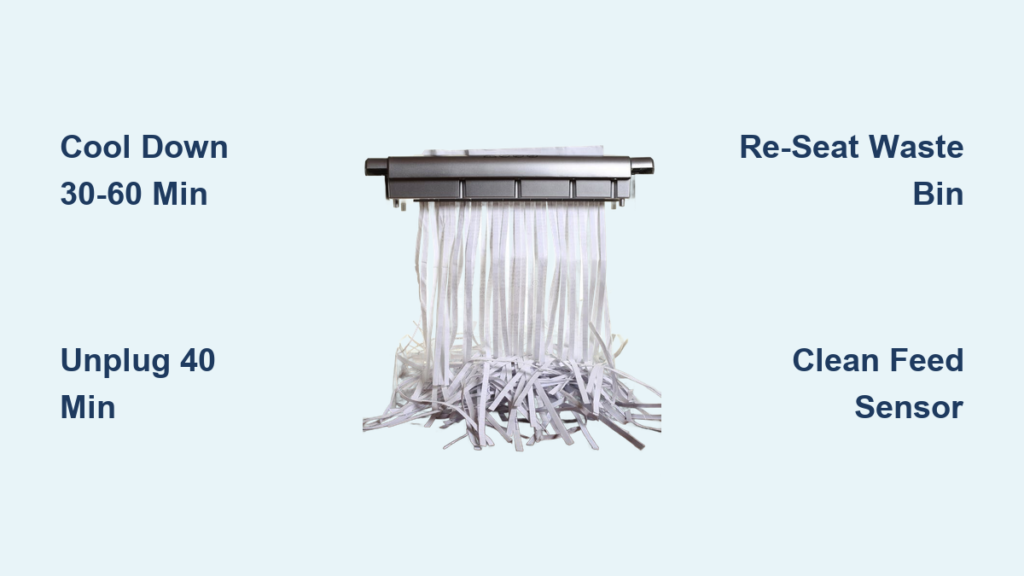
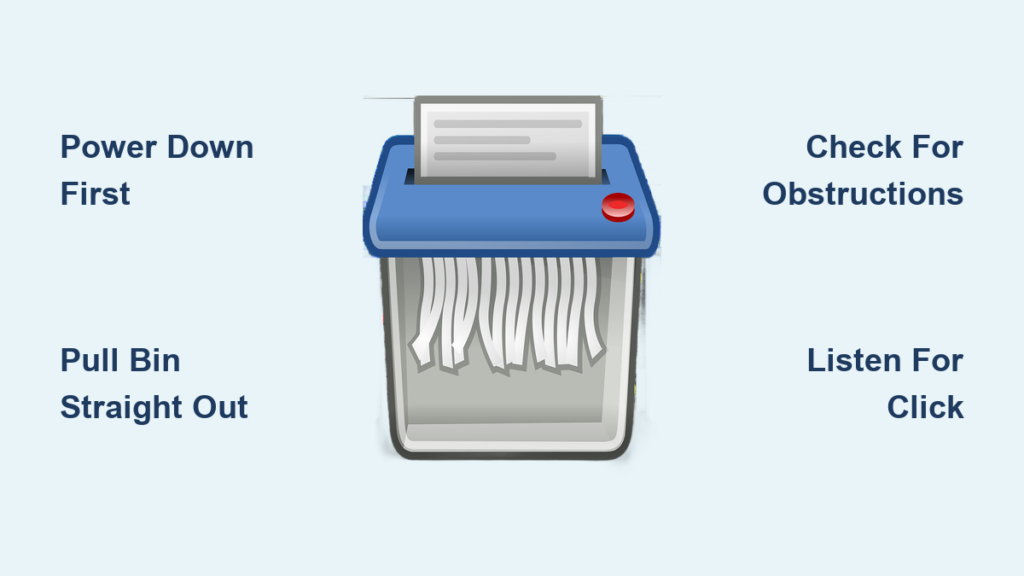
Is your paper shredder refusing to work? The most likely culprit is a full waste bin. Knowing how to empty a paper shredder properly is essential for keeping your machine running smoothly, avoiding jams, and protecting sensitive documents. Whether you’re using a compact home model or a heavy-duty office unit, the process varies by design, but with the right steps, it’s quick and safe.
Most modern shredders have indicator lights or viewing windows to tell you when it’s time to empty. Ignoring these warnings can lead to motor strain, sensor errors, or even permanent damage. In this guide, we’ll walk you through the correct emptying procedures for every common shredder type, troubleshoot sensor problems, and share maintenance tips to extend your machine’s life.
Pre-Emptying Safety Steps
Before touching the bin, ensure your shredder is safe to handle. Skipping safety steps risks electric shock or blade injury, especially on models with exposed cutters.
Power Down and Switch Off
Always turn the shredder off using the power switch. For models with a three-position switch, set it to “Off.” Never attempt bin removal while in “Auto” or “Reverse” mode. On lift-off top models, unplug the unit entirely from the wall outlet. This prevents accidental activation during handling.
Wait for the Clearing Cycle
Wait a few seconds after your last shred. Some machines automatically spin blades to clear the throat. Let this cycle finish before opening the bin or removing the housing.
Check Full-Bin Indicators
Modern shredders use smart indicators to signal when emptying is due. A visual window on many models shows paper level. Shred only until paper reaches just below the top of the viewing panel. LED lights typically include a leftmost light meaning “Bin Full.” If lit, stop feeding and empty immediately. Advanced units like the Fellowes Powershred 73Ci display messages such as “Overload” or “Bin Full” on a digital screen.
Emptying by Shredder Type

The method depends on your shredder’s bin design. Using the wrong technique can damage sensors or break latches. Follow these model-specific procedures.
Front-Load Bin with Casters
This design allows easy access without lifting the motor head. It’s ideal for high-volume use.
Pull Bin Straight Out
Grip the bin handles and pull forward smoothly. The integrated casters let you roll it out effortlessly. No need to unplug unless performing internal cleaning.
Use a Liner Bag for Clean Disposal
Most front-load bins are meant to be lined. Lift the sealed trash bag from the bin and dispose of it. This minimizes dust and contact with sharp paper fragments. If no liner was used, tip contents directly into a recycling container.
Slide Bin Back Until It Clicks
Reinsert the empty bin fully. Ensure it seats completely. Partial insertion triggers safety locks. Once clicked into place, the unit is ready to shred.
Lift-Off Top Housing
Common in compact desktop models, this type requires removing the entire top unit to access the bin.
Unplug Before Lifting
This step is non-negotiable. The motor and blades sit directly above the bin. Unplugging eliminates risk of accidental start-up.
Locate Side Release Tabs
Inspect the sides of the top housing. Some models have small buttons or clips. Press them before lifting. If no tabs exist, the unit relies on a friction fit. Grip firmly and lift straight up.
Never Force the Housing
If the top won’t budge, don’t yank it. Recheck for hidden latches. Forcing can crack plastic locks, rendering the unit unusable.
Realign and Re-seat Carefully
After emptying the bin, place it back in the base. Then align the top housing precisely over it. Lower slowly until it clicks or feels secure. An uneven fit may trigger “Bin Not Seated” errors.
Slide-Out Bin with Sensor Lock
A hybrid design combining ease of access with electronic safety checks.
Pull Bin Without Unplugging
The bin’s removal breaks an internal circuit, so power-down is sufficient. Grip both sides and pull straight out.
Empty and Inspect for Debris
Dispose of shreds in recycling. While empty, check for stray paper bits around the bin rails. These can interfere with reinsertion.
Push Until You Hear a Click
This is critical. The bin must engage a locking mechanism. If the middle LED stays on, pull and reinsert, pushing harder until the light turns off.
Troubleshoot Emptying Problems
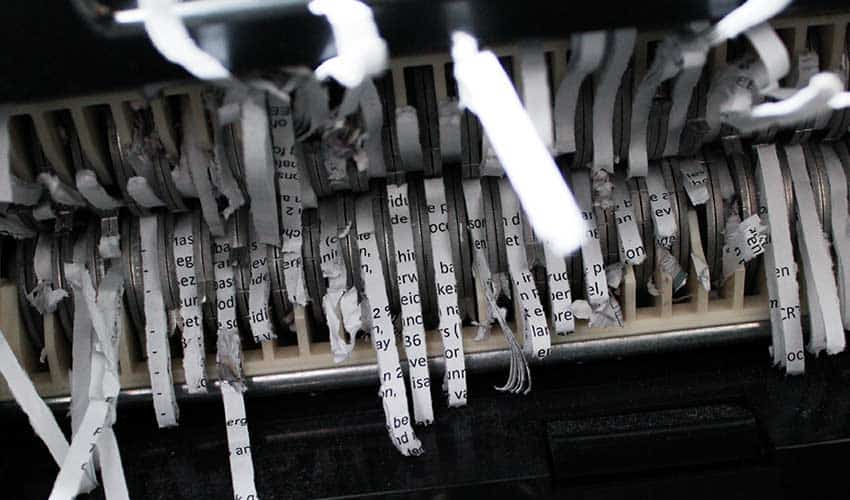
Even with correct steps, issues can arise. Here’s how to fix common post-emptying errors.
Bin Full Light Stays On
If the “Bin Full” indicator remains lit after emptying, clean the beam sensor. Use a dry paper towel. Insert it into the feed slot and move back and forth 10 times to clear dust from the optical sensor. Also check for stuck shreds. A small wad in the throat may trick the sensor. Run in “Reverse” mode briefly to clear.
Bin Not Seated Error Won’t Clear
This usually means misalignment or obstruction. Verify full insertion by pushing the bin firmly until you feel or hear a click. On most models, partial seating is the most common cause. Clear paper fragments from rails. Tiny shreds can jam the sensor path between bin and chassis. Wipe the track with a dry cloth before reinserting. Inspect for warping. If the bin is cracked or bent, it won’t seat properly. Replace if damaged.
Jam During Throat Clearing
Sometimes paper gets stuck just before emptying. Use reverse mode first. Switch to “Reverse” to back out jammed sheets. This avoids manual contact with blades. If reverse fails, unplug immediately. Use needle-nose pliers to grip and pull fragments. Access the blades via the flap under the feed slot if available. Avoid internal cover removal. Removing side screws to access blades voids the warranty.
Prevent Overheating and Overloads
Emptying the bin isn’t just about capacity. It reduces resistance that strains the motor.
Motor Overload Light Activated
This often happens when too many sheets are fed. For example, exceeding 12 sheets on a 15-sheet rated model. While emptying helps relieve pressure, the real fix is reducing sheet count per pass. Even if your shredder claims “15-sheet capacity,” feed only 12 sheets at a time for reliable performance.
Handle Overheating Correctly
If the motor overheats, the indicator light will turn on. Stop all use. Allow 45 minutes of cooldown before resuming. Do not empty the bin repeatedly during this time. The protection circuit is active.
Maintain for Smoother Emptying
Regular upkeep prevents jams, reduces dust, and keeps sensors responsive. This makes every emptying session easier.
Lubricate Blades Monthly
Clogged or dry blades slow shredding and compact waste, filling the bin faster. Use shredder-specific oil. Spray a light coat into the feed slot from one end to the other. Alternatively, apply oil to a sheet of paper and run it through. Try the wax paper method. Run a plain wax paper sheet through the shredder. It coats blades without attracting dust like oil can. After lubrication, run the machine in “Reverse” mode for 3 to 5 seconds to spread the oil evenly across cutters.
Clean Externally and Internally
Wipe down weekly using a microfiber cloth dampened with mild soapy water. Never spray liquid directly onto the shredder. Apply to the cloth only. Frequent emptying stops shredded paper dust from coating sensors and internal parts. A clean bin area means fewer false error messages.
Follow Sheet Limits Strictly
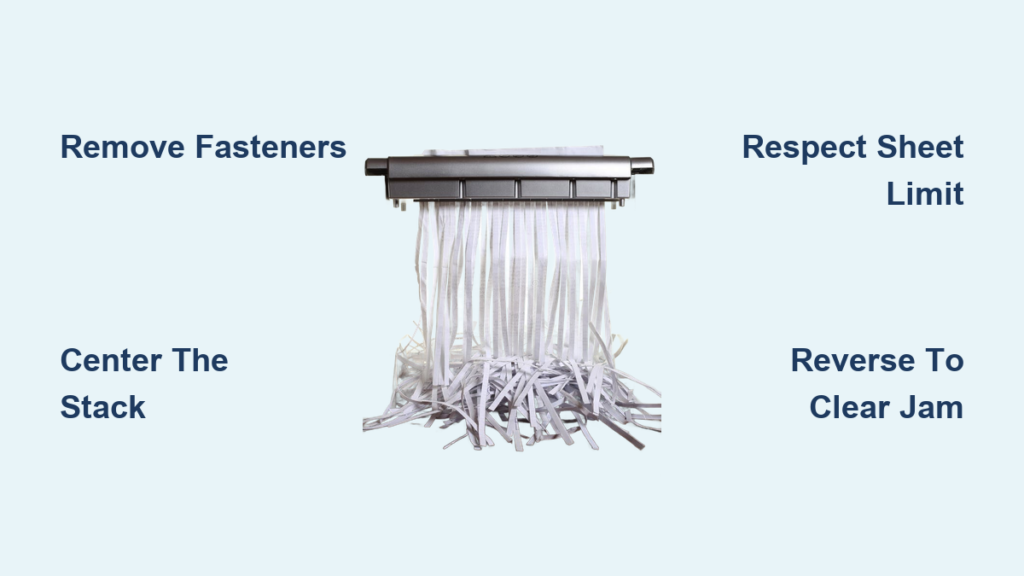
Overloading compacts shreds too tightly, making emptying messy and increasing jam risk. Strictly adhere to recommended limits.
Model-Specific Emptying Tips
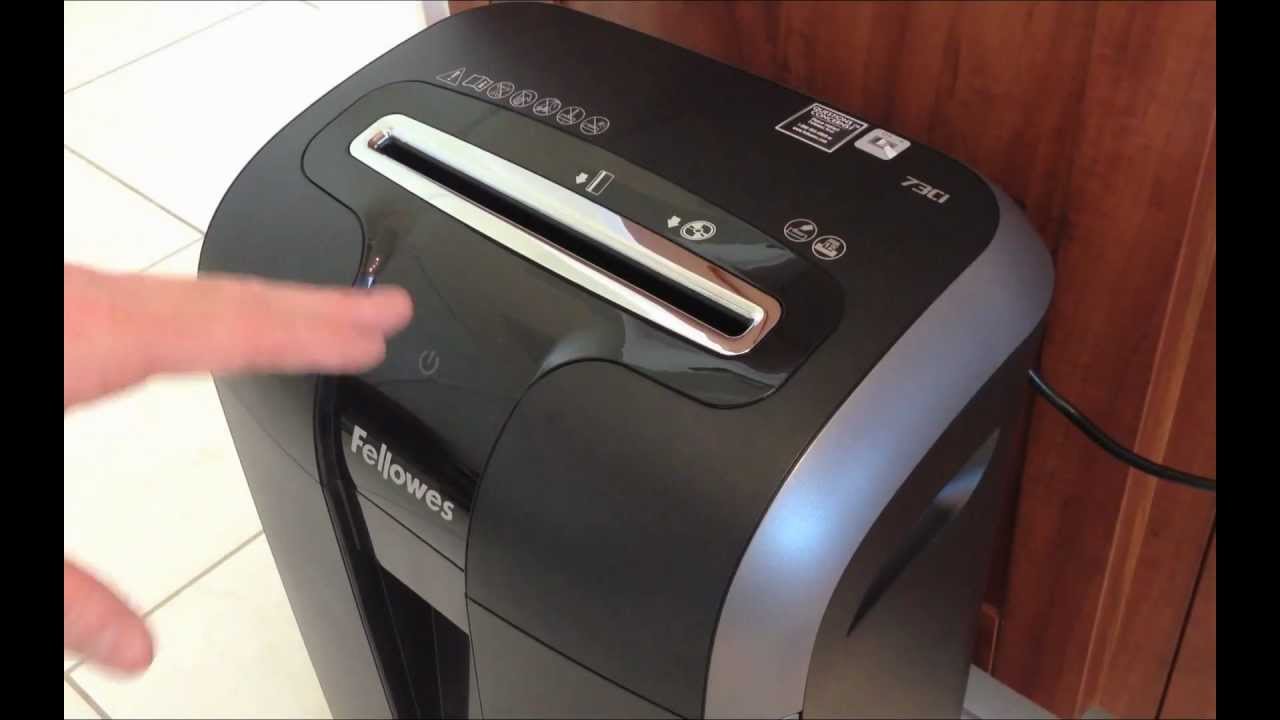
Know your machine. Here’s how to handle top models correctly.
Fellowes Powershred 73Ci
The Fellowes 73Ci features a 6-gallon front-load bin with casters. Pull out the bin, use a liner bag, then slide back in. Safe Sense Technology stops blades if hands near intake. No need to unplug, but power must be off.
Amazon Basics 15-Sheet
This model has a slide-out bin with click-lock sensor. Push bin until it clicks. The middle LED must turn off. If overheated, allow 45 minutes to cool down.
Amazon Basics 8-Sheet
The Amazon Basics 8-Sheet uses a lift-off top housing. Always unplug before lifting. Use lubricant sheets monthly. Dry blades cause jams.
Responsible Shredded Paper Disposal
Emptying isn’t just maintenance. It’s a chance to dispose of sensitive data securely.
Recycle When Possible
Most curbside programs accept shredded paper, but check local rules. Some require it to be in a clear plastic bag so sorting facilities can see the contents and prevent litter.
Maximize Security
Cross-cut shredders produce confetti-sized pieces, making document reconstruction nearly impossible. This protects against identity theft before recycling.
Use Bin Liners
For front-load models, line the bin with a bag. It streamlines disposal, reduces mess, and keeps your workspace clean.
Key Takeaways for Emptying Your Paper Shredder
Emptying your paper shredder doesn’t have to be a hassle. By following the right steps for your model, respecting safety protocols, and maintaining the machine monthly, you’ll avoid jams, extend motor life, and keep your workspace secure. Always unplug lift-top models before removing the housing. Listen for the click on slide-out bins. Never ignore overload warnings. With this guide, you’re equipped to handle any emptying task quickly, safely, and effectively.
Frequently Asked Questions About Emptying a Paper Shredder
How do I know when my paper shredder bin is full?
Most modern shredders have indicator lights or viewing windows. The leftmost LED typically means “Bin Full.” On models with a visual window, shred until paper reaches just below the top of the viewing panel. Advanced units like the Fellowes Powershred 73Ci display “Bin Full” on an LCD screen.
Can I unplug my shredder to empty it, or will that cause problems?
For lift-off top models, unplugging is required for safety. For front-load and slide-out bins, turning the power switch to “Off” is sufficient. The bin removal breaks an internal safety circuit in these designs.
Why does my shredder say “Bin Not Seated” after I empty it?
This usually means the bin isn’t pushed in far enough. Push firmly until you hear a click. Check for paper debris on the rails. Inspect the bin for warping or cracks that prevent proper seating.
How often should I oil my paper shredder blades?
Lubricate blades monthly. Use shredder-specific oil or run a wax paper sheet through the machine. After applying lubricant, run in “Reverse” mode for a few seconds to distribute it evenly.
What should I do if my shredder overheats?
If the overheating indicator light turns on, stop all use immediately. Allow the motor to cool down for 45 minutes before resuming. Do not attempt to force operation or empty the bin repeatedly during cooldown.