Your paper shredder suddenly stops mid-job. No power. No response. Red light glowing. You are not broken. You are just due for a reset. Most shredders that appear dead are actually protected by safety features designed to prevent motor damage, jams, or electrical faults. This guide covers every reset method, from thermal recovery to sensor cleaning, so you can get your shredder running again in minutes.
Cool Down After Overheating
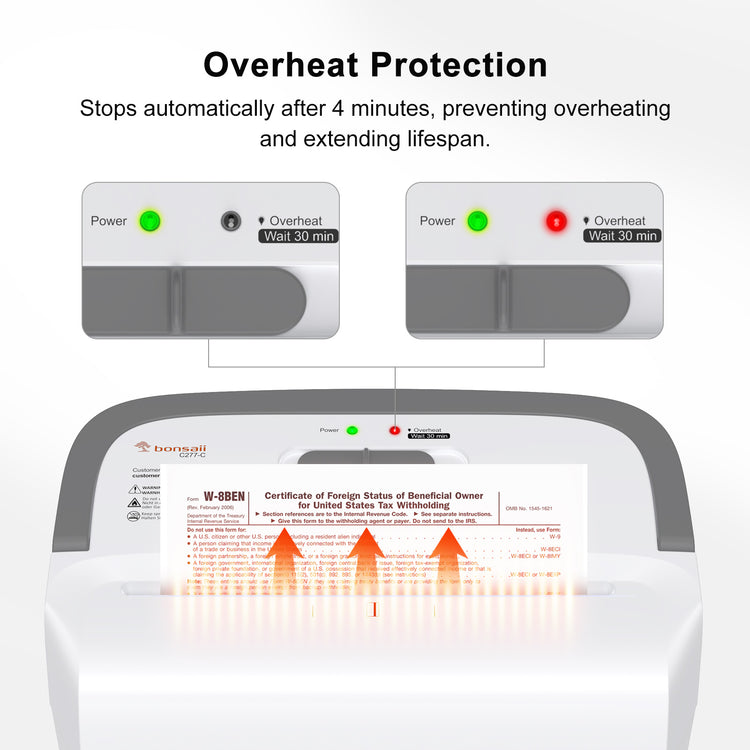
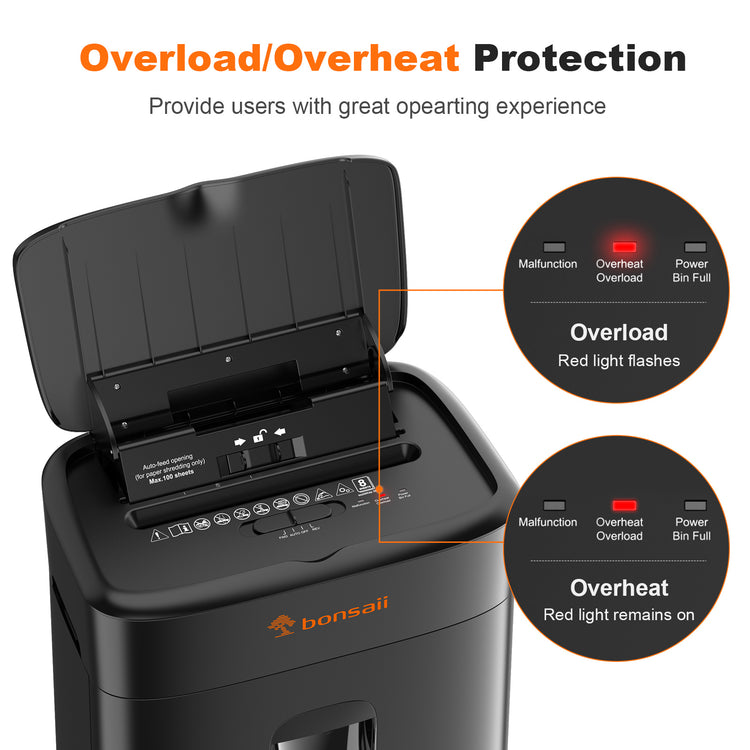
Most shredders shut off automatically when the motor gets too hot. This thermal overload protection activates after 10 to 20 minutes of continuous use. A red Overheat or Overload light means the motor has triggered a safety cutoff.
Wait 30 to 60 Minutes to Reset
There is no button to press for thermal reset. You simply need to wait. Let the unit cool for 30 to 60 minutes before trying again. Leave the power switch ON during cooling if your model keeps the internal fan running. This speeds up heat dissipation. If the unit seems unresponsive after cooling, turn it OFF and unplug for 40 minutes to fully reset capacitors.
Unplug for a Full Electrical Reset
If your shredder shows no lights or will not respond at all, perform a full electrical reset. Residual charge in internal circuits can lock up the control board.
Drain Power to Clear Glitches
Unplug the shredder from the wall. Wait 30 to 40 minutes, longer than a standard cool-down. Plug back in and test in Auto mode. This clears temporary errors and resets sensor logic.
Check the Outlet and GFCI
Before assuming the shredder is faulty, verify the power source. Test the outlet with another device. Press the Reset button on GFCI outlets, common in offices or near water sources. Try a different circuit or room. Flip the circuit breaker if the outlet is dead.
Press the Hidden Reset Button
Some models, especially Fellowes, Bonsaii, or HP, have a recessed reset button on the control panel or side casing. Look for a tiny pinhole or small button. Press and hold for 10 seconds with a paperclip to force a reboot of the electronics.
Re-Seat the Waste Bin Properly
Most modern shredders will not run unless the waste bin is fully locked in place. A green light with no motor action indicates the bin safety switch is likely open.
Click the Bin Into Place
Turn off and unplug the shredder. Remove the bin completely, with no plastic bags inside. Reinsert firmly until you hear a distinct click. Push pull-out drawers all the way in until the safety bracket engages. Toggle power off and on. This resets the bin sensor.
Reset the Safety Interlock
If the shredding head is lifted or knocked loose, the safety interlock cuts power. This prevents operation with the head open.
Re-Seat the Shredding Head
Lift the head slightly and re-seat it firmly onto the bin. Ensure all icons face forward and alignment tabs are engaged. Check for debris blocking closure.
Manually Press the Safety Switch
Some shredders have a small white button on the base or near the hinge. If stuck, it prevents startup. Turn the shredder over (unplugged). Locate the switch. Press it down 5 to 6 times to free it.
Clean the Feed Sensor
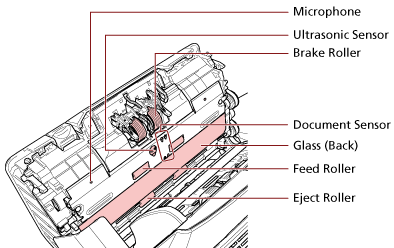
If your shredder is in Auto mode but will not start when paper is inserted, the feed sensor is likely dirty or blocked. This optical sensor sits in the center of the feed slot.
Wipe the Sensor with a Dry Cloth
Unplug the unit. Use a dry paper towel or cotton swab. Gently wipe the center of the feed slot for 10 seconds. Repeat 3 to 5 times if needed. For sticky residue, lightly dampen the cloth with isopropyl alcohol. Never soak the sensor.
Force the Sensor with Cardstock
If cleaning does not work, cut an index card or cereal box cardboard to fit the slot. Insert it into the center of the feed opening. Push firmly and steadily through. This physical pressure can dislodge paper fragments blocking the sensor trigger.
Clear a Paper Jam
A jam is the most common reason a shredder seems dead. The motor may run, but blades are blocked.
Reverse to Eject Jammed Paper
Switch to Reverse or Auto Clear mode. Run for 3 to 5 seconds. If jam persists, toggle Forward for 2 seconds, then Reverse for 5 seconds. Repeat 3 to 5 times. This rocking motion loosens compacted paper.
Extract Paper Manually
If reverse fails, unplug immediately. Look into the feed slot and output bin. Pull out visible paper gently. Use needle-nose pliers or tweezers for deep fragments. On models like Amazon Basics, remove the rear panel (unplugged) to access blades directly.
Oil the Blades for Stubborn Jams
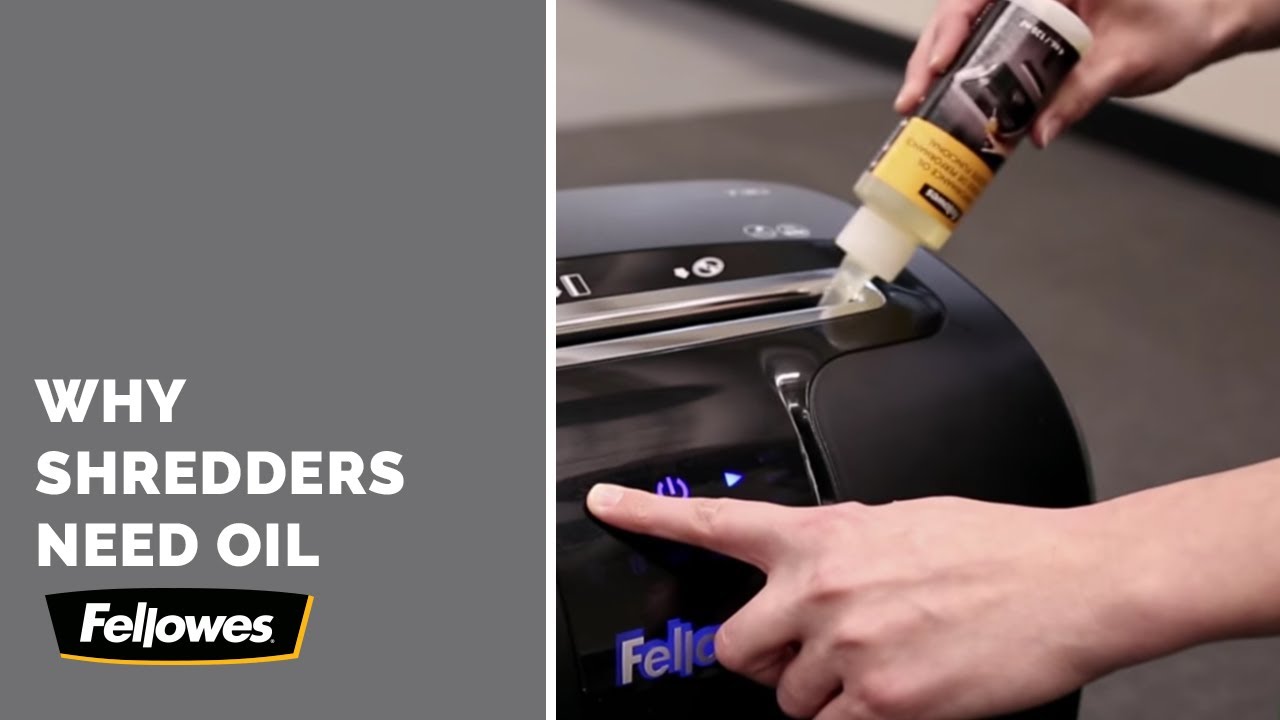
For paper that will not budge, unplug and turn off. Drizzle 2 to 3 tablespoons of shredder oil onto the jam. Let it soak 30 minutes. Plug in, switch to Reverse, and run. Follow with cardstock to clear residue.
Remove Metal Objects Immediately
If you hear grinding or crunching, a staple, clip, or metal tag is stuck in the blades.
Stop Grinding Noises Fast
Power off and unplug instantly. Switch to Reverse. Sometimes it backs the object out. If noise continues, do not force it. Metal can strip gears. Contact manufacturer support.
Prevent Future Resets with Maintenance
Dry blades overheat and jam. Lubrication is preventative resetting.
Oil Blades on a Schedule
Micro-cut models need oiling every 15 to 20 minutes. Cross-cut models need oiling every 30 minutes or half a bin. Strip-cut models need oiling every full bin or 2 hours. Use shredder-specific oil, not WD-40 or vegetable oil.
Follow Best Practices to Avoid Jams
Overloading causes jams and overheating. Always underfeed by 20 percent. Fan paper stacks before feeding. Remove staples, clips, and bindings. Avoid damp or wrinkled paper.
Read the Indicator Lights
| Light or Symptom | Cause | Reset Action |
|---|---|---|
| Red Light | Overheating | Wait 30 to 60 minutes |
| Green Light, No Cut | Bin not seated | Re-click bin firmly |
| No Lights | Power failure | Unplug 40 minutes |
| Motor Humming | Jam or stripped gears | Reverse, extract paper |
| Constant Running | Dirty sensor | Clean with cloth |
| Grinding Noise | Metal object | Reverse, seek help |
Know When to Replace Parts
If resets fail, internal wear may be the issue.
Replace Worn Feed Rollers
Auto-feed trays that will not grab paper likely have worn or dusty rollers. Clean with a damp cloth. If still slipping, order replacement rollers from the manufacturer.
Check for Stripped Gears
Symptoms include motor runs but blades do not turn, high-pitched whine, or paper feeds in but is not cut. Plastic gears can strip from overuse or jams. If under warranty, return the unit.
Avoid These Materials
Never shred large metal clips, binder clips, sticky labels, envelope windows, glued paper, laminated sheets, transparencies, cards with chips, cardboard, fabric, or plastic bags. Stick to plain paper, credit cards if rated, and CDs if specified.
Brand-Specific Reset Tips
Amazon Basics
Amazon Basics models use three lights. Red indicates overheat, wait 45 minutes. Middle light indicates bin not seated, re-click firmly. No response in Auto means clean sensor or force with cardstock.
Insignia
For red overload light, wait 50 minutes with power ON. Or try switching dial right, removing bin, reinserting, then switching left.
Fellowes, Bonsaii, HP
Many models have a small reset button on the control panel or side. Press and hold 10 seconds after unplugging and waiting. These models also feature ShredSafe thermal protection. Cool for 20 to 60 minutes depending on model.
Staples Standing Shredders
Common issues include auto mode failure from dirty sensor (clean with alcohol) and bin light on from pull-out drawer not fully engaged. Check the safety bracket under the head unit.
Frequently Asked Questions About Resetting a Paper Shredder
How long does it take for a shredder to reset after overheating?
Most shredders need 30 to 60 minutes to cool down after thermal overload. Leave the power switch ON if your model runs a cooling fan. Do not unplug unless necessary, as cutting power stops the fan and extends downtime.
Why does my shredder have power but not shred?
Check the waste bin first. If the bin is not fully seated, the safety switch prevents operation. Also check for paper jams, dirty feed sensors, or overheating. A motor that hums but blades do not turn usually indicates a jam or stripped gears.
Does unplugging a shredder reset it?
Yes, unplugging for 30 to 40 minutes performs a full electrical reset. This drains residual charge from capacitors and clears control board glitches. Plug back in and test in Auto mode.
Can I reset my shredder without a reset button?
Most consumer shredders do not have a manual thermal reset button. The reset happens automatically once the motor cools. However, you can reset the electronics by power cycling or cleaning sensors.
Why does my shredder stop working after a few minutes?
This is typically thermal overload. Shredders have a duty cycle of 10 to 20 minutes for consumer models. Stop shredding for a few minutes between batches to allow cooling. This prevents triggering the safety shutoff.
Key Takeaways for Resetting Your Paper Shredder
Most shredder reset issues stem from thermal protection, bin sensor problems, or feed sensor blockages. Cooling for 30 to 60 minutes resolves overheating. Re-seating the bin firmly fixes safety switch errors. Cleaning the feed sensor with a dry cloth restores Auto mode function. Regular oiling every 15 to 30 minutes prevents jams and extends blade life. Keep this guide handy, follow the indicator light codes, and your shredder will last years without professional service.