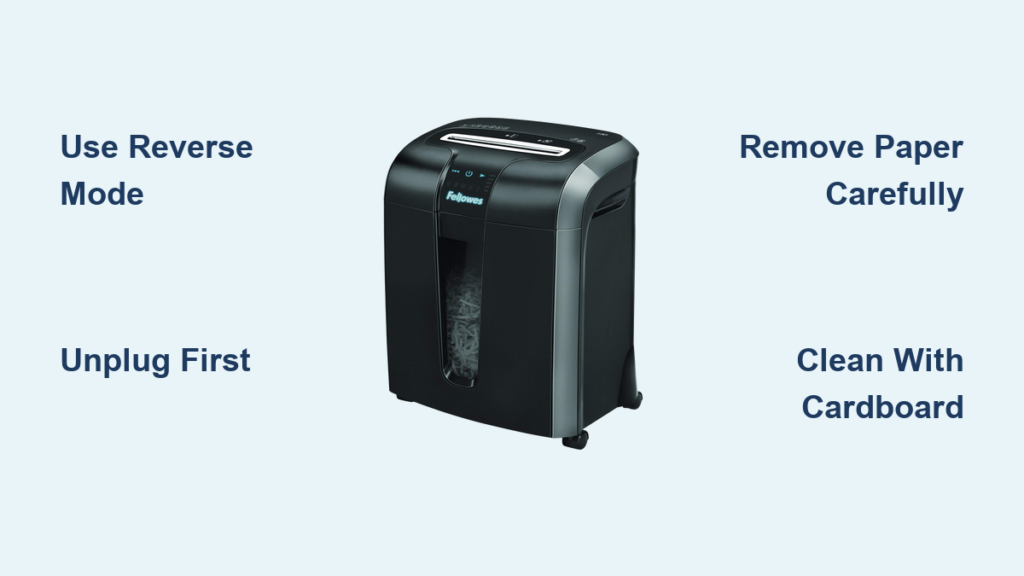

Your Insignia paper shredder powers on but stops after one turn, or maybe it won’t start at all. You’re not alone. Thousands of users report their Insignia paper shredder stopped working after a jam or due to mysterious cycling behavior. The good news? Most issues aren’t permanent. In fact, over 90% of these failures are caused by fixable problems like hidden paper fragments, dirty sensors, or thermal lockouts, not dead motors or broken gears.
This guide cuts through the confusion with step-by-step fixes based on verified troubleshooting data and technical specifications. Whether your shredder grinds once and quits or blinks erratically, you’ll learn exactly how to diagnose and restore it, often in under 15 minutes. No guesswork. Just proven solutions that work.
Post-Jam Grinding: One Turn Then Stop

If your Insignia shredder makes a grinding noise and halts after a single rotation, you’re dealing with residual debris, even if nothing’s visible. This happens when thick paper jams and shreds into microscopic fragments that wedge between blades or block internal sensors. The problem isn’t always obvious, which frustrates many users who clear visible paper but still can’t get the machine to run.
Hidden Debris Is the Real Culprit
Standard jam clearing, pulling out visible paper, often fails because tiny paper slivers remain trapped deep in the cutting assembly. These fragments create friction, trigger error states, and cause the motor to stall after one turn. The grinding sound you hear is the blade assembly hitting obstructed material. Users frequently mistake this for motor failure, but the real issue is micro-jamming, and it’s almost always fixable with the right approach.
Vacuum Out Invisible Paper Fragments
Tools needed: Vacuum with narrow nozzle attachment
• Unplug the shredder
• Lift the shredder head off the bin
• Aim the vacuum nozzle between the blades and around the paper entry zone
• Suction for 30 to 60 seconds, moving the nozzle to cover all blade gaps
• Flip the head and repeat from the bottom if accessible
Pro tip: Use short bursts to avoid pushing debris deeper. Focus on areas where blades meet, as these are common clog zones.
After vacuuming, plug in and test. Most users report immediate restoration of normal operation.
Run Reverse to Reset the Mechanism
Even after cleaning, the gear train may remain misaligned. The solution involves using the built-in reverse function to help re-engage gears and clear any lingering resistance.
• Plug in the unit
• Press and hold the Reverse button for 3 to 5 seconds
• Repeat 4 to 5 times
This back-and-forth motion helps re-engage gears and clear any lingering resistance. If the shredder now runs smoothly, the fix worked.
Warning: Never force blades manually. You risk damaging gear teeth or misaligning safety sensors.
Erratic Cycling: Light Flashes, Shredder Starts and Stops

Your shredder turns on, shreds a bit, stops, then restarts in a frustrating loop. The auto-sensor light blinks every second. This isn’t normal. It’s a sensor or alignment fault that needs attention. The machine thinks paper is present, then gone, then present again, causing those start-stop cycles that drive users crazy.
Clean the Optical Sensor
Dust, paper lint, or oil buildup on the optical sensor prevents consistent paper detection. The unit misreads paper presence, which triggers the erratic cycling behavior. Cleaning the sensor is often all it takes to restore normal function.
Fix:
• Unplug the shredder
• Locate the sensor near the paper slot, which appears as a small dark window or lens
• Wipe gently with a dry, soft cloth, no liquids
• Avoid pressing or scratching the surface
Test the shredder after cleaning. If cycling stops, the sensor was dirty.
Expert note: Some Insignia models have multiple sensors. Check both sides of the feed slot for best results.
Ensure Proper Paper and Alignment
Bent paper or misfeeding tricks the sensor into thinking the paper situation is different than it actually is. Using proper technique prevents this issue from recurring.
• Use flat, unbent paper
• Insert straight, don’t angle or force
• Feed no more than 8 to 10 sheets of standard 20lb paper
If the shredder still cycles after cleaning the sensor, check head alignment next.
Head Misalignment: Silent Killer of Operation

Even a slight misalignment between the shredder head and bin can break the safety interlock or disrupt sensor signals. This is one of the most overlooked causes of shredder failure, yet it’s also one of the easiest to fix.
Re-Seat the Shredder Head
• Unplug the unit
• Lift the head off the bin
• Check for debris on the bin’s rim or head’s base
• Align and press the head down firmly until it clicks or sits flush
• Plug in and test
Many users fix dead shredders this way, simply by reseating the head properly. The fix takes seconds but can save the entire unit.
Visual cue: If the head wobbles or doesn’t sit evenly, realignment is needed.
Thermal Lockout: Overheating Causes Shutdown
Continuous use triggers thermal protection. The motor shuts down to cool, causing unexpected stops. This is a built-in safety feature, not a defect, but it can catch users off guard if they don’t know what’s happening.
Let It Cool for 30 Minutes
• Turn off and unplug
• Wait 20 to 30 minutes before restarting
• Avoid shredding more than 5 to 6 sheets at a time for extended sessions
Pro tip: Shred in batches. 30 seconds on, 30 seconds off prevents overheating and extends motor life.
Prevent Future Failures: Maintenance Plan

A working shredder today can fail tomorrow without proper care. Following a simple maintenance routine keeps your Insignia shredder running smoothly for years. Prevention is far easier than repair.
Clean Blades Every Few Months
Use a vacuum every 2 to 3 months, even without jams. This prevents buildup that can cause problems down the line. For heavy users, vacuum monthly to keep the cutting mechanism clear.
Oil Blades to Prevent Grinding
Frequency: Every 10 to 15 uses or monthly, whichever comes first.
Steps:
• Turn on the shredder
• Apply 2 to 3 sprays of shredder oil into the slot, not WD-40
• Let it run until oil clears
• Repeat monthly
Oiling reduces friction, prevents jams, and eliminates grinding noises. Both OEM and generic shredder oils work well. Choose a non-silicone-based shredder lubricant for best results.
Pro tip: Wipe the optical sensor with a dry cloth during oiling. This prevents false cycling and keeps sensor accuracy high.
Load Management: Avoid Jams Before They Start
Overloading is the number one cause of shredder failure. Understanding and respecting the machine’s limits prevents most common problems. A little caution goes a long way toward avoiding costly repairs.
Stick to 10 Sheets Max
Even if the paper feels thin, never exceed 10 sheets. This is the maximum capacity for the Insignia 10-Sheet Microcut model.
• Thick paper? Reduce to 5 to 6 sheets
• Stuffed envelopes? Shred separately
• Multiple passes for large documents instead of one overloaded feed
Avoid These Materials
Insignia microcut shredders are designed for standard paper only. Avoid shredding laminated documents, adhesive labels, paper with staples or paper clips, cardboard, or plastic. These materials jam blades, strain motors, and cause permanent damage that may not be repairable.
When to Replace: Signs of Permanent Damage
If you’ve done all the above and the shredder still makes loud grinding with no paper inside, doesn’t turn at all with no motor sound, or smells like burning, internal damage may have occurred. At this point, repair costs typically exceed replacement value.
Check for Gear or Motor Failure
• Symptom: Motor hums but blades don’t move
• Cause: Stripped gears from forced jam clearing
• Fix: Not user-repairable. Requires professional service or replacement
Given Insignia’s consumer-grade build, replacement is often more cost-effective than repair. Register your shredder when you purchase it. Some models include 1 to 3 year coverage for mechanical defects.
Final Diagnostic Checklist
Use this quick-reference list when your Insignia paper shredder stopped working:
• Power connected? Check outlet and switch
• Head seated properly? Realign if wobbly
• Visible jam cleared? Remove any paper
• Vacuumed blades? Essential for grinding noise
• Sensor cleaned? Wipe with soft cloth
• Cool-down done? Wait 30 minutes if overheated
• Reverse run 5 times? Clears internal debris
• Blades oiled? Prevents future jams
• Load under 10 sheets? Avoid overfeeding
If all boxes are checked and it still fails, the unit likely needs replacement.
Key Takeaways for Fixing Your Insignia Shredder

Most Insignia paper shredders that stop working aren’t actually dead. They’re just dirty, misaligned, or overheated. Vacuuming hidden debris from the blade assembly resolves the vast majority of post-jam grinding issues. Cleaning optical sensors fixes erratic cycling behavior. Simple maintenance like monthly oiling and quarterly blade cleaning prevents most problems before they start.
The key is patience. Don’t force the blades, don’t skip the cooling period, and never overload the machine. With proper care and the troubleshooting steps in this guide, your Insignia shredder can last for years. Don’t throw it out. Fix it first.
Frequently Asked Questions About Insignia Paper Shredder Problems
Why does my Insignia shredder only turn once then stop?
This is usually caused by micro-jamming, where tiny paper fragments remain trapped in the blade assembly after clearing a visible jam. Vacuum the blades thoroughly and run the reverse function 4 to 5 times to clear hidden debris.
How do I fix the start-stop cycling on my Insignia shredder?
Clean the optical sensor near the paper slot with a dry, soft cloth. Dust and paper lint cause the sensor to misread paper presence, triggering erratic cycling. Also ensure the shredder head is properly seated on the bin.
Why is my shredder blinking and not shredding normally?
The blinking light usually indicates a sensor issue or thermal protection mode. Clean sensors first, then check if the unit needs to cool down for 20 to 30 minutes after heavy use.
Can I repair my Insignia shredder myself?
Most minor issues are DIY-fixable through cleaning and realignment. However, if the motor hums but blades don’t move, or if there’s a burning smell, the gears or motor are likely damaged and professional repair or replacement is needed.
How often should I oil my Insignia shredder?
Apply shredder oil every 10 to 15 uses or monthly, whichever comes first. Regular oiling reduces friction, prevents grinding noises, and extends the life of the cutting mechanism.