
If your Dahle shredder suddenly stops working, jams repeatedly, or won’t pull in paper, you’re not alone. These high-performance machines are built to last, but like any precision device, they can encounter issues from overheating and paper jams to sensor failures and power problems. The good news is that most common Dahle shredder troubleshooting challenges can be resolved quickly with the right steps, no technician required.
This guide covers every major failure mode, from red lights and reverse-only operation to loud noises and uneven shredding. You’ll learn how to diagnose the root cause using clear symptoms, apply proven fixes, and prevent future problems with proper maintenance. Whether you own a deskside model or a high-security unit, this step-by-step resource uses real technical insights from Dahle’s engineering specs to get your machine running smoothly again.
Power Connection and Startup Failures

When your Dahle shredder won’t turn on, the problem is often simple but critical to resolve correctly to avoid voiding your warranty.
Verify Direct Wall Outlet Use
Dahle shredders require a direct connection to a wall outlet. Never use power strips, surge protectors, or extension cords. These reduce voltage delivery and can permanently damage the motor or electronics. Using any of these accessories will void the manufacturer’s warranty.
If the unit is unresponsive, start by unplugging it and testing the outlet with another device like a lamp to confirm it works. Then plug the shredder directly into the wall with no intermediaries. Make sure the outlet is on a dedicated circuit if the machine shares space with other high-draw devices.
Check for Transport Bolts
New or recently moved Dahle shredders may have shipping or transport bolts still installed. These secure the cutting head during transit and must be removed before operation.
To locate and remove them, open the cabinet door and remove the waste bag. Look under the cutting head for 2-3 recessed bolts. Use the included hex key to remove them completely. Operating the shredder with transport bolts in place can cause mechanical failure.
Reset Thermal Overload
If the motor stopped suddenly and won’t restart, it may have triggered a thermal shutdown due to overheating. Fix this by turning the unit off and letting it cool for 20-30 minutes. Ensure the area around the motor has good airflow. After cooling, try powering on again and avoid continuous runs longer than 15-20 minutes to prevent recurrence.
Clearing Jams Safely and Effectively

Paper jams are the most frequent issue with shredders, but improper handling can turn a minor blockage into a costly repair.
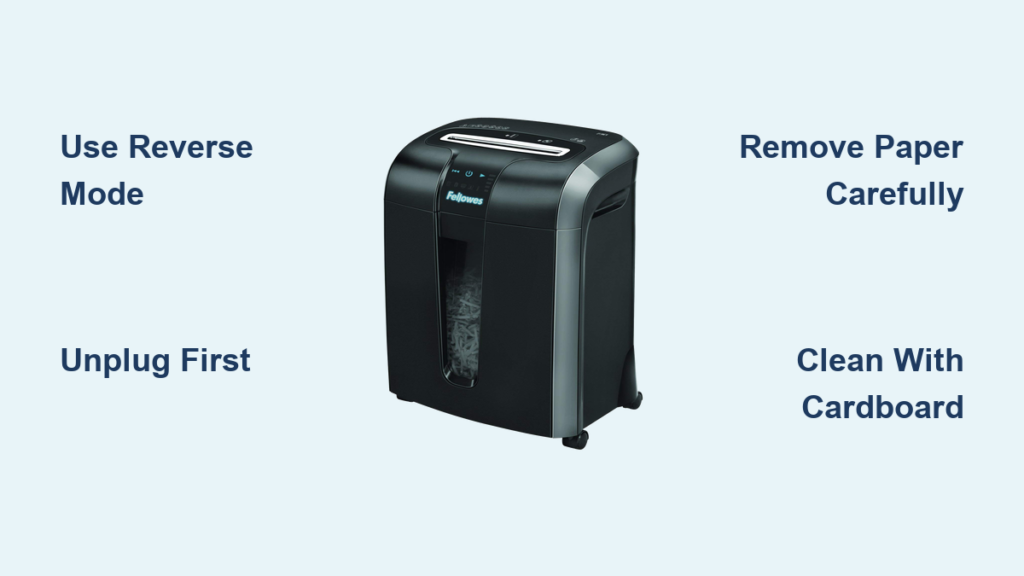
Use Reverse Mode First
As soon as the machine stops pulling paper, switch the function dial to Reverse. Gently tug the paper upward as the blades rotate backward. This often frees the jam without opening the unit.
Manually Remove Stubborn Jams
If reverse fails, unplug the shredder first for safety. Use tweezers, needle-nosed pliers, or a wooden toothpick to extract stuck fragments. Avoid metal tools that could scratch or misalign blades.
Check for crumpled paper deep in the throat, staple clusters on models that accept staples, and plastic remnants from credit cards or ID badges. Pro tip: feed smaller batches and align paper straight across the feed slot to prevent future jams.
Fix Sensor Errors and Indicator Lights
Modern Dahle models rely on sensors for auto-start and bin detection. When these fail, the machine behaves like it’s broken even when it isn’t.
Red Light On? Diagnose the Cause
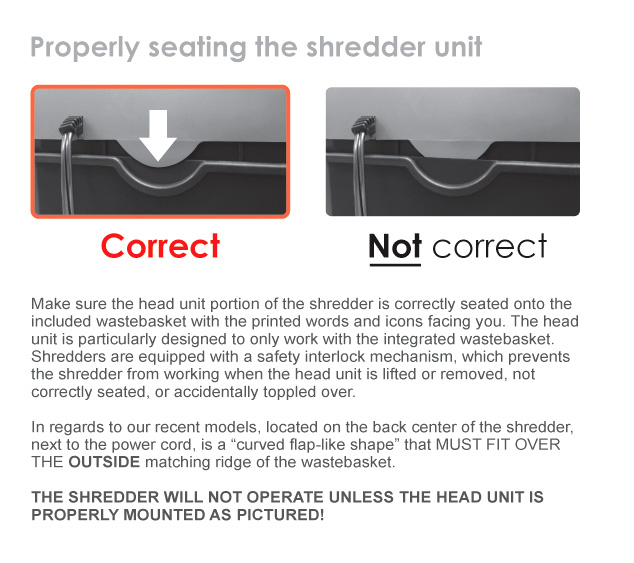
A solid red LED means one of four things: the wastebasket is full, the safety interlock isn’t engaged, there’s an active jam, or thermal overload is active.
Step-by-step fix involves emptying the bin completely, re-seating the bin firmly until you hear a click to engage the interlock, clearing any visible jam, waiting 30 minutes if overheated, and pressing the reset button if equipped to restart the internal circuit breaker.
Bin Full Light Stays On
Even with an empty bin, this light can persist due to sensor blockage. To fix this, remove the bin and wipe the sensor area with a dry soft cloth. Blow out dust with compressed air but do not use liquids. Reinstall the bin ensuring it clicks into place. Some models use optical sensors, and dust or oil buildup can block the beam. Clean gently to avoid damage.
Unit Only Runs in Reverse
This usually points to a failed auto-run sensor, the mechanism that detects when paper is inserted.
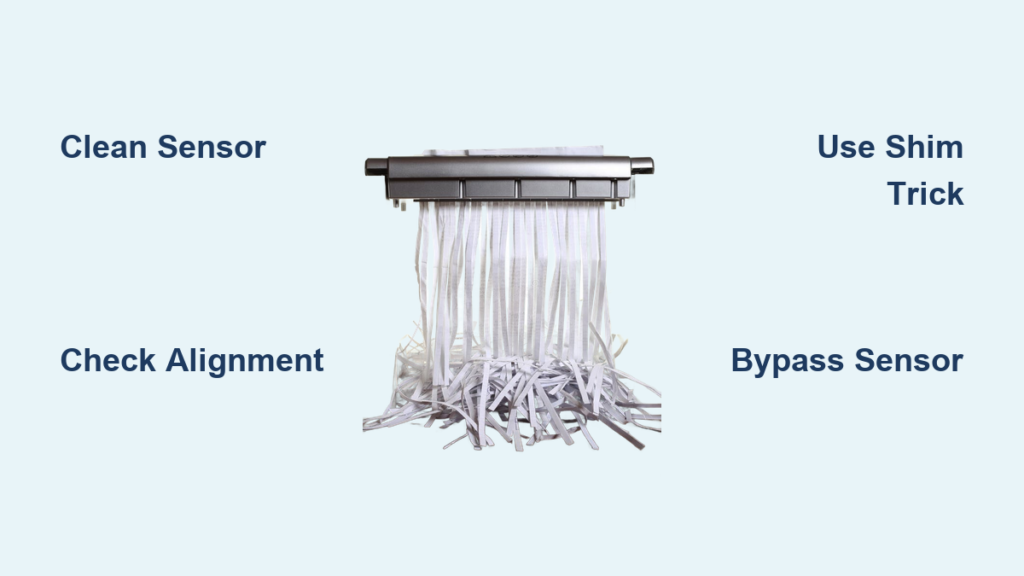
Troubleshooting steps include unplugging the unit and inspecting the feed throat for debris. Use a credit card to press up and down on the sensor area, which is the center of the feed slot, for 5 seconds to dislodge grime. Then try feeding a small receipt or check directly over the sensor. For electronic sensors, ensure paper breaks the beam by feeding centered. If the problem persists, the control panel may need replacement.
Resolve Feeding and Shredding Issues

When paper isn’t pulled in or comes out unevenly, performance drops fast. These fixes restore full function.
Won’t Pull Paper? Check Alignment and Bin
Causes include paper fed at an angle, a full bin creating back pressure, or worn or dirty feed rollers.
Immediate actions involve centering the paper over the feed slot, emptying the bin completely because even three-quarters full can restrict ejection, and inspecting blades for wear. If teeth are smooth, replacement is needed.
Uneven Shredding Output
If strips vary in size or some paper passes through untouched, blades are likely dull or clogged, or debris may be packed between cutting cylinders.
Fix this by unplugging the unit and using a soft brush to clean blade edges. For non-oil-free models, apply Dahle Shredder Oil to reduce friction. If sharpening doesn’t help, replace the cutting assembly. Avoid WD-40 because it causes paper fibers to stick and increases jams.
Handle Noise and Overheating Problems
Excessive noise or frequent shutdowns disrupt workflow but are often preventable.
Reduce Loud Operation Noise
Primary sources include vibration from the cutting cylinder, foreign objects in blades, and dried-out components on oiled models.
Solutions involve confirming rubber shock mounts are intact because these dampen vibration, inspecting for staples, paper clips, or plastic fragments, and for oil-required models, applying shredder oil every few hundred sheets. Note that oil-free Dahle models do not need lubrication. Oiling them is safe but unnecessary.
Prevent Thermal Shutdown
Overheating occurs when the duty cycle is exceeded, meaning more than 15-20 minutes continuous use, or when the unit is in a confined space with poor ventilation.
Best practices include following a 20-minute on, 30-minute off cycle for heavy jobs, keeping the shredder away from walls, cabinets, or heat sources, and allowing airflow around the motor housing.
Maintain Oil-Free and High-Security Models

Dahle’s advanced engineering means maintenance varies significantly by model.
Oil-Free Models: No Lubrication Needed
Most Dahle shredders, excluding High Security models, feature oil-free cutting systems with aggressive 3-point contact blades.
Key facts include that no oil is required ever. Accidental oiling won’t damage the unit but offers no benefit. These models reduce maintenance, mess, and supply costs. They are ideal for offices prioritizing cleanliness and low upkeep.
High Security Models: Auto-Oiling Required
These NSA/CSS 02-01 compliant units produce ultra-fine particles and include automatic oilers.
Maintenance steps include refilling the internal oil reservoir periodically, using Dahle Shredder Oil only, never substitutes, and removing staples and clips before shredding because P-6 and P-7 models cannot handle them. These units are designed for top-secret data destruction and require stricter handling.
CleanTEC Dust Filtration Care
Top-tier Dahle models include CleanTEC technology to capture 98% of fine dust.
Keep Air Clean and Safe
This matters because it prevents respiratory irritation and headaches. The filters are made by Freudenberg Filtration Technologies, are fully recyclable, and long-lasting.
Maintenance involves no cleaning or replacement needed under normal use. The system is sealed, so do not open or modify it. This ensures compliance with indoor air quality standards. CleanTEC is ideal for medical, legal, and executive environments where air purity is critical.
Prevent Future Issues with Proper Use
Avoid recurring problems with these best practices.
Follow Correct Feeding Habits
Feed paper straight and centered. Don’t overload and stay under rated sheet capacity. Alternate paper types to help clean blades.
Use Approved Materials Only
Dahle shredders handle paper, credit cards, CDs, DVDs, ID cards, and floppy disks depending on model specs. Avoid metal objects except staples on compatible models, adhesive labels, binders, plastic sleeves, and excessively thick stacks.
Schedule Preventive Maintenance
For non-oil-free models, oil every 300-500 sheets using Dahle Shredder Oil, never WD-40 or household oils. For all models, wipe exterior with a dry cloth, empty bin before it reaches three-quarters capacity, and inspect for wear every 3 months.
When to Contact Dahle Support
Despite best efforts, some issues require professional help.
Warranty and Repair Options
Dahle’s warranty covers defects in materials and workmanship but only if no extension cords were used, voltage requirements were met, and no unauthorized repairs were made.
For unresolved issues, call Dahle Technical Service at 800-995-1379. Have your model number ready, found on the back or base. Request parts or supplies through authorized dealers. Most parts ship next day if ordered early.
Upgrading: Choose the Right Model
If replacement is needed, consider daily volume, security level, growth planning for 3-5 years ahead, and environment. Choose CleanTEC for sensitive spaces. On-site shredding beats third-party services by eliminating data exposure during transport.
Frequently Asked Questions About Dahle Shredder Troubleshooting
Why does my Dahle shredder keep jamming?
Paper jams occur from overloading the feed, feeding at an angle, or not maintaining the blades. Fix this by feeding smaller batches, aligning paper straight, and keeping blades clean. For non-oil-free models, regular oiling prevents jams.
How do I reset my Dahle shredder after overheating?
Turn the unit off and let it cool for 20-30 minutes. Ensure good airflow around the motor housing. Press the reset button if equipped, then try powering on again. Avoid continuous runs longer than 15-20 minutes.
Why does my shredder only work in reverse?
This indicates a failed auto-run sensor. Unplug the unit and clean the sensor area using a credit card pressed up and down for 5 seconds. Try feeding paper centered over the sensor. If persists, the control panel may need replacement.
Can I use WD-40 on my Dahle shredder?
No. WD-40 causes paper fibers to stick together, leading to jams and reduced cutting efficiency. Use only Dahle Shredder Oil for models that require lubrication. Oil-free models need no oil at all.
Why is the bin full light on when the bin is empty?
The optical sensor is blocked by dust or paper particles. Remove the bin and wipe the sensor area with a dry soft cloth. Blow out dust with compressed air and re-seat the bin firmly until it clicks.
How often should I oil my Dahle shredder?
Only oil models that require it, typically high-security P-5 through P-7 models. Oil every 300-500 sheets. Most Dahle deskside and commercial models are oil-free and never need lubrication.
Key Takeaways for Maintaining Your Dahle Shredder
Most Dahle shredder problems stem from power issues, jams, or sensor errors, all fixable with the right steps. Always plug directly into a wall outlet and never use extension cords to avoid voiding your warranty. For jams, use reverse mode first, then manually clear with non-metal tools.
Keep sensors clean to prevent false bin full lights and reverse-only operation. Follow the 20-minute on, 30-minute off cycle to prevent thermal shutdown. Use only Dahle Shredder Oil and avoid WD-40 entirely.
By following this guide, you’ll extend your machine’s life, maintain peak performance, and keep sensitive data secure. Always unplug before maintenance and consult Dahle support at 800-995-1379 for persistent electronic faults.