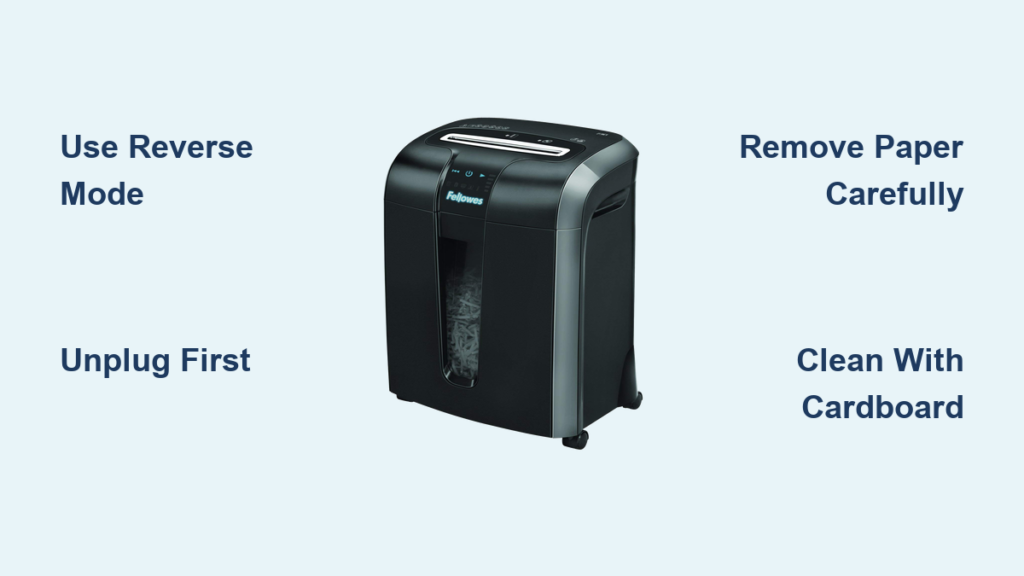

Is your Dynex paper shredder refusing to turn on, jamming constantly, or making strange noises? You’re not alone. Many users of the DX-PS10CC and DX-PS12CC models encounter performance issues over time, especially after years of regular use. The good news is that most problems can be resolved quickly with the right steps. From power failures and paper jams to credit card snags and overheating, this guide walks you through every common Dynex shredder issue, its cause, and exactly how to fix it. Whether you’re troubleshooting a silent machine or preventing future breakdowns, you will learn actionable solutions backed by manufacturer specifications and safety protocols.
We will cover sensor resets, jam clearing techniques, lubrication best practices, and when it is time to replace your unit, especially if it is nearing or past the 8-year lifespan mark. Let us get your Dynex shredder running smoothly again.
Power Issues: Why Your Dynex Shredder Won’t Turn On
When your Dynex shredder will not turn on, it is usually due to safety interlocks, power supply problems, or overheating, not permanent motor failure. Start with these checks before assuming the worst.
Check Outlet and Power Connection
Ensure the shredder is fully plugged into a working outlet. Test the outlet with another device like a lamp or phone charger. If the outlet has a GFCI button, press Reset. Also, inspect the power cord for cuts, kinks, or fraying. Do not use if damaged.
Reset Overheating Protection
If the red OVERHEAT light is on, the motor has shut down to cool. This happens after prolonged use. Turn the switch to 0 (Off), unplug the unit, and wait at least 30 minutes. Never force operation during cooldown, as this can cause permanent motor damage.
Fix ShredSafe Lockout
Dynex shredders use ShredSafe technology to prevent unsafe operation. If the top cover was opened too far, power cuts automatically. To reset, gently close the cover until it clicks into the preset position. The green AUTO light should return. Do not force the lid open beyond the click point.
Re-Engage Wastebasket Safety Switch
The shredder will not power on if the bin is removed or not fully seated. This is a built-in safety feature. Pull the wastebasket out completely, then push it back in firmly until it clicks. Avoid using plastic liners, as these can block the sensor or airflow.
Clear Feed Slot Sensor Blockage
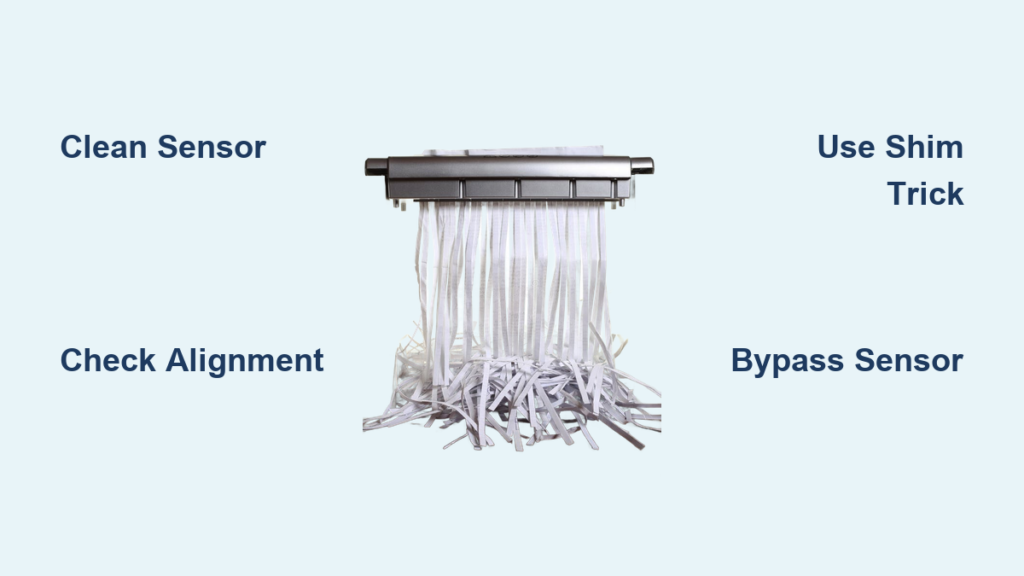
In Auto mode, the shredder starts only when paper triggers a center sensor. If small scraps or dust block it, the unit will not respond. Feed a standard index card straight into the center of the slot. Apply slight pressure to trigger the sensor and dislodge debris. Repeat if needed.
Fixing Auto Mode Failure When Reverse Works

If your shredder runs in Reverse (REV) but not Auto, the motor is functional, but the auto-start sensor is not activating. This is a common Dynex paper shredder troubleshooting scenario that often confuses users.
Center the Paper Feed
The sensor is located in the middle of the feed slot. Feeding narrow strips or small cards off-center will not trigger it. Always insert paper into the center of the slot. Use full-sized sheets when testing functionality.
Force Sensor Reset with Index Card
Debris or misalignment may prevent the sensor switch from closing. Insert a rigid index card directly into the center. Push firmly to override any blockage. The motor should briefly run and reset.
Confirm Mode Setting
Ensure the switch is set fully to I (Auto). In Auto mode, the motor starts only when paper enters. It is normal for the motor to run briefly when switching to Auto, then stop and wait.
Clearing Paper Jams Quickly
Paper jams are the most common issue, especially when overloading or shredding folded sheets. Handle them safely and effectively using these Dynex paper shredder troubleshooting steps.
Use Reverse Mode First
Switch to R (Reverse). Let the shredder back out the jammed paper. Gently pull out a few loose sheets once they are accessible. Switch back to Auto and test.
Apply Oil for Stubborn Jams
If reverse does not work, drizzle 1 to 2 drops of shredder oil or vegetable oil into the blade area at the jam site. Let it soak for 30 minutes to lubricate and weaken the paper fibers. Do not use aerosol sprays or petroleum-based oils, as they are flammable.
Push Through with Cardstock
After oiling, cut a piece from a cereal box, file folder, or greeting card. Feed it straight into the center of the slot. Its rigidity helps push the softened paper through the blades.
Fixing Credit Card Shredding Jams

Credit cards jam easily due to their thickness and rigidity. Never use metal tools, as this damages blades and creates a dangerous situation.
Stop Immediately and Unplug
As soon as a card jams, switch to 0 (Off) and unplug the unit. Wait if the motor was straining, as overheating may follow.
Remove Fragments with Wooden Tool
Use a wooden popsicle stick or chopstick. Insert gently into the feed slot. Probe between the blades to push out or break up stuck pieces. Work slowly to avoid finger injuries from sharp edges.
Prevent Future Card Jams
Shred one card at a time. Feed vertically, centered in the slot. Release the card as soon as shredding starts. Do not hold it. Never use Reverse while a card is being shredded.
Motor Hums But Blades Not Turning

A humming motor means power is reaching the unit, but motion is blocked. This is one of the more serious Dynex paper shredder troubleshooting scenarios.
Diagnose Mechanical Blockage
This is typically a severe jam, paper, card fragment, or foreign object. Follow the paper jam and credit card jam procedures. Lubricate and use cardstock to clear debris.
Consider Motor or Gear Failure
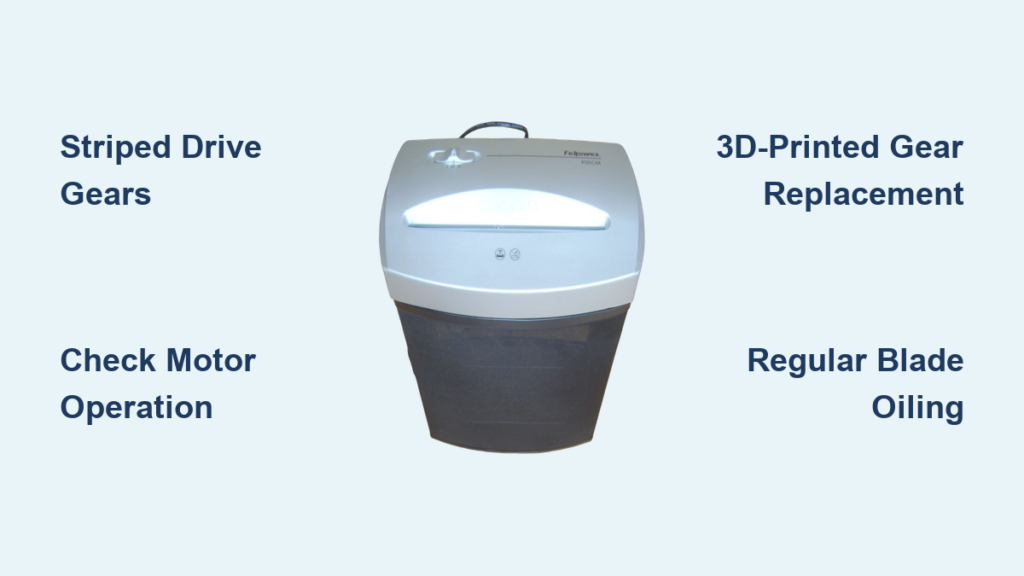
If no blockage is found and the unit is over 8 years old, internal wear may be the cause. Capacitors or gears degrade over time. Repeated overheating accelerates failure. At this stage, replacement is often more cost-effective than repair.
Lubricate to Prevent Jams
Regular oiling keeps blades sharp, reduces friction, and extends motor life. This is essential Dynex paper shredder maintenance.
Oil Every Month or After 10 Minutes
Oil monthly for light use. Oil every 10 to 15 minutes of continuous shredding for heavy use.
Use Only Approved Oils
Shredder-specific oil and vegetable or cooking oil are safe. Never use petroleum-based oils or aerosol sprays, as these are fire hazards.
Apply Correctly
Drip 1 to 2 drops of oil onto 1 to 2 sheets of plain paper. Feed through in Auto mode. Run briefly in Reverse to coat both blade sides. Shred one dry sheet to absorb excess oil.
Clean Safely and Effectively
Dust buildup impairs sensors and blades. Clean regularly, but never with water or air cans.
Wipe Exterior with Dry Cloth
Use a soft, dry towel to remove dust and fingerprints. Never use cleaners or wet cloths.
Clear Feed Slot Debris
Use a small brush or folded paper to gently remove paper scraps from the slot. Avoid poking deep into the mechanism.
Never Use Canned Air
Compressed air can force debris deeper into gears or damage internal components. It may also dislodge safety sensors.
Empty Wastebasket Frequently
A full bin causes paper to backfeed into the blades, causing jams and motor strain. Empty before it is three-quarters full. Always unplug before removing the bin.
What You Should Never Shred
Shredding prohibited materials causes jams, blade damage, and voids warranties. Knowing what not to feed your Dynex shredder is crucial troubleshooting.
Avoid These Materials
Plastic (except credit cards and CDs/DVDs), laminated paper, sticky notes, adhesive envelopes, cardboard, transparencies (acetate), newsprint, paper with wet ink or chemicals, and large paperclips or binder clips all cause damage.
Safe to Shred (With Limits)
Up to 12 sheets of 20-pound paper (DX-PS12CC), one credit card at a time, one CD/DVD at a time (hold by edge), and staples and small paperclips (remove when possible) are all acceptable.
Warranty and Repair Options
Know your rights and limitations when seeking service for your Dynex paper shredder troubleshooting needs.
1-Year Limited Warranty Coverage
Dynex offers a one-year warranty from purchase date for defects in materials or workmanship. It covers free repair or replacement. Valid in U.S., Canada, and Mexico. Requires proof of purchase.
What Void Warranty Instantly
Opening the shredder head, using unauthorized repair services, damage from misuse, liquids, or prohibited materials, and removing or altering the serial number all void the warranty instantly.
Get Service Correctly
If bought in-store, return to Best Buy with receipt and unit. If bought online, mail to the address provided at purchase. Contact 1-800-305-2204 for support.
When to Replace Your Shredder
Even well-maintained Dynex shredders have a lifespan. After 8 years, failure risk increases significantly.
Signs It Is Time to Replace
Motor hums but will not turn even after clearing jams, burning smell or sparks from motor, persistent overheating with minimal use, visible blade damage, and unit is out of warranty and repair costs exceed $50 all indicate replacement is needed.
Cost vs. Longevity Decision
If your DX-PS10CC or DX-PS12CC is over 8 years old and failing, professional repair is rarely economical. Replacement ensures reliability and security. New models offer better safety and efficiency.
Key Takeaways for Dynex Paper Shredder Troubleshooting
Most Dynex paper shredder issues stem from simple causes: jams, sensor blocks, or lack of lubrication. By following these troubleshooting steps, you can resolve 90% of problems safely and quickly. Always unplug before maintenance, use only approved oils, and never open the shredder head. If your unit is aging or under warranty, act accordingly to avoid unnecessary costs. With proper care, your shredder can keep sensitive documents secure for years to come.
Frequently Asked Questions About Dynex Paper Shredder Troubleshooting
Why does my Dynex shredder not turn on even when plugged in?
Your shredder may not turn on due to several reasons. Check that the wastebasket is fully seated, as there is a safety switch that prevents operation when the bin is removed. Also verify the outlet is working, check for the red OVERHEAT light indicating the motor needs to cool for 30 minutes, and ensure the ShredSafe cover is properly closed.
How do I fix a paper jam in my Dynex shredder?
Start by switching the mode to Reverse (R) to back out the paper. If that fails, apply 1 to 2 drops of shredder oil or vegetable oil to the jam site and let it soak for 30 minutes. Then feed a piece of cardstock (from a cereal box or file folder) into the center to push the softened paper through.
Can I use regular oil to lubricate my Dynex shredder?
Yes, you can use shredder-specific oil or basic vegetable/cooking oil. Never use petroleum-based oils, flammable liquids, or aerosol sprays, as these pose fire hazards and can damage the machine.
How often should I oil my Dynex paper shredder?
Oil your shredder once a month for light use. For heavy use (continuous shredding), oil every 10 to 15 minutes. Regular lubrication prevents jams and extends the life of the blades and motor.
When should I replace my Dynex shredder instead of repairing it?
Consider replacement if the unit is over 8 years old and shows multiple failures, if the motor hums but blades will not turn after clearing all jams, if there is a burning smell or sparks, or if repair costs would exceed $50. At that age, internal components are likely worn out.