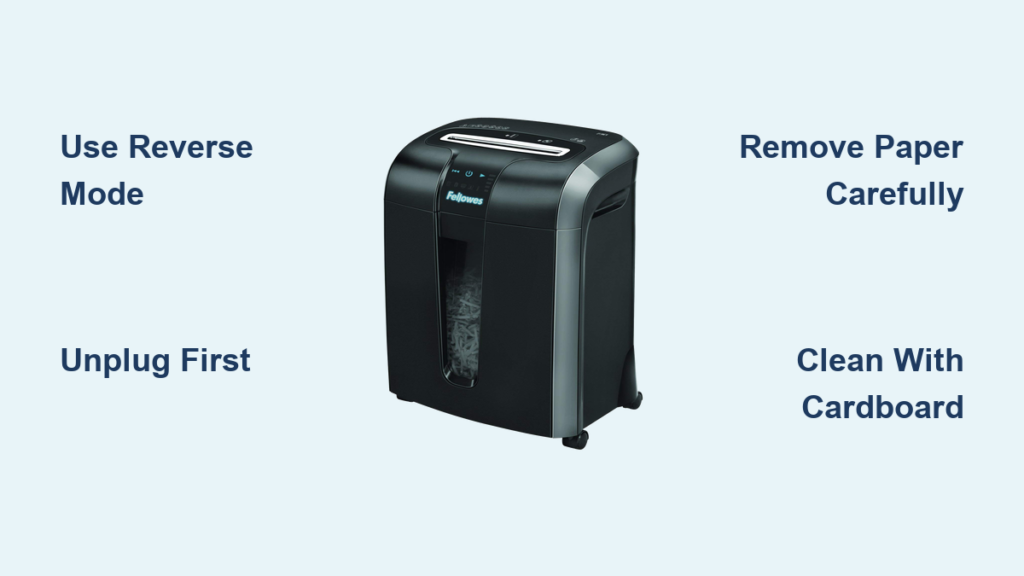
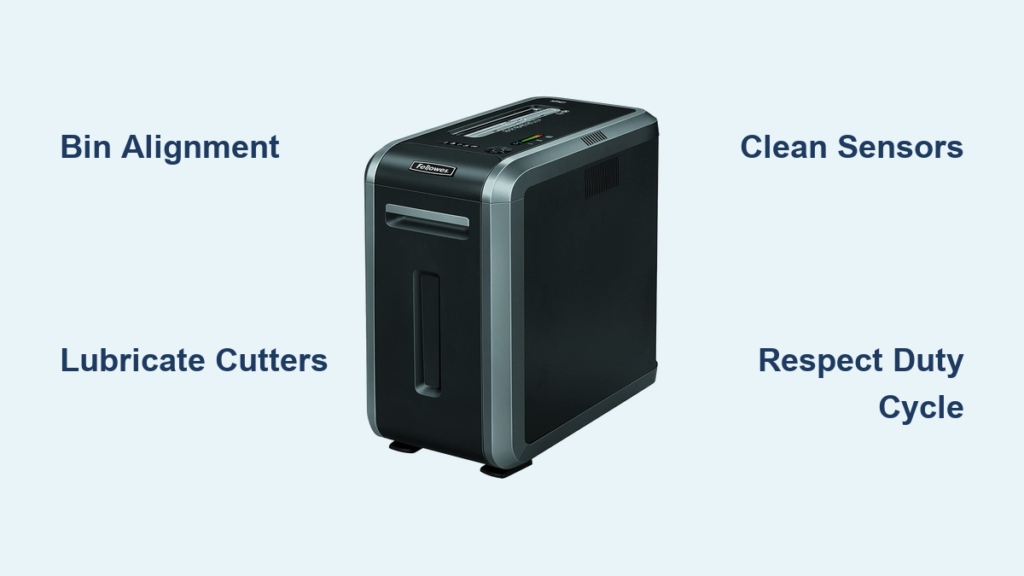
Is your Fellowes 125Ci shredder refusing to turn on, jamming frequently, or displaying confusing indicator lights? This happens more often than you might think. Despite being built for heavy-duty office use with a 45-minute duty cycle and 18-sheet capacity, even robust machines like the Fellowes 125Ci can develop issues from simple causes like misaligned bins, sensor dust, or dry cutters. The good news is that most problems are fixable in minutes without professional repair. This guide walks you through every common fault, from red light errors and Safe Sense warnings to paper jams and overheating, using only your shredder’s built-in features and basic maintenance techniques.
Fix Red and Green Lights On

When both red and green indicator lights illuminate but the Fellowes 125Ci won’t operate, the waste bin or safety sensors are typically at fault.
Check Bin Alignment First
The most frequent cause of dual-light errors is improper bin seating. Even slight misalignment prevents the internal safety switch from engaging. Remove the 53-liter waste bin completely. Empty it if full, then inspect the bottom for debris or damage. Reinsert the bin firmly into the base until you hear a distinct click. Ensure it sits flush and level. Many users mistake this simple misalignment for motor or electrical failure.
Inspect the Safety Switch
Unplug the unit before proceeding. If reseating doesn’t resolve the issue, examine the bin activation mechanism. Look for a small plastic tab or magnetic sensor on the bin that aligns with a switch inside the shredder housing. If the tab is broken or bent, the machine assumes the bin is missing and disables operation. Clean any dust or paper fragments around the switch using a dry cloth or compressed air. Never use liquids.
Test After Reassembly
Once the bin is securely reinstalled and sensors are clear, plug the Fellowes 125Ci back in. The lights should normalize, and the machine should activate when paper is fed. If the problem persists, proceed to a system reset.
Resolve Door Light Staying Red
A persistent red light at the door, even when closed, indicates a sensor interruption or mechanical obstruction.
Confirm Door Is Fully Latched
Press down firmly on the paper entry door. Listen for latch engagement. If the door feels loose or wobbly, it may not be closing completely. Open and close it again, applying even pressure across the top edge. Never force it.
Clean the Door Sensor
Dust, paper dust buildup, or static can block the optical sensor that detects closure. Use a dry microfiber cloth to gently wipe the sensor area near the hinge or frame. Never spray cleaner directly onto the unit. For stubborn residue, use a cotton swab lightly dampened with isopropyl alcohol, but only when the unit is unplugged and completely dry before reuse.
Perform Power Cycle
After cleaning, unplug the shredder for 30 seconds. This clears any false error states. Plug it back in, close the door, and test by inserting a single sheet. The light should turn green or go off, indicating readiness.
Fix Second Button Light On
If the second button from the left is lit and the Fellowes 125Ci won’t start, the control system has detected an operational block.
Verify Power Connection
Ensure the power cord is fully inserted into both the wall outlet and the shredder’s rear socket. Test the outlet with another device to confirm it’s live. Use a grounded outlet only, as this model requires stable power to operate safely.
Clear Entry Blockages
Inspect the feed slot for stuck paper, staples, or foreign objects. Even small fragments can trigger jam detection. Unplug the unit and use tweezers or needle-nose pliers to remove visible debris. Never insert metal tools while powered.
Reset the Control Board
Press and hold the Reverse button for 3 full seconds. You may hear a beep or see lights flash. This resets the internal microcontroller. Release the button and attempt normal operation. This step clears temporary software glitches affecting startup on the Fellowes 125Ci.
Stop Safe Sense Light Flashing

A continuously flashing Safe Sense light means the proximity sensor believes something is too close to the feed slot.
Allow Sensor Reset Time
After opening or closing the door, wait 10 seconds before feeding paper. The sensor needs time to recalibrate. Rushing this process triggers false alerts.
Keep Hands and Objects Clear
Ensure no fingers, clothing, or nearby items like hanging cords or desk edges are within 6 inches of the feed opening. The infrared sensor is highly sensitive and can detect movement through plastic.
Clean Sensor Surface
Use a dry lint-free cloth to wipe the sensor window, usually located just above or beside the feed slot. Dust, grease, or static buildup can cause constant activation. Clean weekly in high-use environments to prevent recurring issues.
Clear Paper Jams Quickly
Jams are the most common issue with the Fellowes 125Ci, especially when exceeding sheet limits or feeding crumpled paper.
Shut Down Immediately
Turn the shredder off and unplug it. Never attempt to clear a jam while powered, as this protects both you and the motor from damage.
Remove Visible Paper
Open the door and gently pull out any accessible paper fragments. Use pliers if needed, but avoid tearing, as leftover scraps can re-jam. Pull slowly in the direction of the cutters.
Use Reverse Function
Plug the unit back in and switch to Reverse mode. Let it run for 5 to 10 seconds to eject stubborn pieces. Repeat as needed, alternating with manual removal.
Lubricate After Clearing
Once clear, run a Fellowes lubricant sheet through the machine. This removes residual paper dust and conditions the blades, reducing future jam risk. Never use household oil or WD-40.
Prevent Overheating Shutdowns
If the Fellowes 125Ci stops mid-use or won’t restart after heavy duty, it’s likely in thermal protection mode.
Let Motor Cool Completely
Turn off and unplug the unit. Allow 20 to 30 minutes for the motor to cool. Do not force operation during this period, as doing so can damage the motor permanently.
Respect 45-Minute Duty Cycle
This model is rated for 45 minutes of continuous use, not indefinite shredding. After prolonged sessions, implement a 10 to 15 minute cooldown. Schedule large jobs in shifts to avoid overheating.
Reduce Load Frequency
Avoid back-to-back high-volume shredding. Spread out tasks throughout the day. Monitor performance, and if the motor sounds strained, pause early rather than waiting for shutdown.
Reduce Loud Grinding Noises
Unusual noise often signals maintenance neglect or overloading on the Fellowes 125Ci.
Lubricate the Cutters
Dry blades create friction and loud grinding. Lubricate every 10 to 15 minutes of continuous use or after 150 to 200 sheets. Use only Fellowes-approved oil or lubricant sheets. Apply evenly across the feed slot width and run in reverse for 1 to 2 minutes to distribute.
Check for Foreign Objects
Remove CDs, credit cards, or thick plastic folders before shredding. Excessive staples or paper clips in one batch can also strain the motor. Feed mixed-content items one at a time.
Avoid Overfeeding
Exceeding the 18-sheet limit for standard 20 lb paper forces the motor to work harder, increasing noise. For cardstock or glossy paper, reduce load to 5 to 10 sheets. Always feed straight, as angled paper causes uneven blade wear.
Fix Slow or Uneven Shredding
When the machine hesitates to start or produces uneven strips, alignment and maintenance are key.
Align Paper Properly
Feed sheets straight into the center of the slot. Angled insertion causes one side of the cutters to engage first, leading to jams and inconsistent shredding. Keep stacks flat and free of curls.
Clean Entry Sensors
Dust on the paper detection sensor can delay activation. Wipe the sensor area with a dry cloth. Test with a single sheet. If it starts instantly, the sensor was blocked.
Reset and Recalibrate
Hold the Reverse button for 3 seconds to reset the control system. Then perform a calibration test. Feed paper one sheet at a time until the motor slows. Stop immediately. This is your safe batch size for that paper type.
Maintain Long-Term Performance
Regular care prevents most issues and extends the life of your Fellowes 125Ci.
Follow Lubrication Schedule
Lubricate every 10 to 15 minutes of use. Skipping this leads to blade wear, jams, and motor strain. Use Fellowes oil sheets or spray. Never use WD-40 or vegetable oil, as these gum up the cutters.
Clean Sensors Weekly
In busy offices, dust accumulates fast. Wipe Safe Sense, door, and bin sensors weekly with a dry cloth. Use compressed air to blow debris from the feed slot and cutter housing.
Manage the Waste Bin
Empty the 53L bin before it reaches capacity. Overfilling strains the motor and can trigger false full bin signals. Always reseat the bin firmly after emptying.
Store Properly
Keep the shredder in a dry, temperature-stable area. Avoid damp basements or direct sunlight, which can warp plastic components and degrade internal wiring.
Optimize Usage by Material Type
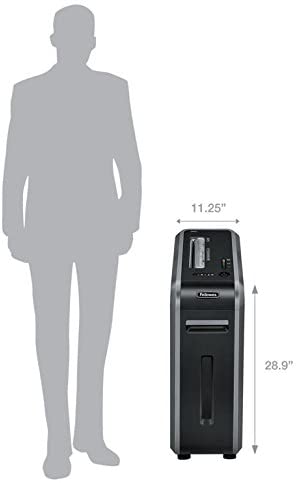
Adjust feeding habits based on what you’re shredding to prevent damage to your Fellowes 125Ci.
Standard Paper
Feed up to 18 sheets per pass. Align edges and feed straight. This is the only scenario where full capacity is safe for the 125Ci.
Cardstock and Glossy Paper
Limit to 5 to 10 sheets. Thicker paper increases resistance. Pre-fold large stacks to reduce initial load on the cutters.
Staples and Paper Clips
The Fellowes 125Ci can handle them, but in moderation. Avoid sheets with dense clusters. Limit batches with hardware to 1 to 2 sheets to protect blades.
CDs, DVDs, and Credit Cards
Shred one at a time. These materials are abrasive and can dull cutters if overfed. Alternate with a lubricant sheet after each plastic item.
Avoid Common User Mistakes
Even experienced users make errors that lead to avoidable breakdowns.
Never Force Paper
Pushing too hard can misalign the feed mechanism. Let the rollers pull the paper in naturally. If it doesn’t grab, realign and try again.
Don’t Ignore Warning Signs
Hesitation, noise, or slow feeding are early warnings. Stop and assess before continuing. Pushing through leads to jams or motor burnout.
Skip Non-Approved Lubricants
Using improper oil gums up the cutters. Stick to Fellowes-branded lubricants only. They’re formulated specifically for cross-cut mechanisms.
When to Contact Support
If all troubleshooting fails, contact Fellowes directly for your Fellowes 125Ci.
Signs of Hardware Failure
The motor hums but cutters don’t turn. A burning smell occurs during operation. Persistent jams happen despite cleaning and correct loading. Physical damage to the bin sensor or feed rollers is visible.
Warranty and Repairs
Check your included warranty card for coverage details. Most regions offer limited protection for motor and electronic components. Provide the model number 125Ci and serial number when contacting support.
End-of-Life Disposal
When retiring the unit, follow local e-waste recycling guidelines. Do not dispose of the Fellowes 125Ci in regular trash.
Frequently Asked Questions About Fellowes 125Ci Troubleshooting
Why does my Fellowes 125Ci show both red and green lights but won’t shred?
This indicates a bin alignment issue or safety switch problem. Remove the waste bin completely, ensure it’s empty, then reinsert it firmly until it clicks. The safety switch needs to detect proper bin seating.
How do I fix the Safe Sense light flashing on my Fellowes 125Ci?
Wait 10 seconds after closing the door for sensor recalibration. Ensure no hands or objects are within 6 inches of the feed slot. Clean the sensor surface with a dry lint-free cloth to remove dust or static buildup.
What causes the Fellowes 125Ci to overheat and stop working?
The shredder has a 45-minute continuous duty cycle. Exceeding this or feeding too many sheets at once triggers thermal protection. Allow 20 to 30 minutes for the motor to cool before restarting.
How often should I lubricate my Fellowes 125Ci shredder?
Lubricate every 10 to 15 minutes of continuous use or after shredding approximately 150 to 200 sheets. Use only Fellowes-approved lubricant sheets or oil. Never use household oils.
Why is my Fellowes 125Ci shredding slowly or unevenly?
This usually indicates dull blades from lack of lubrication or paper alignment issues. Lubricate the cutters immediately and ensure you’re feeding paper straight into the center of the slot.
Can the Fellowes 125Ci shred staples and paper clips?
Yes, but in limited quantities. Avoid dense clusters of hardware. Limit batches with staples or clips to 1 to 2 sheets at a time to prevent blade damage and jams.
Key Takeaways for Troubleshooting Your Fellowes 125Ci
The Fellowes 125Ci is a reliable heavy-duty shredder when treated properly. Most issues stem from four simple causes that are easily preventable. First, always seat the waste bin firmly to engage the safety switch, as bin misalignment triggers the most common dual-light errors. Second, lubricate every 10 to 15 minutes of use using only Fellowes-approved products, as dry cutters cause jams, noise, and uneven shredding. Third, keep all sensors clean, including the Safe Sense proximity sensor, door sensor, and bin-full sensor, because dust and debris cause false readings and warning lights. Fourth, respect the 18-sheet limit and 45-minute duty cycle to prevent overheating and motor strain. By following these four habits, your Fellowes 125Ci will deliver years of reliable, secure document destruction.