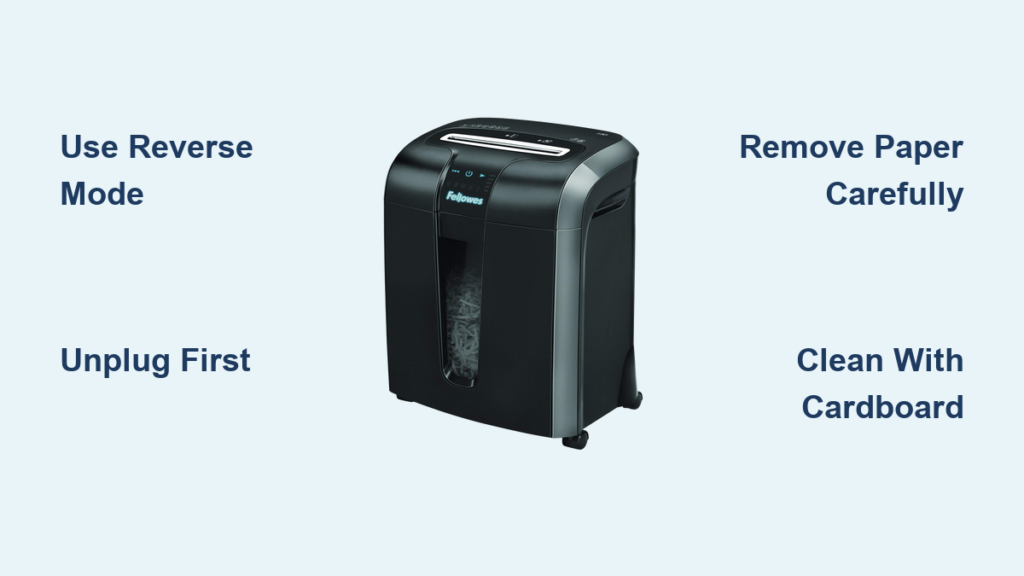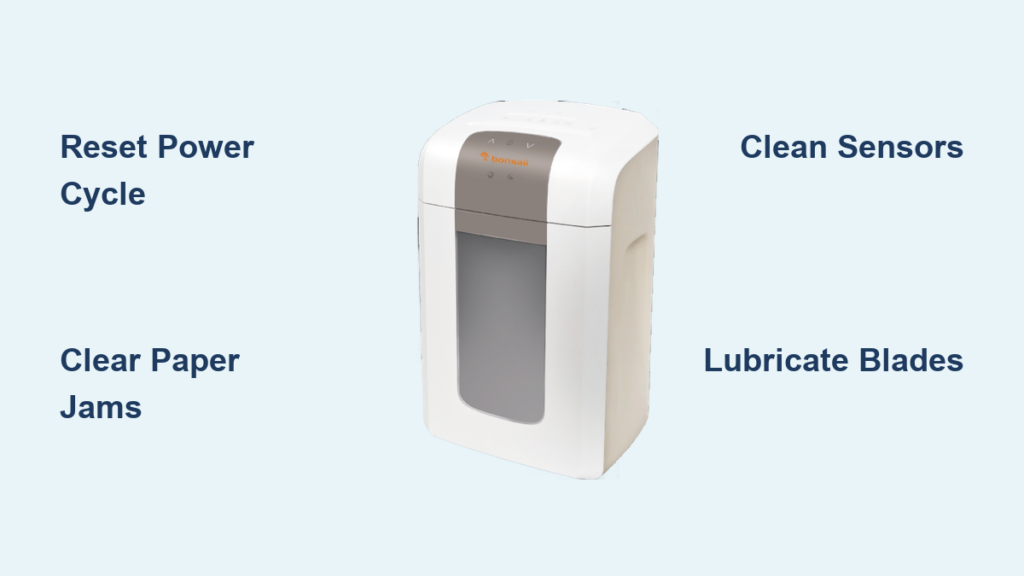

If your Honeywell paper shredder not working, especially models like the 9308F, you’re not alone. Many users report sudden power loss with no lights, sounds, or motor response. While this can seem like a dead motor or electrical failure, the cause is often simpler than expected. Overheating, misaligned bins, and lack of maintenance are common culprits.
This guide walks you through quick diagnostics and proven fixes to get your shredder back online. You’ll learn how to check safety interlocks, reset thermal protection, and prevent future shutdowns with simple care steps.
Check the Bin Alignment First
A misaligned waste bin is one of the top reasons why a Honeywell shredder won’t power on. The 9308F has a safety interlock that cuts power if the bin isn’t fully seated. Even a slight gap can trigger this lockout.
Why Bin Position Matters
Honeywell builds safety into its design. If the bin isn’t locked in place, the shredder assumes it’s open or removed. As a result, the motor won’t engage at all, mimicking a power failure.
How to Realign the Waste Bin
- Remove the bin completely – Pull it straight out from the base.
- Inspect the slot – Look for paper scraps, dust, or obstructions.
- Clean if needed – Use a dry cloth or soft brush to clear debris.
- Reinsert firmly – Slide the bin back in until it clicks and sits flush.
- Test power – Plug in and press the switch.
✅ Pro Tip: Even if the bin feels in, try removing and reinserting it. Misalignment isn’t always obvious.
Rule Out Power Supply Issues
Before diving into internal components, confirm the outlet and power source are working.
Test the Outlet and Cord
- Plug another device (like a lamp) into the same outlet to verify power.
- Try a different outlet in another room to rule out circuit issues.
- Inspect the shredder’s power cord for kinks, frays, or damage near the plug or base.
Check the Reset Button
Some Honeywell models include a thermal reset button near the power cord or base.
- Unplug the shredder.
- Wait 30 seconds.
- Press the reset button (if present) with a pen or paperclip.
- Plug back in and test.
❗ Note: The 9308F may not have a visible reset button. Rely on cooling and bin checks if yours doesn’t.
Address Overheating and Thermal Lockout
Extended use can trigger thermal overload protection, shutting down the motor to prevent damage.
Signs of Overheating
- Shredder worked heavily before failing
- Unit feels warm or hot to the touch
- No burning smell or smoke (common with safe thermal shutdown)
How to Reset Thermal Protection
- Unplug immediately after use if the shredder feels hot.
- Wait 30–45 minutes for full cooldown.
- Ensure bin is aligned (as above).
- Power on and test with 1–2 sheets.
⏱️ Time Tip: Don’t rush the cool-down. Premature restart attempts prolong the lockout.
Prevent Future Overheating
- Limit continuous use: Shred for 5–7 minutes, then pause.
- Allow cooldown: Wait 10–15 minutes after each cycle.
- Avoid overloading: Stick to the recommended sheet capacity per pass.
Lubricate Blades Regularly

Dry blades increase friction, making the motor work harder. This leads to heat buildup and failure.
How to Lubricate Properly
- Prepare a lube sandwich:
– Stack 4–5 sheets of paper.
– Lightly spray WD-40 or shredder oil between sheets. - Shred the stack twice:
– Feed it slowly in auto or manual mode.
– This coats blades, disks, and bearings.
🛢️ Warning: Never spray oil directly into the shredder. Always use paper as a carrier.
Lubrication Schedule
| Usage Level | Frequency |
|---|---|
| Light (home) | Every 300 sheets or monthly |
| Heavy (office) | Every 100–150 sheets or weekly |
Skipping lubrication shortens motor life and increases jam risk.
Clear Paper Jams Quickly
A jam can stall the motor, mimicking a power issue. Even partial jams trigger safety sensors.
How to Remove a Jam
- Switch to reverse mode.
- Use tweezers or pliers to gently pull out stuck paper.
- Never use fingers near the blades.
- Shred a lubrication sheet afterward to prevent recurrence.
Prevent Jams Before They Start
- Remove staples and paper clips.
- Avoid glossy or thick materials unless rated for your shredder.
- Don’t mix paper types in one pass.
✅ Pro Tip: Feed sheets slowly in manual mode to reduce strain.
Test the Motor and Switch
If power, bin, and jams check out, test the internal components.
Listen for Motor Hum
- Plug in and turn on.
- If you hear a faint hum or vibration, the motor is getting power but may be jammed or worn.
- No sound? Likely a switch or circuit issue.
Check the Power Switch
- Toggle between Auto, Off, and Reverse.
- If the shredder only works in one mode, the switch may be failing.
- Clean around the switch with a dry cloth to remove dust buildup.
❗ Caution: Do not open the motor housing. This voids warranties and risks injury.
Replace Faulty Components
If all else fails, consider part replacement, but only if under warranty or with manufacturer support.
Common Replaceable Parts
- Power cord assembly
- Waste bin with interlock sensor
- On/off switch module
Contact Honeywell customer service with your model number (e.g., 9308F) to check availability.
📞 Support Tip: Have your purchase date ready. Many shredders have 1–3 year warranties.
Prevent Future Failures
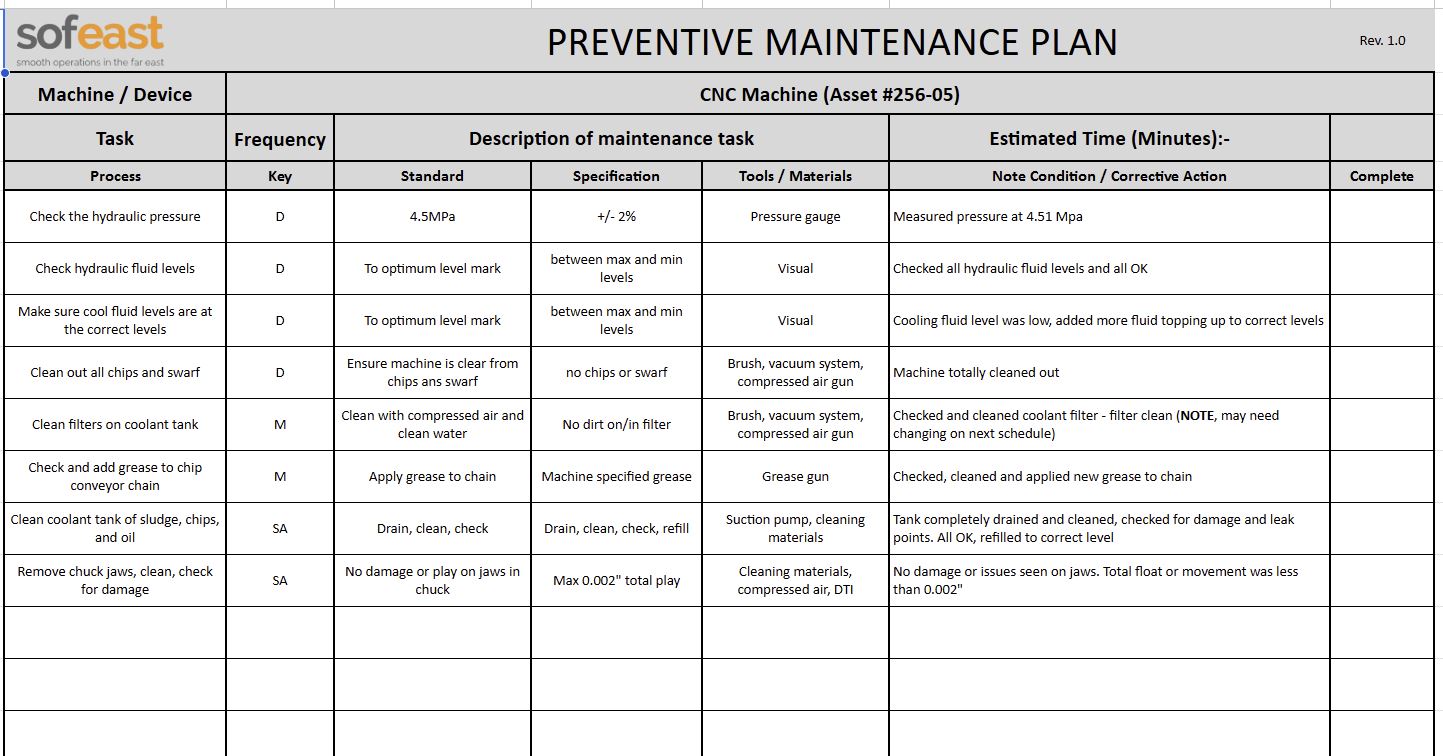
Avoid repeat breakdowns with simple habits.
Daily Use Best Practices
- Align bin after emptying – Always reseat fully.
- Use oil sheets weekly – Keeps blades smooth.
- Limit run time – Follow a 7-minute shred, 10-minute rest cycle.
- Keep it clean – Wipe exterior and slot edges with a dry cloth.
Monthly Maintenance Routine
- Empty bin and inspect for wear.
- Clean sensor area near bin slot.
- Lubricate with oiled paper.
- Check cord and plug for damage.
🔄 Habit Hack: Set a phone reminder for monthly shredder maintenance.
When to Replace the Shredder
Even well-maintained shredders wear out. Consider replacement if:
- Motor fails after all troubleshooting.
- Frequent jams happen despite lubrication.
- Overheating occurs within 2–3 minutes of use.
- Unit is over 3–5 years old with heavy use.
Look for models with:
– Longer cool-down cycles
– Thermal protection indicators
– Easy-access oil ports
Frequently Asked Questions About Honeywell Paper Shredder Not Working
Why won’t my Honeywell 9308F shredder turn on at all?
The most common cause is a misaligned waste bin. The safety interlock cuts all power when the bin isn’t fully seated. Remove and firmly reinsert the bin until it clicks into place.
How long should I let my Honeywell shredder cool down?
After heavy use, allow at least 30 minutes for the motor to cool completely. Rushing this process can keep the thermal lockout active and prevent restart.
Can I spray oil directly into my shredder?
No. Always apply oil to sheets of paper first, then shred them. Direct spraying can damage internal components and create a mess.
What does it mean if my shredder hums but won’t shred?
A humming sound usually means the motor is receiving power but is jammed or overloaded. Switch to reverse mode to clear any blockage, then lubricate the blades.
How often should I lubricate my Honeywell shredder?
For home use, lubricate every 300 sheets or monthly. For office use, every 100–150 sheets or weekly. Regular lubrication prevents overheating and extends motor life.
Is there a reset button on the Honeywell 9308F?
The 9308F does not have a visible reset button. Power issues are typically resolved by correcting bin alignment or allowing the unit to cool down fully.
Key Takeaways for Fixing Your Honeywell Paper Shredder
A Honeywell paper shredder not working is often due to simple causes, not hardware failure. In the 9308F, bin misalignment and overheating are the most frequent issues. Start by removing and reseating the waste bin, even if it looks properly inserted.
If the bin isn’t the issue, give the motor at least 30 minutes to cool from thermal overload. Once it powers back on, commit to a monthly lubrication routine using oiled paper sheets. These two steps alone resolve most Honeywell shredder problems.
Your next step: Pull out the waste bin right now, clean the slot, and reinsert it firmly. If that doesn’t restore power, unplug the unit and let it cool for 30 minutes before testing again.