
You just brought home a Swingline paper cutter, maybe brand new, maybe a great thrift store find, but the blade arm won’t lift no matter what you do. Don’t worry, this is completely normal. Swingline paper cutters ship and store in a locked position for safety, so you need to release the lock before making any cuts. Many buyers, especially those without the original manual, struggle to find the lock or figure out how to release it.
The good news: unlocking your Swingline paper cutter is a quick, simple process once you know where to look and what type of lock your model uses. In this guide, you’ll learn how to identify the locking mechanism, unlock it safely, troubleshoot common issues, and keep your cutter running smoothly for years.
Locate the Locking Mechanism
Before you try to unlock anything, you need to find the lock. It’s almost always near the pivot point of the cutting arm, where the blade attaches to the base. Depending on your model, the lock may be at the rear, side, or underneath the device.
Check the Rear Pivot Area
Most Swingline models place the lock at the back of the cutting arm. Look for a small lever, latch, or pin that connects the arm to the base. When locked, this component physically blocks the arm from lifting. If the arm is stuck in the down position and won’t raise, the lock is likely engaged here. Gently inspect both sides of the pivot, as some locks are asymmetrical or only accessible from one side.
Identify Side or Base Locks
On certain models, especially compact or rotary trimmers, the lock may sit on the side of the base or integrate into the rail system. These are often slide-style or twist locks. If you don’t see anything at the rear, check for a small sliding tab or rotating knob near the blade housing. Some locks are color-coded (red for lock, green for unlock) or marked with a padlock icon.
Identify Your Lock Type
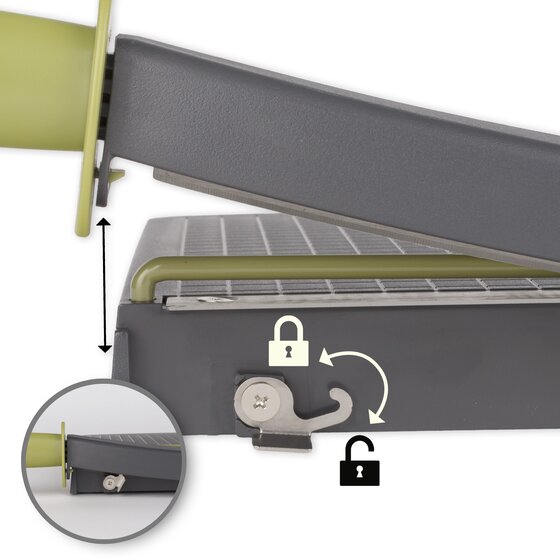
Swingline uses several types of locking mechanisms across its product lines. Knowing which one you have is the key to unlocking it correctly and safely.
Lever-Style Lock
A lever-style lock is a small flip tab or arm that must be moved upward or sideways to release the blade. It’s common on ClassicCut models. To unlock:
– Locate the lever at the rear pivot
– Flip it upward or in the direction indicated by an arrow
– Gently lift the cutting arm
If it doesn’t move, make sure the lever is fully disengaged. Never force the arm.
Latch-Style Lock
This is a spring-loaded or manual latch that hooks over the blade arm. It appears on many guillotine-style cutters. To release:
– Look for a metal or plastic hook at the back
– Slide or lift it away from the arm
– Raise the cutting arm once free
Some latches snap back into place when the arm is lowered, re-engaging the lock automatically.
Pin or Slide Lock
Common on Stack-and-Cut and older models, a metal pin slides through a hole in the arm to lock it in place. To unlock:
– Pull the pin outward, similar to opening a drawer lock
– Use your fingers or a coin if it’s stiff
– Remove it completely or slide it to the unlock position
– Lift the arm carefully
Some pins are spring-loaded and pop out slightly when released.
Twist-Style Lock
Found on select rotary trimmer models, a knob must be rotated to unlock the blade carriage. To unlock:
– Turn the knob 90 to 180 degrees, usually counterclockwise
– Look for alignment marks or arrows
– Slide or lift the blade once unlocked
If it won’t turn, don’t force it. Check for debris or corrosion first.
Unlock Your Paper Cutter Step by Step
Now that you’ve identified the lock type, follow these universal steps to safely unlock your Swingline paper cutter.
Prepare Your Work Area
Before unlocking, make sure the paper cutter is:
– On a flat, stable surface
– Free of paper or obstructions
– Positioned so you can access the back and sides
This prevents tipping and makes it easier to inspect and operate the lock.
Disengage the Lock
Use the method that matches your lock type:
– Lever: Flip up or slide to unlock
– Latch: Lift or slide the hook off the arm
– Pin: Pull out or slide aside
– Twist: Rotate the knob to release
Apply gentle pressure. If the lock resists, do not force it. See the troubleshooting section below.
Raise the Cutting Arm
Once the lock is disengaged:
– Slowly lift the blade arm to the upright position
– It should move smoothly. If it sticks, check for residual lock engagement
– Let it rest in the raised position (most models have a spring or stop)
Test the motion by lowering and raising it once. It should operate freely.
Troubleshoot Common Lock Issues

Even with the right steps, some locks won’t release due to wear, debris, or misalignment.
Stuck or Rusty Lock
If the lock won’t budge:
– Spray a small amount of WD-40 or penetrating oil on the mechanism
– Wait 1 to 2 minutes, then try again
– Gently tap with a soft mallet if needed
Avoid excessive force, which can bend or break plastic components.
Lock Won’t Fully Disengage
If the lock moves but the arm stays stuck:
– Check for misalignment, as the pin or latch may not be clearing the arm
– Gently wiggle the cutting arm while releasing the lock
– Ensure no secondary safety lock is engaged, since some models have dual locks
Never pry the arm up, as this can damage the pivot or spring.
Blade Arm Won’t Stay Up
If the arm drops immediately after lifting:
– The return spring may be broken or disconnected
– Inspect inside the pivot area for a loose or missing spring
– Contact Swingline support for replacement parts
Using the cutter without a functioning spring is unsafe.
Safety Interlock Prevents Unlocking
Some models have a safety interlock that blocks operation unless the blade is properly seated. To fix:
– Ensure the blade is fully lowered before unlocking
– Press and hold any safety buttons while releasing the lock
– Refer to model-specific guides if available
This feature prevents accidental blade movement during transport.
Broken or Missing Lock Parts
If the lock is damaged:
– Do not use the cutter, as it’s unsafe without a functional lock
– Contact Swingline Customer Service for replacement parts
– Search online for model-specific repair kits or compatible hardware
Operating a paper cutter with a broken lock risks serious injury.
Safety Tips After Unlocking
Once unlocked, your Swingline paper cutter is ready to use, but safety comes first.
Keep Fingers Clear
- Always keep hands and fingers away from the blade path
- Use the paper clamp or guide to hold material in place
- Never test sharpness with your skin
Even dull blades can cause cuts.
Use on a Stable Surface
- Place the cutter on a non-slip, level surface
- Ensure rubber feet are clean and intact
- Avoid using on edges or unstable tables
A slipping cutter can lead to jagged cuts or injury.
Lock When Not in Use
- Always re-engage the lock after cutting
- Store the cutter out of reach of children and pets
- Keep it covered or in a drawer when not in use
This prevents accidental activation.
Maintain Your Paper Cutter
Proper care keeps your Swingline paper cutter safe, smooth, and long-lasting.
Clean the Blade and Base
- Wipe the cutting surface with a dry cloth after each use
- Use a soft, lint-free cloth to clean the blade, never paper towels
- Avoid water or harsh cleaners that can cause rust
For sticky residue, use a small amount of isopropyl alcohol.
Lubricate Moving Parts
- Apply light machine oil to the pivot point monthly
- Use only a drop, as excess oil attracts dust
- Wipe away any overflow
This keeps the arm moving smoothly and prevents lock stiffness.
Inspect for Wear
- Check for loose screws, bent parts, or worn blades
- Tighten any fasteners on the base or clamp
- Replace dull blades to maintain clean cuts
Dull blades require more force, increasing injury risk.
Find Your Model and Get Help
If you’re still unsure how to unlock your cutter, identifying the model can help.
Locate the Model Number
- Check the bottom or back of the base for a label
- Look for a sticker with a model number such as ClassicCut 12
- Take a photo and search online for manuals
Many users find success with image searches on Google or Pinterest.
Access Online Resources
- Visit swingline.com, then go to Support and Product Manuals
- Search YouTube for “unlock Swingline [model number]”
- Join crafting forums such as Reddit’s r/Scrapbooking for user tips
Video tutorials are especially helpful for visual learners.
Contact Support
- Call or email Swingline Customer Service
- Provide the model number and a photo if possible
- Request a PDF manual or replacement parts
They often provide free digital copies of manuals upon request.
Frequently Asked Questions About Unlocking a Swingline Paper Cutter
Why is my Swingline paper cutter locked when I buy it?
Swingline ships and stores paper cutters in a locked position for safety. This prevents the blade from moving during transport and protects users from accidental cuts before they read the instructions.
Where is the lock on a Swingline paper cutter?
The lock is almost always near the pivot point where the cutting arm meets the base. Check the rear, sides, or underneath the device for a lever, latch, pin, or twist knob.
What if the lock won’t budge?
Apply a small amount of WD-40 or penetrating oil, wait a minute or two, and try again. Gently tap the mechanism with a soft mallet if debris is the issue. Never force a stuck lock, as this can break the mechanism.
Can I use my paper cutter if the lock is broken?
No. Operating a paper cutter with a damaged lock is unsafe. Contact Swingline Customer Service for replacement parts or consult a professional repair service before using the device again.
Do all Swingline cutters use the same locking mechanism?
No. Swingline makes ClassicCut, guillotine, rotary trimmer, and Stack-and-Cut models, each with different lock styles. Always identify your specific lock type before attempting to release it.
How do I find the manual if I lost it?
Check the bottom of the cutter for a model number, then visit swingline.com for downloadable PDFs. You can also search YouTube for your model number or call customer service for a replacement manual.
Key Takeaways for Unlocking Your Swingline Paper Cutter
Unlocking your Swingline paper cutter comes down to three essentials: find the lock near the pivot point, identify whether it’s a lever, latch, pin, or twist style, and release it with gentle pressure. If the mechanism resists, use lubricant and patience rather than force. Once your cutter is unlocked and ready, always re-engage the lock when you’re not using it and keep the blade path clear of fingers.
Your next step: grab your cutter, locate the model number on the base, and search for a model-specific video on YouTube. Seeing the exact lock type in action makes the unlocking process even easier.