You’ve just unboxed a new Fiskars paper cutter and want to start your next project right away. Maybe you’re trimming photos for an album, cutting cardstock for handmade cards, or prepping materials for a classroom display. Learning how to use a Fiskars paper cutter properly is the difference between professional results and frustrating mistakes. These tools are built for accuracy, but technique still matters.
This guide walks you through every step, from setting up your workspace to making your first cut and keeping the blade sharp. You’ll also find troubleshooting tips for common problems and simple maintenance habits that extend the life of your trimmer. Let’s dive in.
Set Up Your Workstation the Right Way
A stable, well-organized workspace is the foundation of accurate cuts. Rushing this step often leads to crooked edges or wasted paper.
Choose a Flat, Stable Surface
Place your Fiskars paper cutter on a hard, level desk or table. Soft surfaces like beds or couches shift under pressure and throw off your alignment. The cutter should sit completely flush so the blade glides smoothly along its track.
Position for Comfort and Safety
Arrange the cutter so the blade arm swings away from your body. This gives you better visibility and natural control. Sit or stand so you can apply even downward pressure without straining. Always keep your free hand clear of the blade path.
Load Paper Without Misalignment
How you place your paper determines the quality of the cut. Even a perfectly sharp blade cannot fix a crooked stack.
Align the Stack Against the Guide
Slide your paper flush against the alignment ruler. Check that all corners line up evenly. If the stack is skewed, the cut will follow that angle no matter how straight the blade moves.
Respect the Sheet Capacity
Most Fiskars trimmers handle up to 10 sheets of standard 20 lb paper at once. Exceeding this limit strains the blade and can cause jams. When cutting thicker stacks, work in smaller batches for cleaner results.
Adjust the Ruler for Exact Measurements
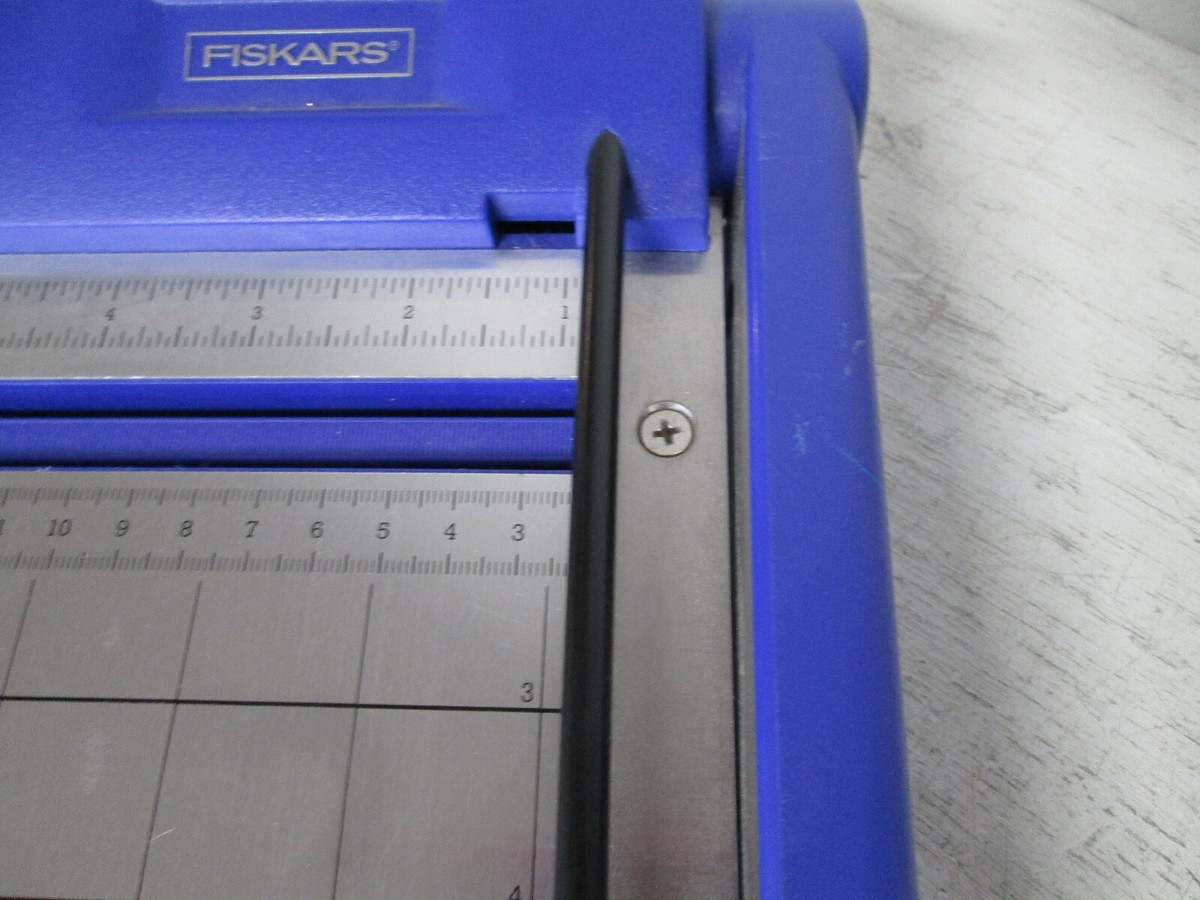
The built-in ruler turns your cutter into a precision measuring tool. Use it to create borders, trim photos, or cut custom dimensions.
Slide the Ruler to Your Target Mark
Locate the measurement marks printed on the base. Move the ruler or shift the paper to match your desired size. For example, to trim an 8.5″ x 11″ sheet down to 8″ x 10″, align the 1″ mark with the paper’s edge.
Lock the Ruler if Your Model Allows It
Some Fiskars cutters include a locking lever to hold the ruler steady. Engage it before cutting so nothing shifts mid-slice. This small step prevents costly miscuts on important materials.
Make the Cut Safely and Smoothly
You’re ready to cut. Slow, controlled movements produce the best results and protect both you and the tool.
Lower the Blade Arm Slowly
Grip the handle with both hands and guide the blade down until it contacts the paper. Let gravity and the blade’s own weight do most of the work. Forcing the cut downward dulls the blade faster and stresses the track.
Apply Steady Pressure Straight Down
For thicker cardstock or multiple sheets, firm pressure is fine, but always press straight down. Angled force can bend the blade or leave a jagged edge. Watch the blade travel across the cutting strip to confirm a complete cut.
Clean and Maintain Your Paper Cutter

Routine care keeps your Fiskars cutter working like new for years. Neglecting maintenance leads to sticky blades and ragged cuts.
Wipe Down After Every Use
Grab a dry cloth and remove paper dust from the base, blade housing, and track. Dust buildup slows blade movement and affects alignment. A quick wipe after each session takes just seconds.
Inspect the Blade Regularly
Check for visible nicks, dullness, or residue. If cuts start looking ragged or require extra force, the blade likely needs replacing. Most Fiskars models use replaceable blades available through the manufacturer’s website.
Troubleshoot Common Cutting Problems
Even experienced users run into issues. Here’s how to solve the most frequent ones quickly.
Paper Won’t Cut All the Way Through
The blade may not be fully lowered, or the stack exceeds capacity. Remove some sheets and try again. Also, check that the blade has not slipped off its track.
Cut Lines Come Out Crooked
Misaligned paper is almost always the culprit. Press the stack firmly against the guide before each cut. Verify the ruler has not drifted out of position during setup.
Blade Feels Stiff or Sticky
Adhesive residue, paper dust, or label gunk can jam the track. Dampen a cotton swab with isopropyl alcohol and clean the rail thoroughly. Let it dry completely before using the cutter again.
Store Your Cutter Safely Between Projects
Proper storage protects the blade and prevents accidents, especially in homes with children or pets.
Keep It in a Dry Location
Moisture causes rust on metal parts and warps plastic components. Store the cutter indoors in a climate-controlled space, away from windows or damp basements.
Engage the Safety Lock or Cover
If your model has a blade lock or protective cover, always use it before putting the cutter away. This prevents accidental contact and shields the blade from dust and damage.
Frequently Asked Questions About Fiskars Paper Cutters
How many sheets can a Fiskars paper cutter cut at once?
Most Fiskars trimmers handle up to 10 sheets of standard 20 lb paper in a single pass. Cutting thicker stacks can damage the blade or cause uneven results. For cardstock or heavier materials, cut fewer sheets at a time.
Do Fiskars paper cutter blades need replacing?
Yes, blades wear down with regular use. If cuts become ragged or require extra force, it is time to install a new blade. Replacement blades are available through the Fiskars website and are model-specific.
Can a Fiskars paper cutter handle cardstock?
Fiskars cutters can trim cardstock, but you should cut one or two sheets at a time. Thicker materials put more stress on the blade and track, so patience improves both cut quality and tool longevity.
Is it safe for children to use a Fiskars paper cutter?
Fiskars trimmers have safety features like blade locks and covered rails, but adult supervision is still recommended. Teach children proper hand placement and always store the cutter with the safety lock engaged.
How do I clean a sticky Fiskars paper cutter blade?
Use a cotton swab lightly dampened with isopropyl alcohol to clean the blade track. Remove all residue and let it dry fully before using. Avoid harsh chemicals that can damage plastic parts.
Why are my cuts crooked on a Fiskars paper cutter?
Crooked cuts usually mean the paper stack was not aligned flush against the guide. Always press the paper firmly against the ruler and check alignment before lowering the blade.
Key Takeaways for Mastering Your Fiskars Paper Cutter
Knowing how to use a Fiskars paper cutter correctly comes down to three essentials: proper setup, controlled cutting, and consistent maintenance. Start with a flat surface and aligned paper, let the blade’s weight handle the cut, and wipe down the tool after each session. These habits prevent most common frustrations and keep your trimmer performing at its best.
Your next step is simple. Pull out your Fiskars cutter, set it up on a sturdy desk, and try a few practice cuts on scrap paper. Once you feel the rhythm of the blade and the alignment process, you’ll have the confidence to tackle any project with clean, professional results.