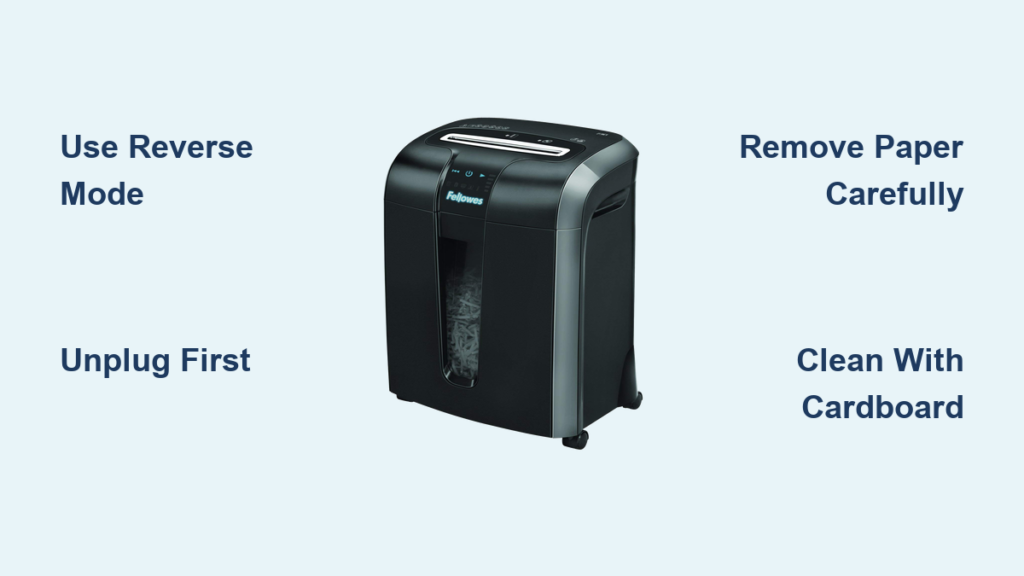
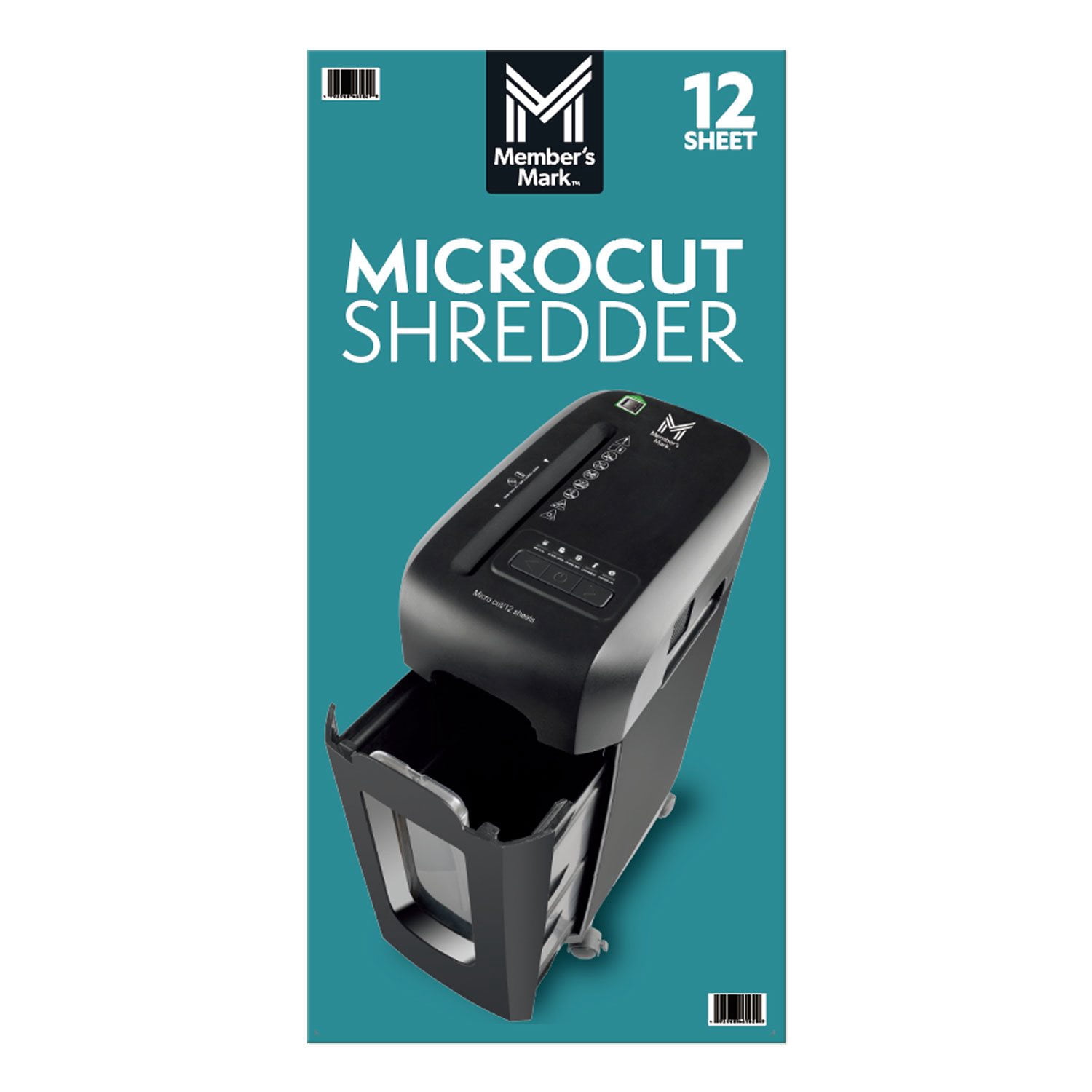
Is your Member’s Mark paper shredder not working as expected? You’re not alone. The Member’s Mark 12-sheet micro-cut shredder (Model C249-A) is a popular choice for home and small office use, praised for its quiet operation, compact size, and high-security 4mm x 12mm micro-cut shredding. But like any machine, it can encounter issues, especially when overloaded, under-maintained, or fed unsuitable materials.
This guide delivers step-by-step troubleshooting fixes based on verified technical specs, user reports, and official manuals. Whether your shredder won’t start, keeps stopping mid-job, or only works in reverse, you’ll find targeted solutions here, no guesswork, just results.
Member’s Mark Shredder Won’t Power On
When your shredder won’t power up, the problem is often simple but critical to fix correctly.
Check Bin Alignment First
The most frequent cause of no power is bin misalignment. The C249-A has a safety interlock that prevents operation if the bin isn’t seated properly.
• Remove and reinsert the waste bin firmly.
• Listen for a click indicating full engagement.
• Watch the door open indicator light. If it stays on, adjust the bin until the light turns off.
Never bypass this safety feature. A loose bin can trigger false error signals or damage internal sensors.
Verify Power Connections
Even with the bin aligned, check these essential items.
• Ensure the power cord is fully plugged into both the shredder and wall outlet.
• Test the outlet with another device like a lamp to rule out electrical faults.
• Confirm the standby or emergency stop button is pressed to the on position.
If all connections are secure and the bin is locked in yet there’s still no response, move to sensor and motor diagnostics.
Overload Indicator Light Is On
An illuminated overload light means the motor is strained, usually from too much paper.
Reduce Sheet Count Immediately
The C249-A handles up to 12 sheets of 75 gsm paper. Exceeding this or feeding crumpled or folded stacks trips the overload sensor.
• Remove all paper from the feed slot.
• Feed only 6 to 10 sheets at first to test recovery.
• Shred steadily, not in rapid bursts.
Pro Tip: If you consistently hit the limit, fold thicker stacks in half before feeding. This reduces friction and improves grip.
Overheating and Red Light Activation
A red overheat light means the motor has shut down to cool. Don’t ignore it.
Allow Full Cooling Cycle
• Do not remove the bin. Removing it during cooling can disrupt internal sensors.
• Turn the unit off and unplug it.
• Wait 30 to 60 minutes for the red light to go out.
• Keep rear vents clear of walls, curtains, or dust.
Once cooled, avoid long continuous runs. The motor isn’t designed for more than 5 to 7 minutes of nonstop use.
Prevent Future Overheating
• Shred in 2 to 3 minute intervals with 1 to 2 minute breaks.
• Keep the rear cooling vent uncovered. Never place against a wall or under a shelf.
• Lubricate blades weekly if used frequently.
Shredder Pulsates Instead of Running Smoothly

Pulsating, where the machine starts, stops, and restarts every few seconds, is one of the most reported issues with the C249-A.
Clean Feed Slot Sensors
Dust, paper fibers, or oil buildup can block the auto-start sensors in the feed slot.
• Unplug the shredder.
• Use a dry cotton swab or compressed air to clean both sides of the feed opening.
• Avoid liquids. They can damage sensors.
After cleaning, test with a single sheet. If it feeds smoothly, gradually increase load.
Try Manual Feed Mode
Thin or glossy paper may not trigger the sensor. Use manual override.
• Press the forward button to force feed.
• Hold briefly until paper grabs.
• Use this mode for receipts, labels, or translucent sheets.
Folding thin paper once helps it engage the sensor automatically.
Works in Reverse But Not Forward
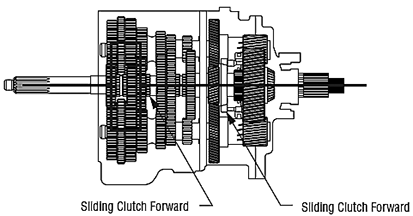
If reverse functions but forward pulses or stalls, the issue is mechanical or sensor-based.
Rule Out Sensor and Debris Issues
Before assuming gear failure, try these steps first.
• Clean sensors thoroughly.
• Check for hidden paper jams near the blade housing.
• Use tweezers, never fingers, to remove stuck fragments.
Sometimes a tiny shred blocks forward motion while allowing reverse.
Consider Clutch or Gear Failure
If sensors are clean and no jam exists, the problem may be internal.
• The forward clutch mechanism may be worn.
• Drive gears could be stripped or misaligned.
These require professional repair. Attempting disassembly voids the warranty and risks blade damage.
Warning: Some users report disconnecting the heat sensor to stop pulsing. While this may restore forward function, it disables overheat protection, increasing fire risk. Only consider this if replacing the sensor or under expert supervision.
Paper Jams and Stuck Blades
Jams are common but manageable if handled safely.
Stop and Unplug Immediately
Never reach into the feed slot while powered. Always follow these steps.
• Press standby button.
• Unplug the unit.
• Wait for blades to stop completely.
Remove Jam Safely
- Use reverse mode first. This often ejects the paper.
- If reverse fails, manually extract using long-nose tweezers or a plastic tool.
- Pull paper slowly to avoid tearing and leaving fragments behind.
After clearing, run a lubrication sheet or oiled piece of paper through in reverse, then forward.
Blades Won’t Spin or Motor Is Unresponsive
When controls do nothing, the cause could be electrical, mechanical, or safety-related.
Confirm Bin and Door Are Secure
Again, bin must be fully inserted and door closed. The unit will not operate otherwise.
• Remove and reseat the bin.
• Ensure no debris is blocking the bin’s contact points.
• Check that the bin door latch is intact.
Test with Minimal Load
After reassembly, try this diagnostic approach.
• Plug in the unit.
• Feed a single sheet while pressing forward manually.
• If it works, the issue was alignment or sensor blockage.
If still unresponsive, the motor or control board may be faulty. Contact support.
Maintenance to Prevent Future Issues
Preventive care extends your shredder’s life and stops 80% of common problems.
Lubricate Blades Weekly
Use shredder-specific oil, not WD-40 or vegetable oil.
• Oil every 30 to 50 sheets if used daily.
• Apply 2 to 3 drops across the blade entry point.
• Run a few oiled sheets through in forward mode.
This reduces friction, prevents jams, and lowers heat buildup.
Empty Bin Before It’s Full
A packed bin strains the motor and blocks airflow.
• Empty when 70 to 80% full.
• Wipe interior with a dry cloth to remove dust.
• Reinsert firmly until the door open light turns off.
Clean Cooling Vents Monthly
Dust on the rear vent insulates the motor, causing overheating.
• Use compressed air to blow out dust.
• Keep at least 4 inches of clearance behind the unit.
What Not to Shred
Protect your blades and motor by avoiding prohibited materials.
Never Insert These Items
• Plastic foil like laminated sheets or report covers
• Metal foil like gum wrappers or security strips
• Staples or paper clips despite some claims, these accelerate blade wear
• Wet or damp paper causes clogs and rust
Safe to Shred One at a Time
• Credit cards
• CDs and DVDs though less common now
• Standard office paper
• Envelopes without metal clasps
Shredding non-approved items voids the warranty and can permanently damage gears.
When to Contact Support
Some issues can’t be fixed at home. Know when to call for help.
Warranty-Eligible Problems
The C249-A has a 1-year warranty covering defects in materials and workmanship.
Contact Member’s Mark support if the unit fails after proper use and maintenance, the motor burns out without overheating signs, or the forward mechanism fails despite clean sensors. Have your proof of purchase ready. Self-repairs void the warranty.
Signs of Permanent Damage
Seek professional service if a burning smell persists after cooling, the motor hums but blades don’t turn, or the unit sparks or trips circuit breakers. Do not continue using the shredder in these cases.
Real-World Tips from Users
Leverage community-tested strategies to get the most from your shredder.
Fold Thin Paper for Better Feeding
Receipts, tissue-thin documents, or transparencies often fail to trigger sensors. Fold them once. This doubles thickness and improves detection.
Use for Vermicomposting
The 4mm by 12mm micro-cut output breaks down rapidly in worm bins. Many users report faster decomposition than regular compost, richer castings for gardening, and reduced odor due to small particle size. Ensure paper is ink-free or soy-based ink only for safe composting.
Buy During Promotions
Regular price is approximately $59, but it often drops to $49 with coupons. Check Sam’s Club or retail partner websites for deals.
Key Takeaways for Member’s Mark Shredder Troubleshooting
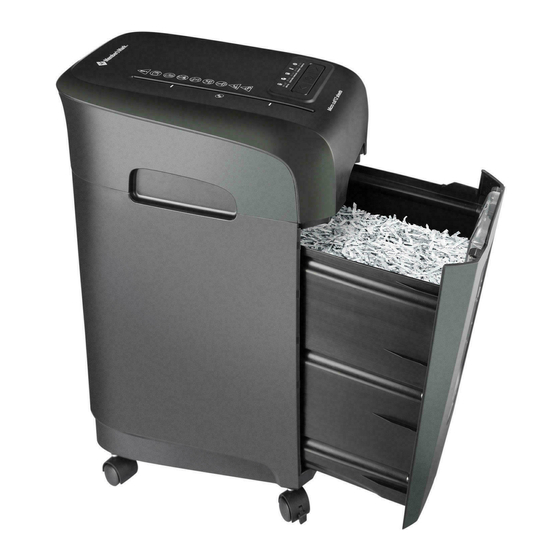
The Member’s Mark C249-A is a reliable, budget-friendly shredder when used and maintained correctly. Most troubleshooting issues stem from overloading, poor maintenance, or sensor blockage, not mechanical failure. By following these steps, you can resolve power issues, stop pulsating, clear jams, and prevent overheating.
Key takeaways to keep your shredder running smoothly.
• Always align the bin before use. A loose bin triggers safety interlocks.
• Never exceed 12 sheets at once. Reduce to 6 to 10 for reliable operation.
• Lubricate blades weekly with shredder-specific oil to prevent jams.
• Clean sensors and vents monthly to maintain proper function.
• Use manual feed mode for thin paper, or fold sheets to improve detection.
With proper care, your shredder will deliver years of quiet, secure document destruction and even help your garden thrive.
Frequently Asked Questions About Member’s Mark Paper Shredder Troubleshooting
Why does my Member’s Mark shredder keep pulsating?
Pulsating usually occurs when the auto-start sensors are blocked by dust, paper fibers, or oil buildup. Unplug the unit and clean the feed slot with a dry cotton swab or compressed air. If the problem persists, the heat sensor may be malfunctioning.
How do I fix a paper jam in my C249-A shredder?
Press the reverse button to eject the paper. If that fails, unplug the unit and use tweezers to carefully remove stuck fragments. Never insert your fingers into the feed slot.
Why does my shredder overheat so quickly?
The C249-A is designed for 5 to 7 minutes of continuous use. Overheating occurs when the motor is strained from too many sheets, the cooling vents are blocked, or the unit is placed against a wall. Shred in shorter intervals and keep rear vents clear.
Can I bypass the overload sensor on my shredder?
No. Bypassing the overload sensor disables critical thermal protection and creates a fire risk. Always reduce paper load and allow the unit to cool properly.
What should I do if my shredder works in reverse but not forward?
Clean the feed slot sensors first to rule out debris. If that doesn’t help, the forward clutch or drive gears may be worn. This requires professional repair. Do not attempt to disassemble the unit yourself.
How often should I lubricate my Member’s Mark shredder?
Lubricate weekly if you use the shredder daily. Apply 2 to 3 drops of shredder-specific oil to the blade entry point and run a few oiled sheets through. This prevents jams and extends blade life.