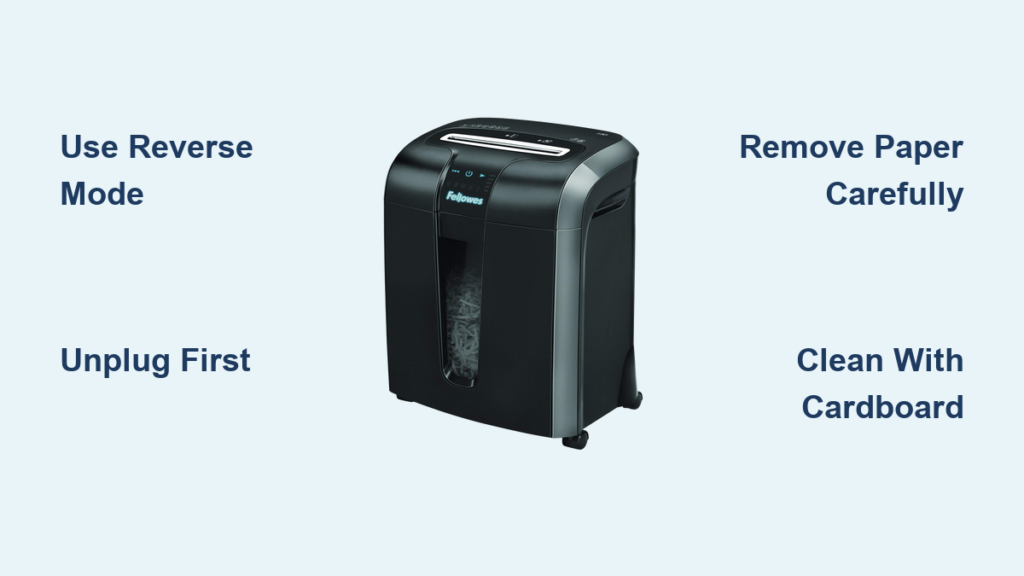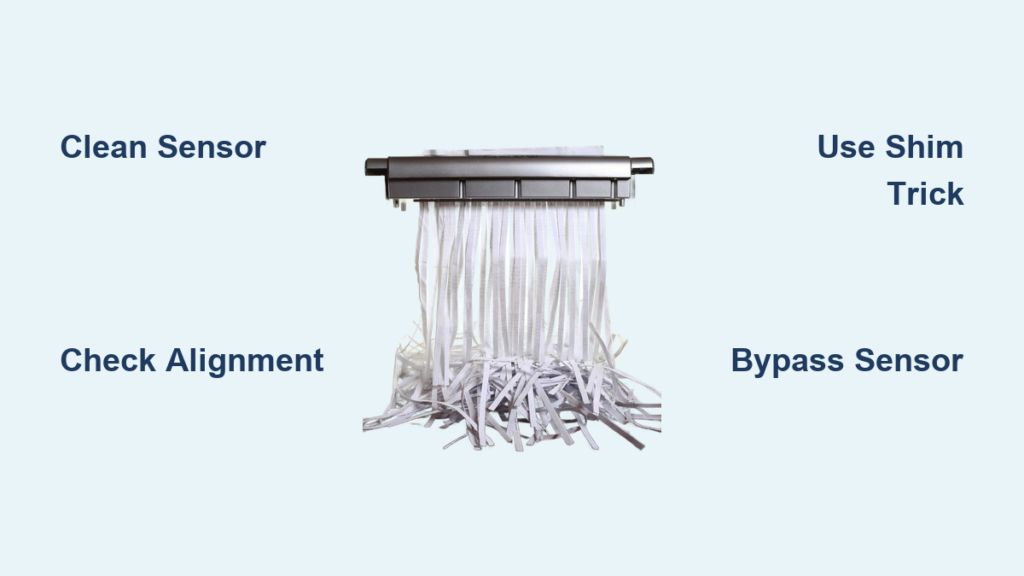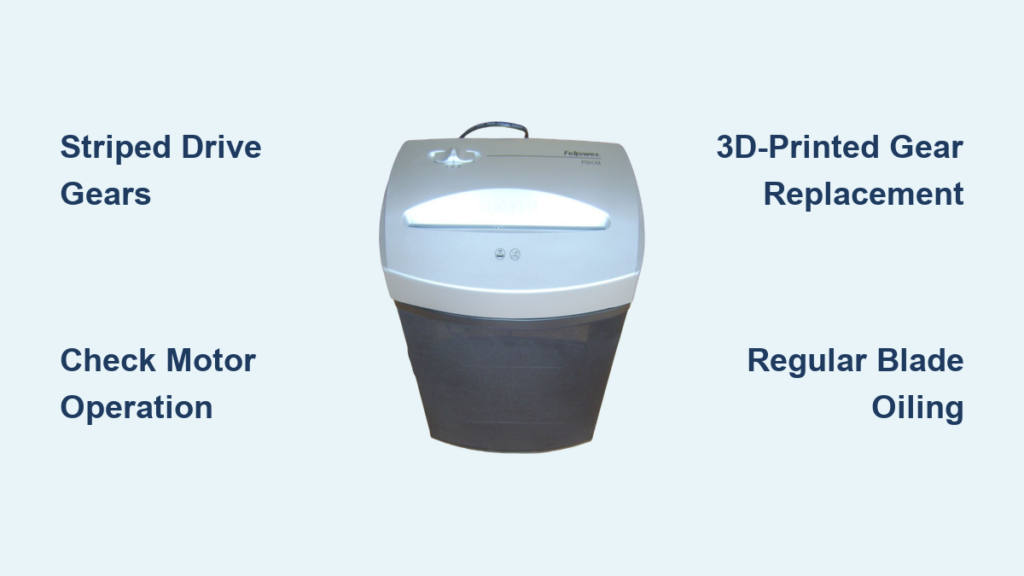

Your paper shredder powers up. The green light glows, the motor hums, but when you feed in a document, nothing happens. No pull, no cut, just silence or a faint whir. If you’re searching “paper shredder turns on but won’t shred,” you’ve landed in the right place. This frustrating scenario is one of the most common office equipment problems, and the cause is usually fixable with basic tools and some know-how.
This guide walks you through exactly why your shredder isn’t pulling or cutting paper. You’ll learn to diagnose the problem by listening to sounds, checking sensors, clearing jams, and performing simple resets. Most fixes take under 30 minutes, and many cost nothing at all.
Diagnose the Sound First
The noise your shredder makes (or doesn’t make) tells you where to start. Press the power button and listen closely while inserting paper.
High-Pitched Whine or Spooling Sound
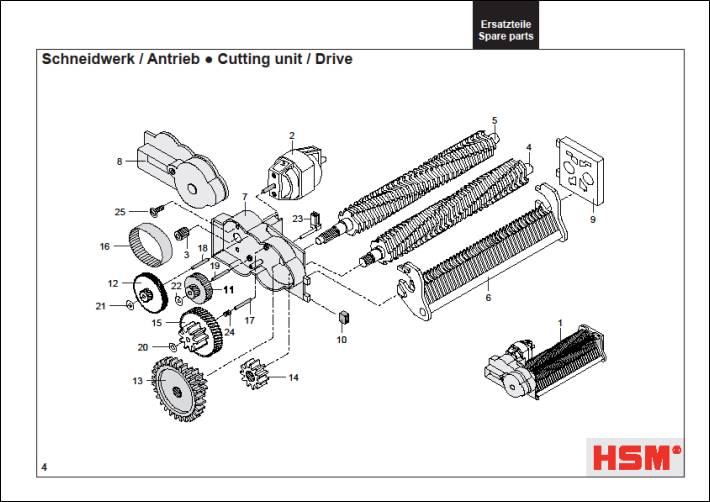
A sharp, rising whine means the motor is running but the gears are stripped. Torque isn’t transferring to the blades. You’ll often see the cutting cylinders spin slowly or not at all, even though the motor is active.
This happens from overloading the shredder, shredding staples or thick materials, or simple age-related wear. Once gears strip, they lose their ability to grip.
To confirm, unplug the unit and open the casing. Inspect the plastic gears near the motor. Look for missing teeth or melted sections. If gears are visibly damaged, replacement parts may be needed. On many budget models, this means replacing the entire unit.
Grinding or Crunching Noise
A gritty, metallic sound signals foreign debris in the cutter block or damaged blades. Common culprits include paper clips, staples, adhesive labels, or laminated sheets that jammed and damaged the teeth.
When you hear grinding, unplug the shredder immediately. Use tweezers or needle-nose pliers to extract visible debris from the output slot. Shine a flashlight into the cutting head to spot any lodged fragments. If blades are chipped or misaligned, replacement is usually the only option.
Motor Humming with No Blade Movement
The motor runs but the blades don’t turn. This points to mechanical binding, which has several possible causes.
Severe paper jam can cause “head freeze” where the cutting mechanism seized. A drive belt may have slipped or broken. Lack of lubrication can cause bearings to seize.
Try running the shredder in reverse. If blades move in reverse but not forward, the issue may be a relay or switch problem rather than mechanical binding.
Check Feed Mechanism Behavior

How your shredder responds to paper reveals whether the problem is mechanical or electronic. Watch what happens when you insert a document.
Runs in Reverse But Not Forward
If reverse mode works but auto or forward doesn’t, the feed switch or optical sensor is likely faulty.
Many shredders use a small plastic lever inside the feed slot. When paper pushes it down, the motor starts. This lever can get stuck by paper dust or adhesive residue. You’ll notice the shredder ignores paper unless you jiggle it.
To fix this, unplug the unit. Use a plastic pick or bent paperclip to clear debris around the lever. Press and release the lever several times to ensure smooth movement. Reconnect and test with a narrow strip of paper.
Modern shredders use infrared beams to detect paper. Dust, oil, or lint can block the signal. If the shredder runs constantly, it thinks paper is always present. If it won’t start at all, it can’t “see” paper.
Clean the sensor by unplugging the shredder. Wrap a cotton swab in a microfiber cloth. Dip lightly in isopropyl alcohol. Wipe the sensor window in the center of the feed slot, moving up, down, and side to side. Let dry completely before testing. Never use compressed air, as it can blow debris deeper into sensitive components.
Blades Spin But Won’t Pull Paper
The cutters turn, but paper just sits there. This means no grip.
The causes include worn gears (even if not fully stripped), dull blades that can’t bite into paper, or a mode error where the unit is in reverse instead of auto.
First, confirm the switch is set to Auto or On, not Reverse. Try inserting paper slowly into the center of the slot, as many sensors are center-activated. If still no pull, lubricate the blades. If that fails, the gears or cutters may be too worn.
Clear Hidden Paper Jams
Even small jams can stop operation. Follow this methodical process to clear them safely.
Step-by-Step Jam Removal
Unplug the shredder first. This is non-negotiable for safety.
Remove the waste bin and check the output side for visible paper. Pull out accessible fragments by hand or with tweezers.
Use a flat tool like a plastic spatula or old credit card to gently dislodge stuck paper from the blade entry. Avoid metal tools that could damage the blades.
Try reverse mode if your model supports it. Plug in, switch to Reverse, and feed a strip to back out the jam.
For stubborn jams, apply 2 to 3 tablespoons of shredder oil directly into the feed slot. Let it soak for 30 minutes to soften the paper. Insert a rigid sheet like a file folder or cereal box to push through the softened paper.
Verify clearance by running 5-second bursts in reverse and forward, three times each.
Test Safety Interlocks
Your shredder has multiple safety switches that disable operation if not properly engaged. These are common culprits when the unit powers on but won’t shred.
Bin Position Switch
A small tab or magnet on the bin activates a switch when fully inserted. Failure signs include green light but no action, or a “Bin Full” light on when the bin is empty.
Fix this by removing and reseating the bin firmly. Check for plastic bags or liners blocking the tab. Make sure you’re using a clear, thin bag. Dark or thick bags can block sensor flaps. Inspect the switch inside the chamber for dust or sticking.
Door or Cabinet Switch
If the cabinet door doesn’t close fully, a reed switch or micro-switch prevents startup.
Check whether the door is aligned and hinges aren’t bent. Verify the striker pin is hitting the switch correctly. Look for a “Door Open” light that persists.
Fix door switch issues by adjusting hinges or straightening the striker. Clean the switch with isopropyl alcohol and a cotton swab. Replace the switch if broken.
Lubricate to Restore Performance

Lack of lubrication causes friction, heat, and slow feeding, even if no jam is visible. Regular lubrication prevents most feeding problems.
Correct Lubrication Steps
Use only shredder-specific oil or vegetable oil applied sparingly. Never use WD-40, motor oil, or aerosol sprays. These attract dust and degrade plastic components.
Apply a thin line of oil across the entire feed slot. Run the shredder in Reverse for 10 to 30 seconds to distribute the oil evenly. Shred 1 to 2 sheets of plain paper to absorb excess.
Lubricate every 2 to 3 months, or after shredding 300 to 500 sheets. Pro tip: lubricate before heavy use to prevent thermal shutdown.
Reset Thermal and Electrical Systems
Overheating or electrical glitches can halt operation even when power is present.
Cool Down After Overuse
If the shredder stopped mid-job and won’t restart, turn it off and unplug. Wait 30 to 60 minutes for the thermal fuse to reset. Avoid continuous shredding. Use 30-second bursts with 30-second rests.
Power Reset for PCB
A soft reset clears temporary faults in the control board.
Unplug the shredder for 15 to 30 minutes. Press and hold the power button for 10 seconds if your model has one. Plug back in and test.
This often fixes relay issues or sensor misreads.
Model-Specific Fixes

Some brands have unique mechanisms that fail in predictable ways.
Fellowes P-7C models are prone to stuck feed levers under the entry slot. Clear paper fragments with a plastic tool. Ensure the lever snaps back freely.
Fellowes Automax uses a pick-up disc to grab paper. Check the disc for cracks or stickiness. Place small papers directly over the disc. Clean with isopropyl if dirty.
Rexel Auto+ series uses rubber auto-feed rollers. Rollers should be dull and smooth. If shiny or cracked, clean with alcohol or replace. Small documents must cover the roller area.
Aurora ShredSafe models have a tilt safety cutoff. Never force the lid open past the first click. If triggered, unplug, close the lid, wait 5 minutes, then restart. Feed paper dead center, as the sensor is narrow and position-sensitive.
Prevent Future Failures
Avoid repeat issues with smart habits and proper maintenance.
Feed Paper Correctly
Center feed for models with optical sensors. Don’t exceed sheet capacity. Shred in smaller batches. Remove staples, clips, and tape, even if the manufacturer claims the shredder is shred-safe.
Avoid Prohibited Materials
Never shred envelopes with windows or glue, laminated sheets, cardboard, plastic, or fabric, adhesive labels or sticky notes, or continuous paper rolls. These cause jams, strip gears, and ruin cutters.
Empty the Bin Promptly
A full bin restricts airflow and paper flow. Empty when the “Full” light appears. Use clear, thin bags to avoid false sensor triggers. Clean the bin sensor flap monthly.
Frequently Asked Questions About Paper Shredder Turns On But Won’t Shred
Why does my shredder turn on but not pull paper?
This usually points to a mechanical or sensor issue. The motor is receiving power, but torque isn’t reaching the blades. Common causes include stripped gears, a slipped drive belt, a stuck feed lever, or a blocked optical sensor. Start by checking what noise the motor makes and whether the blades move at all.
Can I fix a shredder that runs in reverse but not forward?
Yes. This typically indicates a faulty feed switch or optical sensor. Clean the sensor with isopropyl alcohol and a cotton swab. Check that the feed lever moves freely and isn’t stuck by debris. If cleaning doesn’t help, the switch or sensor may need replacement.
How do I know if my shredder gears are stripped?
Listen for a high-pitched whine or spooling sound. The motor runs, but the blades don’t move or move very slowly. This indicates the gears have lost their teeth or grip. You’ll need to open the casing and inspect the gears visually. If damaged, replace the gears or the entire unit.
Should I use oil to fix a shredder that won’t feed?
Yes, lubrication often restores performance. Apply shredder-specific oil or vegetable oil sparingly across the feed slot. Run the shredder in reverse for 10 to 30 seconds. Then shred plain paper to absorb excess. Lubricate every 2 to 3 months as maintenance.
When should I replace my shredder instead of repairing it?
Replace if gears are stripped (common in cheap models), the motor hums but won’t start (dead motor), PCB or relay failure requires expensive parts, or the unit is over 3 to 5 years old with recurring issues. If repair cost exceeds 50% of a new unit, upgrade.
Key Takeaways for Fixing Your Shredder
A paper shredder that turns on but won’t shred is usually fixable with cleaning, lubrication, or a simple reset. Start with the feed sensor and safety switches, as 90% of issues lie there. Listen to the sound your machine makes. Check the mode setting and clean the critical points.
Most problems stem from blocked sensors, stuck levers, minor jams, or lack of lubrication. These are all solvable with basic tools and minimal expense. Only gear failure, motor burnout, or PCB issues typically require replacement.
Follow the maintenance habits in this guide, and your shredder will serve you reliably for years. Keep the bin empty, feed paper correctly, and lubricate regularly. When in doubt, start with the simplest fixes before moving to more complex diagnostics.