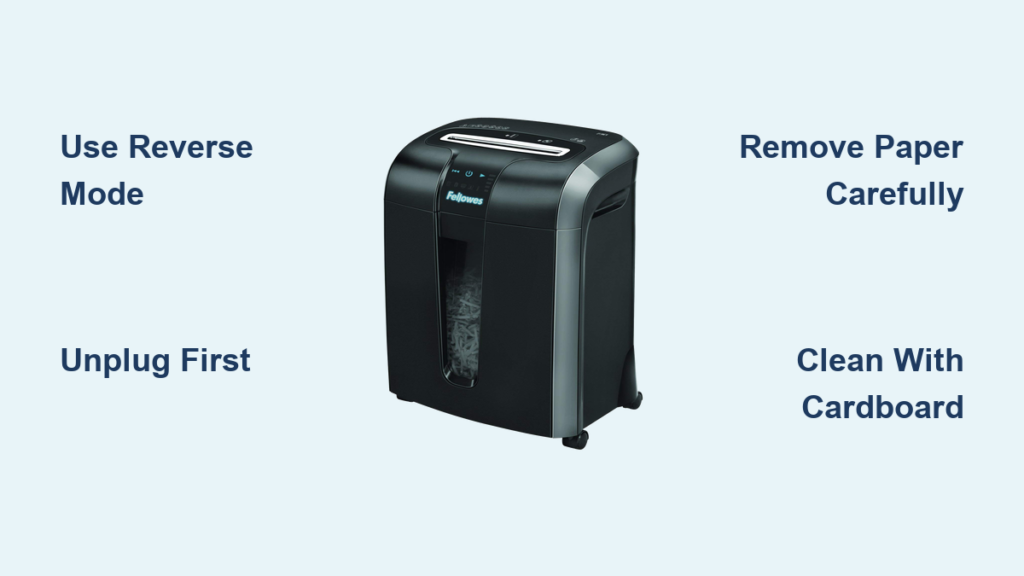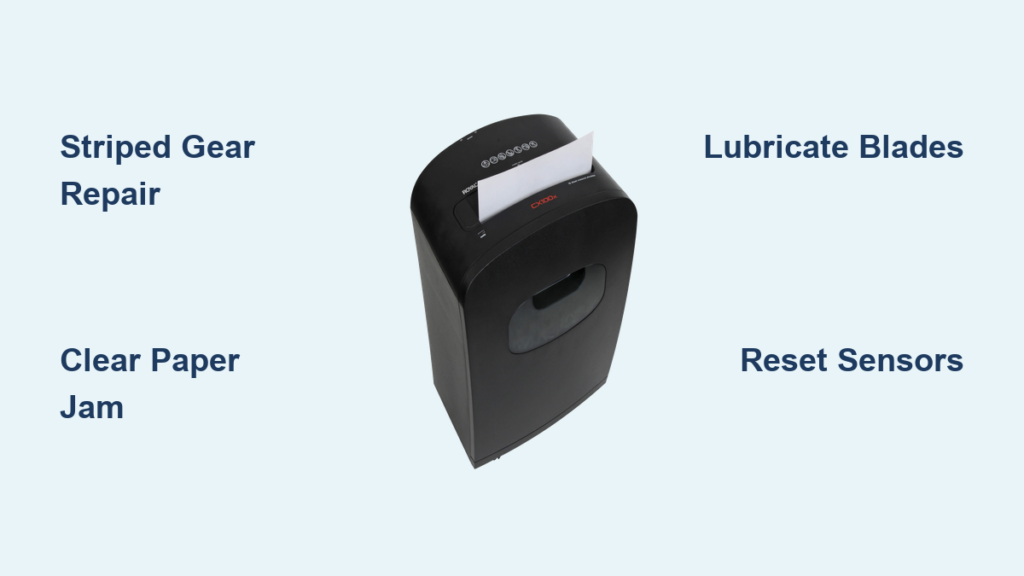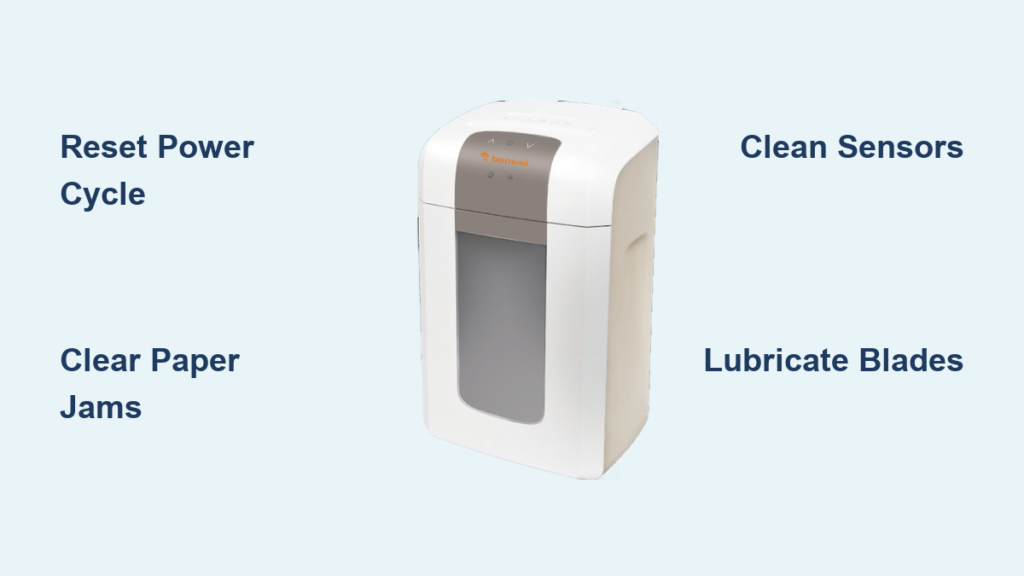

Is your Swingline paper shredder suddenly unresponsive, jammed, or running constantly? You’re not alone. Paper shredder issues, especially jams, power failures, and sensor errors, are among the most common office equipment frustrations. The good news: most Swingline shredder problems can be resolved quickly with the right troubleshooting steps. Whether you’re dealing with a machine that won’t start, keeps jamming, or won’t pull in paper, this guide delivers clear, step-by-step fixes based on official protocols and real-world diagnostics.
You’ll learn how to safely clear jams, reset thermal protection, diagnose sensor failures, and maintain peak performance without needing a technician in most cases. Let’s dive into the most effective troubleshooting strategies for your Swingline shredder.
Power Failure and No Response

When your shredder doesn’t turn on, don’t assume it’s dead. Most power failure issues stem from safety interlocks, thermal overload, or simple power disconnects. Before calling for service, check these common causes first.
Check Power and Outlet First
Ensure the shredder is firmly plugged into a working outlet. Test the outlet with another device to confirm it has power. If the unit has a power switch, verify it’s in the On position. Some models have indicator lights, and if there’s no light at all, the issue is likely electrical or involves a tripped safety switch.
Reset Thermal Cutout Protection
Swingline shredders automatically shut off to prevent motor burnout when they overheat. Symptoms include the unit stopping mid-shred with no jam warning. To fix this, turn off the shredder but leave it plugged in for 30 to 60 minutes to allow the cooling fan to operate. Do not unplug immediately because this stops the fan and prolongs cooldown. After cooling, restart in Auto mode. Prevent repeat shutdowns by following your model’s duty cycle, typically 10 minutes of use followed by 20 to 30 minutes of rest.
Verify Safety Interlock Mechanisms
Swingline units have multiple safety switches that disable operation if components aren’t aligned. Check the following areas to ensure proper seating and closure.
Confirm Wastebasket Seating
The head unit must sit perfectly on the bin. Look for alignment tabs on the back or sides of the basket. These must click into slots on the shredder base. If the basket is pulled out or misaligned, even slightly, the machine won’t power on.
Ensure Cover and Door Are Closed
All safety covers must be fully shut. On models with ShredSafe, do not tilt the cover past its first stop because over-opening triggers a power cut-off. Listen for a click when closing to confirm the interlock engaged.
Remove Plastic Liners
Plastic trash bags can interfere with bin sensors or seating. Take out the liner and test operation with the empty bin. If the shredder works, avoid using bags or switch to mesh-style inserts.
Clearing Paper Jams Quickly
Jams are the number one issue with paper shredders. Act fast but safely to prevent motor strain and blade damage. The longer a jam sits, the harder it becomes to clear.
Use Reverse Mode Immediately
Don’t force paper through the machine. Switch to Reverse and run for 3 to 5 seconds. This often backs the paper out. Warning: Never use reverse when shredding credit cards or CDs because this can damage the gear train.
Alternate Forward and Reverse Cycles
If reverse alone fails, try this rocking motion. Run forward for 1 second, then switch to reverse for 5 seconds. Repeat up to 5 times. This dislodges stubborn paper clumps that won’t clear with reverse alone.
Perform Manual Extraction
If the jam persists after trying reverse and forward cycles, you’ll need to remove paper manually. Unplug the shredder first. Use needle-nose pliers or tweezers to pull out visible paper fragments. Shine a flashlight into the feed chute to spot hidden pieces. Remove all debris because even small scraps can re-trigger jams.
Apply Oil for Stubborn Jams
Dry, compacted paper resists clearing. Use lubrication to soften it. Unplug the unit first. Drizzle 2 to 3 tablespoons of shredder oil onto the blades at the jam site. Let it soak for 30 minutes to saturate the paper. Plug back in and use reverse mode or a rigid card to clear the blockage. Never use spray oil because it can damage internal components.
Try the Rigid Sheet Method
A stiff card can push through or reset the feed sensor. Use an index card, file folder, or cereal box cardboard. Insert it firmly into the center of the feed slot. Push straight through to clear blockages or reset the activation switch.
Fix Shredder Won’t Pull Paper

Your shredder runs, but paper just sits there? The issue is likely sensor-related or mechanical. Don’t force the paper because this can cause jams or damage the feed mechanism.
Confirm Auto Mode Is Active
The shredder only pulls paper in Auto or On mode. In Reverse or Off, it won’t engage. Set to Auto and test with a single sheet. Make sure the mode switch is fully engaged in the correct position.
Clean the Activation Sensor
A dirty sensor won’t detect paper. The sensor is in the center of the feed slot. Use a dry cotton swab to wipe away dust, oil, or paper fibers. Do not use canned air because it can force debris deeper or damage delicate parts.
Test with a Rigid Folder
Sometimes the sensor switch gets stuck. Force a file folder or thick card into the center feed slot. This can physically reset the switch mechanism and restore proper sensor function.
Diagnose Gear or Motor Failure
If the motor runs but makes a high-pitched whine with no cutting, the drive gears may be stripped. This often happens after shredding staples, thick stacks, or non-paper items. This requires internal gear replacement, so contact support or consider unit replacement.
Stop Constant Running in Auto Mode

If your shredder runs nonstop even with no paper, the sensor thinks it’s always receiving input. This wastes energy and strains the motor.
Clean the Feed Sensor
Dust, oil, or paper scraps can block the sensor. Wipe the center feed area with a cotton swab. Avoid liquids or sprays. Use the rigid card trick to dislodge any physical obstruction that might be triggering the sensor falsely.
Check for Hidden Jams
A small paper fragment may be partially engaging the sensor. Unplug and inspect the feed throat. Remove any debris before testing again. Even tiny scraps can trigger continuous operation.
Resolve Sluggish Performance

If your shredder starts slowly or struggles to cut, lubrication and buildup are likely culprits. Poor performance often leads to jams if left untreated.
Lubricate the Blades Immediately
Dry blades create friction and drag. Use shredder-specific oil, not WD-40 or vegetable oil. Apply a thin line across the feed opening. Run in reverse for 5 seconds, then forward with a few sheets to distribute the oil evenly.
Clear Paper Fiber Buildup
Over time, paper dust compacts between blade stacks. Use compressed air to blow out gaps. For accessible units, gently brush between blades with a stiff, dry brush. This restores proper blade spacing and cutting action.
Fix Auto-Feed Failures
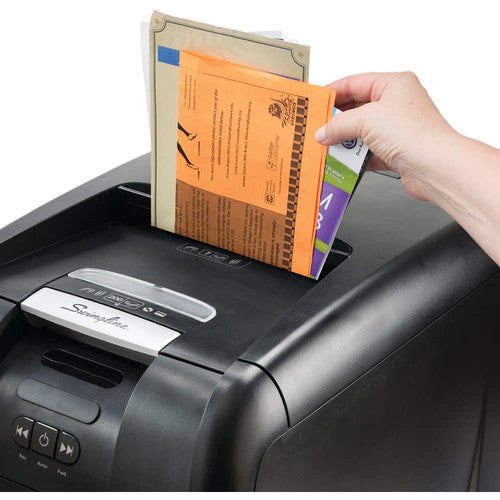
If your auto-feed tray isn’t picking up documents, the rollers aren’t gripping properly. This is common in Stack and Shred models.
Clean Feed Rollers
Paper dust reduces roller traction. Dampen a cloth slightly with water. Wipe rollers gently. Let them dry completely before use. Never use oil or solvents on the rollers.
Check for Roller Wear
If cleaning doesn’t help, rollers may be worn out. Look for smooth, shiny surfaces instead of textured rubber. Replacement parts are available through Swingline support.
Decode Unusual Noises and Error Codes
Strange sounds or lights mean something’s wrong. Don’t ignore them because they often indicate serious issues.
Handle Grinding or Metal Noises
This indicates metal in the blades. Power off immediately. Try reverse mode to eject the object. If noise continues, do not operate the unit because this can cause further damage. Contact a technician for help.
Respond to Error Lights or Codes
A red oil warning light means oil the unit. Use the built-in reservoir if available. For persistent drawer lights, unplug and wait 5 minutes. Open the cover and clear all paper fragments. Check the safety switch near the hinge to ensure it moves freely. If the light stays on, the switch may need replacement.
Maintain Peak Performance
Prevention beats repair. Follow these maintenance rules to avoid 90% of common issues.
Oil Based on Cut Type
Lubrication frequency depends on your shredder’s cutting mechanism. Micro-cut models need oil every 15 to 20 minutes of use. Cross-cut models need oil every 30 minutes or half a bin. Strip-cut models need oil every 2 hours or when the bin is full. Stack and Shred 750 models need oil every 10 to 15 uses or when the red light appears.
Use Approved Lubricants Only
Use genuine shredder oil or pre-oiled maintenance sheets. Never use vegetable oil because it goes rancid and clogs mechanisms. Never use WD-40 because it damages seals. Never use spray oils because they’re too volatile for internal components.
Clean Monthly
Clean blades with compressed air or a brush. Clean sensors with a cotton swab only. Clean rollers with a damp cloth, then dry thoroughly.
Prevent Future Problems
Avoid common mistakes that lead to breakdowns. Prevention is always cheaper than repairs.
Never Feed Prohibited Items
These cause jams, blade damage, and motor strain. Never feed staples, paper clips, or binder clips. Never feed labels, stickers, or glued envelopes. Never feed laminated paper, transparencies, or cardboard. Never feed wet or damp paper.
Count Sheets
Don’t Guess overloading is the top cause of jams. Always count sheets before feeding. Fan stacks to prevent double-feeding. Stay within your model’s rated capacity.
Manage Duty Cycle
Respect run-time limits. Most personal models need 10 minutes on followed by 20 to 30 minutes off. High-volume units should follow manufacturer guidelines. Frequent overheating indicates you need to reduce session length or upgrade your model.
Know When to Replace
Even well-maintained shredders wear out. Sometimes repair isn’t worth the cost.
Blade and Gear Longevity
Blades last millions of cuts and rarely need replacing. Poor cutting after lubrication suggests misalignment, not wear. Check the blade alignment before assuming the blades are worn out.
Replacement Guidelines
Consider a new unit if it’s over 5 to 7 years old. Consider replacement if repair costs exceed 50% of a new model’s price. Consider replacement if critical parts like safety switches are unavailable.
Frequently Asked Questions About Swingline Paper Shredder Troubleshooting
Why won’t my Swingline shredder turn on at all?
Check the power connection first. Ensure the shredder is plugged into a working outlet and the power switch is on. If there’s no indicator light, the issue may be a tripped safety switch from a misaligned wastebasket or open cover. Re-seat the head unit firmly on the bin and ensure all covers are closed.
How do I reset my Swingline shredder after it overheats?
Leave the shredder plugged in but turned off for 30 to 60 minutes. The cooling fan needs to run to bring the motor temperature down. Unplugging immediately stops the fan and prolongs the cooldown. After the wait period, restart in Auto mode.
What’s causing constant running in Auto mode?
The feed sensor is likely blocked by dust, debris, or oil. Clean the center of the feed slot with a dry cotton swab. Use a rigid card to push any obstructions loose. Check for hidden paper scraps that might be triggering the sensor falsely.
Can I use WD-40 to lubricate my shredder?
No, never use WD-40. It’s a water displacer, not a lubricant, and can damage internal seals and components. Use only genuine shredder oil or pre-oiled maintenance sheets. Vegetable oil goes rancid and should also be avoided.
How often should I oil my Swingline shredder?
Frequency depends on your cut type. Micro-cut models need oil every 15 to 20 minutes. Cross-cut models need oil every 30 minutes. Strip-cut models need oil every 2 hours. Stack and Shred models need oil every 10 to 15 uses or when the red warning light appears.
Why does my shredder run but not pull paper?
The sensor isn’t detecting the paper. Verify you’re in Auto mode, not Reverse. Clean the activation sensor in the center of the feed slot with a cotton swab. Test by feeding paper directly into the center, not the edges.
Key Takeaways for Troubleshooting Your Swingline Shredder
Most Swingline paper shredder issues are fixable with basic troubleshooting. Start by checking power connections and safety interlocks before assuming the worst. Clear jams using reverse mode first, then try manual extraction if needed. Always respect the duty cycle to prevent thermal overload, and lubricate regularly based on your cut type. Use only approved lubricants and never feed prohibited materials like staples, paper clips, or laminated paper. Clean sensors monthly with a cotton swab, and keep the feed area free of debris. By following these steps, you’ll extend your shredder’s life, avoid downtime, and keep your office running smoothly. For unresolved mechanical or electrical faults, contact Swingline customer support with your model number and error details.