
If you have just unboxed your Fellowes paper shredder, whether it is the Powershred 63Cb, 73Ci, or 12C15, you are likely eager to start destroying sensitive documents. However, knowing how to use your specific model correctly is essential for safe operation and optimal performance. Each Fellowes shredder comes with unique features like SafeSense protection, JamBuster technology, and smart energy modes that enhance functionality when you understand how to use them properly.
This guide walks you through every step, from initial setup and daily operation to clearing jams and maintaining peak performance. Whether you are shredding tax records, credit cards, or confidential business documents, following the right process prevents damage, extends your shredder is lifespan, and keeps your workspace secure.
Set Up Your Fellowes Shredder Correctly

Before powering on your shredder, ensure it is assembled and positioned for stable, safe use. Proper setup prevents operational issues and ensures the machine functions as designed.
Install Wheels and Position Your Unit
The Fellowes 12C15 requires you to attach the four adjustable wheels to the base before first use. These wheels allow you to move the unit easily between rooms or desks. The 73Ci comes with built-in casters, so no assembly is needed. Simply roll it into place. All models are designed for compact spaces, but leave at least 6 inches of clearance around the feed opening for proper airflow.
Place your shredder on a level surface near a power outlet. Avoid high-traffic areas where cords could be tripped over during continuous shredding sessions.
Insert and Secure the Waste Bin
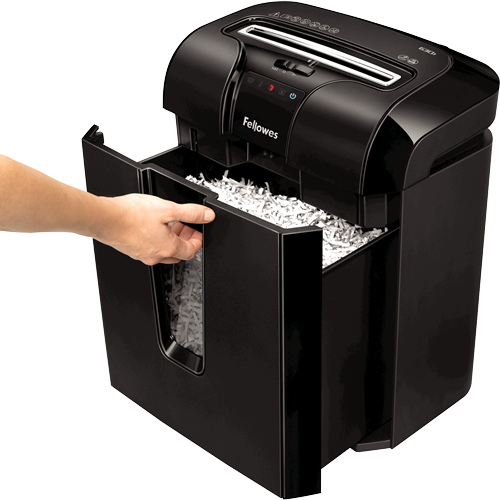
All three models require the waste bin to be fully seated before operation will begin. The 63Cb features a 19-litre pull-out bin with an ergonomic handle. Slide it in until it clicks into place. The 73Ci uses a 6-gallon front-loading bin that fits standard trash bags. Align the rails and push until secure. The 12C15 has a removable bin that slides in from the top. Ensure it is flush with the body before proceeding.
If the bin is not locked in place, the shredder will not start. This safety feature prevents accidental spills and protects the motor from strain.
Power On and Check Your Controls
Once assembled, power up your shredder and verify system readiness using the control panel. Each model offers different interface options with intuitive feedback.
Activate Using the Control Panel
Locate the power switch or touchpad on the front of your unit. The 63Cb uses a mechanical switch with Auto, Off, and Reverse positions. The 73Ci features an LCD touchpad that displays real-time status, including overload warnings and power mode. The 12C15 has a simple switch with Forward, Reverse, and Lock settings.
Turn the unit to Auto or tap the start icon on the 73Ci. A green light or display message confirms that power is active. Some models emit a soft beep upon startup.
Enable Lock Mode and Test Safety Features
Use the Lock or Unlock feature on the 12C15 to disable the shredder when not in use. This prevents unauthorized access, which is ideal for shared offices or homes with children. Slide the switch to Lock to disable all functions. Return to Unlock to resume normal operation.
The 63Cb and 73Ci include SafeSense technology, which stops the blades instantly if fingers or foreign objects touch the feed throat. Test this feature by gently placing your hand near the opening. The machine should halt immediately.
Load and Shred Documents Safely
Now you are ready to destroy documents. Follow these steps to maximize efficiency and prevent jams.
Check Your Model Sheet Capacity Limits
Respect the maximum sheet count for your specific model to avoid overload and jams.
The 63Cb handles up to 10 sheets of 20 lb paper. The 73Ci and 12C15 both accept up to 12 sheets. Exceeding these limits triggers overload sensors, reverses the motor automatically, or causes jams. The 63Cb LED sheet counter lights up as you approach capacity, giving early warning. The 73Ci LCD screen flashes if too much material is inserted at once.
Insert Mixed Materials Correctly
All three models handle more than plain paper. Here is what you can safely shred in each model.
The 63Cb shreds staples and paperclips, envelopes, and credit cards. It cannot handle CDs, DVDs, or laminated documents. The 73Ci handles all of the above plus CDs, DVDs, and laminated documents. The 12C15 shreds envelopes and credit cards, but you should remove staples and paperclips if unsure.
For credit cards on the 12C15, insert straight down the center of the feed throat. Tilted insertion can jam the blades.
Monitor Continuous Operation Time
While the 63Cb supports up to 8 minutes of continuous shredding, the 73Ci and 12C15 are designed for intermittent use. Running them longer increases heat buildup and triggers thermal protection.
Avoid Overheating Your Shredder
After 5 to 6 minutes of non-stop shredding, especially with thick stacks, pause for 30 to 60 seconds to let the motor cool. The 63Cb energy-saving mode helps reduce heat by lowering power during idle periods. If the motor stops unexpectedly, wait 2 to 3 minutes before resuming.
Batch large jobs into 5-minute intervals. This prevents overheating and maintains consistent performance throughout extended sessions.
Clear Jams Quickly and Safely
Even with anti-jam technology, obstructions happen. This is especially common with folded paper, tape, or misaligned cards.
Use Reverse Mode to Release Jams
If the shredder stops or reverses on its own, switch to Reverse or hold the reverse button on the 73Ci. Wait for the machine to eject the paper. Gently pull out the material once it is partially expelled. Return to Auto and restart.
The 73Ci requires no tools for jam clearing. Its reverse function is strong enough to dislodge most blockages.
Prevent Future Jams
Common jam causes include loading beyond sheet limits, feeding crumpled or folded paper, inserting non-approved materials like metal or fabric, and misaligned credit cards, especially on the 12C15.
Always feed paper flat and aligned. Do not force stuck items. Use reverse mode instead.
Empty and Maintain the Waste Bin
A full bin reduces capacity and may trigger shutdowns. Regular emptying keeps your shredder running smoothly.
Remove and Dispose of Shreds
For the 63Cb and 12C15, pull the bin straight out. For the 73Ci, open the front door and slide the bin forward. All models allow you to line the bin with a standard trash bag, which is especially useful for the 73Ci where you can lift the bag out without touching the shreds.
Empty when the bin is three-quarters full or when the full-bin indicator lights up on the 63Cb.
Clean the Feed Throat and Blades
After every few uses, wipe the feed opening with a dry cloth to remove dust. For deeper cleaning, run 2 to 3 sheets of shredder cleaning paper through the unit. Alternatively, shred a few sheets of plain paper sprayed lightly with canola oil.
This lubricates blades and prevents rust. Perform this maintenance monthly for best results.
Optimize Performance by Model

Each Fellowes model excels in different environments. Use these tips to match your workflow.
Powershred 63Cb for High-Volume Home Offices
The 63Cb is ideal for small businesses or heavy daily use. Leverage its 8-minute run time for shredding invoices, reports, or tax files in one session. Keep staples in your documents. The JamBuster system handles mixed materials without issues. Use energy-saving mode to reduce power when the unit is idle.
This model is best for users who need durable, uninterrupted shredding with minimal maintenance.
Powershred 73Ci for Quiet Multi-Media Shredding
The 73Ci is perfect for shared or quiet spaces. Shred CDs, DVDs, and laminated documents safely. Use the LCD touchpad to monitor feed and avoid overloads. Roll it around easily with built-in casters.
This model is best for users who value silent operation and versatility over raw speed.
Powershred 12C15 for Portable Everyday Security
The 12C15 is great for mobile users or compact desks. Lock the unit to prevent accidental starts. The wheels make it easy to store or move. Shred 12 sheets quietly with smooth motion.
This model is best for light to moderate daily use where portability and safety are priorities.
Troubleshoot Common Shredder Issues
Even well-maintained shredders encounter problems. Here is how to fix them fast.
No Power or Won’t Start
Check bin placement to ensure it is fully inserted. Verify the power cord is plugged directly into the wall, not a power strip. Test the outlet with another device to confirm power is working. If overheated, wait 2 to 3 minutes before attempting to restart.
Shreds Are Too Large
If particles are longer than one-quarter inch, blades may be dull or you may be overloading the machine. Reduce sheet count per pass. Lubricate blades with oil-treated paper. Contact Fellowes support if cutting quality does not improve after maintenance.
Unusual Noise or Vibration
Check for foreign objects in the feed throat. Ensure paper is aligned with no folds or bends. Place the shredder on a flat surface. Lock the wheels if your model has adjustable wheels.
Extend Your Shredder Lifespan
Proper care ensures years of reliable service from your Fellowes shredder.
Lubricate Blades Monthly
Blade lubrication is critical. Without it, heat and friction wear down components quickly. Use shredder oil or canola oil. Spray lightly on 2 to 3 sheets of paper. Shred them slowly through the machine. Do this every 30 minutes of use or at minimum once per month.
Store Properly When Not in Use
Unplug the shredder after each use. Cover it to prevent dust buildup. Keep it in a dry area away from moisture or extreme temperatures.
Replace When Performance Declines
Signs it is time for a new unit include frequent jams despite maintenance, motor struggling with normal loads, blades no longer producing confetti-cut particles, and overheating occurring within 1 to 2 minutes of use.
Frequently Asked Questions About Using Fellowes Paper Shredders
How many sheets can a Fellowes 63Cb shred at once?
The Fellowes Powershred 63Cb handles up to 10 sheets of standard 20 lb paper in a single pass. It also features continuous shredding capability for up to 8 minutes without overheating.
Can I shred credit cards in my Fellowes shredder?
Yes, all three models shred credit cards. On the 12C15, you must insert credit cards straight down the center of the feed throat to prevent jamming.
How do I clear a paper jam in my Fellowes shredder?
Switch to Reverse mode or hold the reverse button. Wait for the machine to eject the paper. Gently pull out the material once partially expelled. Return to Auto and restart.
Does the Fellowes 73Ci shred CDs and DVDs?
Yes, the 73Ci is specifically designed to handle CDs, DVDs, and laminated documents in addition to standard paper and credit cards.
What should I do if my shredder overheats?
Stop shredding immediately and wait 2 to 3 minutes for the motor to cool. Reduce your batch sizes to 5-minute intervals to prevent future overheating issues.
How often should I lubricate my Fellowes shredder blades?
Lubricate blades every 30 minutes of continuous use or at minimum once per month. Use shredder oil or canola oil on a few sheets of paper and feed them through slowly.
Key Takeaways for Using Your Fellowes Paper Shredder
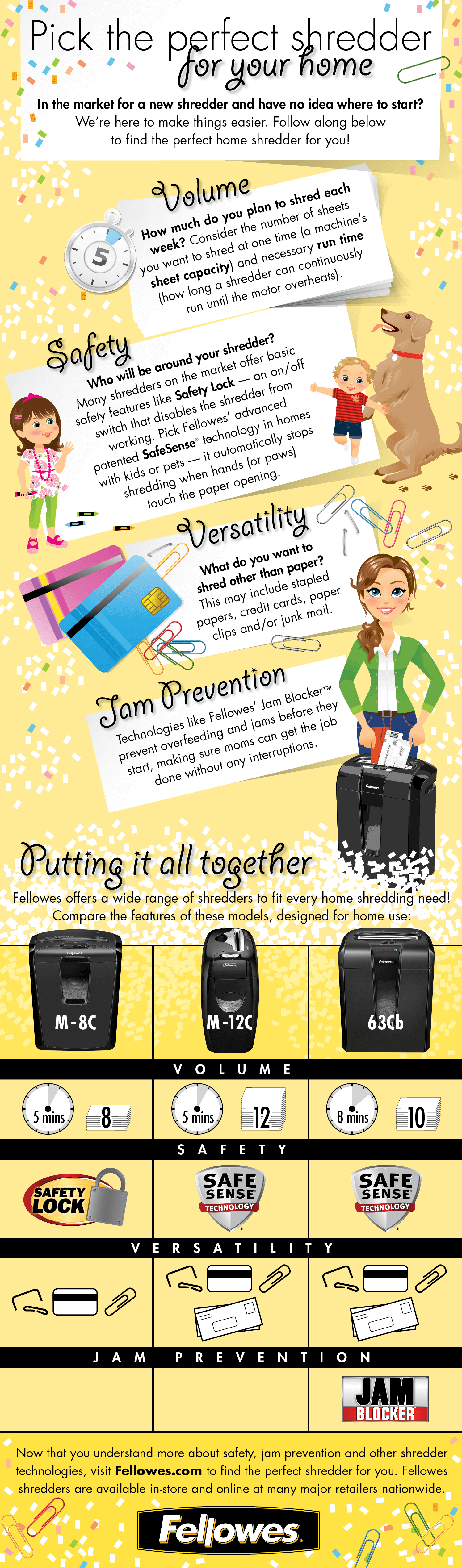
Knowing how to use your Fellowes paper shredder properly transforms it from a simple tool into a secure, long-lasting asset for your home or office. By respecting sheet limits, using reverse mode for jams, lubricating blades regularly, and leveraging model-specific features like SafeSense and JamBuster, you ensure fast, safe, and efficient document destruction.
The 63Cb excels for high-volume tasks with its 8-minute continuous run time and JamBuster technology. The 73Ci offers quiet operation and handles CDs and laminated materials. The 12C15 provides portability with lockable security and easy movement. Choose the model that matches your primary needs and follow the maintenance schedule to keep it performing at its best for years to come.